Clockwork PicoCalc · Volume 10
PicoCalc Volume 10 — Use-Case Playbooks: Calculator & Games
Turning the PicoCalc into a graphing calculator and a retro-game console
Contents
1. About this Volume
This volume covers two end-to-end use cases: the PicoCalc as a fully-functional graphing calculator, and the PicoCalc as a retro-game console.
For the calculator role, three implementation paths are walked through: PicoMite + custom BASIC programs (works on any Pico), uLisp with symbolic algebra (RP2040-only, niche), and MicroPython + a stripped-down sympy port (Pico 2 only, RAM-bound but the fullest symbolic capability). The chapter ends with a head-to-head comparison against the dedicated graphing-calculator market — TI-84 Plus CE and NumWorks N0110.
For the game-console role, the chapter covers what’s actually playable on each Pico variant (NES, GB, GBC, SMS, GG, TIC-80), where to source ROMs ethically, how to map the PicoCalc keyboard to standard game-controller inputs, and what audio mods (Volume 6, Volume 7) make the experience tolerable.
2. Use-Case Playbooks: Calculator and Games
2.1 PicoCalc as a fully-functional graphing calculator
The PicoCalc has the right shape for a graphing calculator: a screen big enough to show plots, a real keyboard, and a battery. Three implementation paths:
2.1.1 Path A — PicoMite + custom BASIC programs
PicoMite’s MMBasic dialect has built-in PLOT, LINE, CIRCLE, RECTANGLE, TEXT, plus full IEEE-754 double-precision math. Floor-effort graphing calculator in BASIC:
' Plot y = sin(x) for x in [-2*PI, 2*PI]
CLS
DRAW LINE 0, 160, 320, 160, RGB(GRAY) ' x-axis
DRAW LINE 160, 0, 160, 320, RGB(GRAY) ' y-axis
FOR x = -2*PI TO 2*PI STEP PI/160
  px = 160 + x * (160/(2*PI))
  py = 160 - SIN(x) * 100
  PIXEL px, py, RGB(BLUE)
NEXT x
This works on any Pico variant (the only bottleneck is interpreter speed — a few hundred ms per plot on Pico 1, near-instant on Pico 2).
For full graphing-calc functionality, you need:
- Function entry parser: parse
y = sin(x) + cos(2x)into evaluable form. PicoMite’sEVALdoes this for free. - Multi-function plotting: use multiple colors.
- Zoom/pan via keyboard: read arrow keys, redraw with new bounds.
- Trace mode: cursor along the plotted curve, show coordinates.
- Numerical integration / differentiation: implement Simpson’s rule and central differences in BASIC.
- Symbolic differentiation / simplification: harder — PicoMite has no symbolic library. See path B or C.
Reference implementation: https://forum.clockworkpi.com/t/rpn-calculator-for-picocalc-v1/19917 (“RPN Calculator for PicoCalc V1”) is an HP48-inspired BASIC implementation that covers most of the above. ~800 lines of BASIC.
2.1.2 Path B — uLisp with symbolic algebra
uLisp can evaluate symbolic expressions natively (it’s a Lisp). A small symbolic-math library in Lisp covers differentiation, simplification, and limit-style transformations. Caveats: uLisp is RP2040-only as of v1.1, and symbolic stacks consume RAM fast — long expressions can OOM.
2.1.3 Path C — MicroPython + sympy port
sympy is a full-featured symbolic-math library for Python. There is no full sympy for MicroPython (too big — sympy is ~30 MB), but a stripped-down subset called mpsympy exists for educational use. Capabilities:
- Symbolic differentiation, integration, simplification.
- Equation solving (linear and basic quadratic).
- Plotting via the LofiFren display module.
Memory is the binding constraint: even the stripped subset wants 200+ KB of RAM. Only viable on Pico 2 because of its 520 KB SRAM.
2.1.4 Comparison vs. dedicated graphing calculators
| Feature | PicoCalc (PicoMite) | PicoCalc (Path C) | TI-84 Plus CE | NumWorks N0110 |
|---|---|---|---|---|
| Plot speed | Fast on Pico 2 | Medium | Medium | Fast |
| Display resolution | 320×320 | 320×320 | 320×240 | 320×240 |
| Numerical accuracy | Double precision | Arbitrary precision | 14 digits | Double |
| Symbolic math | No (path A) | Yes (limited) | No (CE) | Yes (KhiCAS) |
| Open source / programmable | Yes | Yes | Limited | Yes |
| Battery life | ~30 h | ~25 h | 100+ h (AAA) | ~30 h |
| Cost | $75 + module | $75 + Pico 2 | $130 | $100 |
Verdict: a PicoCalc on Path A or Path C is competitive with the TI-84 Plus CE for plotting and beats it for programmability. For symbolic math the NumWorks N0110 is the strongest dedicated alternative; PicoCalc on Path C is competitive but RAM-limited for large expressions.
2.2 PicoCalc as a retro-game console
2.2.1 What’s playable
| System | Best Pico | Frame rate | Notes |
|---|---|---|---|
| NES | Pico 1 | 60 fps | pico-infonesPlus, ships in factory bundle |
| Game Boy (DMG) | Pico 1 | 60 fps (just) | Pico-GB (YouMakeTech) |
| Game Boy Color | Pico 2 | 60 fps | peanutGB, gb-rp2350 |
| Sega Master System | Pico 2 | 60 fps | pico-sms |
| Game Gear | Pico 2 | 60 fps | pico-sms with 8x scaling |
| Game Boy Advance | none | unplayable | Use Pi Zero 2 W (Doc 3) |
| SNES | none | unplayable | Use Pi Zero 2 W (Doc 3) |
| TIC-80 fantasy | Pico 2 | 60 fps | pico2-tic80 |
| PicoMite games | both | 60 fps | Geoff Graham’s site has 50+ games |
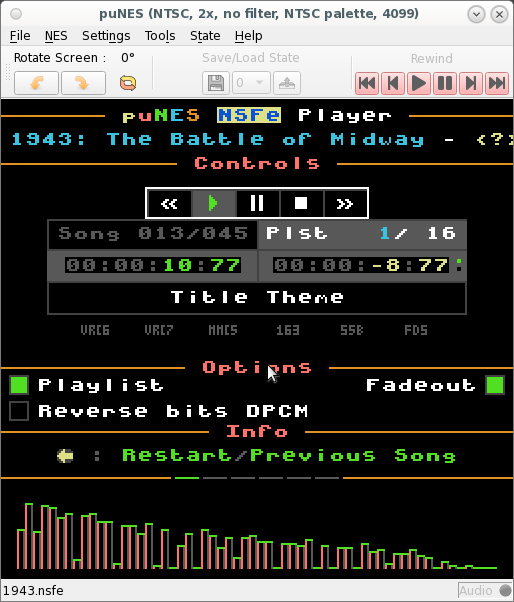
pico-infonesPlus delivers, with a 320×320 display upscaling 256×240 native NES output.Figure 2.2.2 — NES emulation reference. File:PuNES NTSC main2.png by Gameposo. License: CC BY-SA 4.0. Via Wikimedia Commons.
2.2.2 Setup steps for NES emulation
- Download
pico-infonesPlusUF2 from https://github.com/fhoedemakers/pico-infonesPlus/releases (pick thepicocalcbuild for the right architecture). - Copy to
pico1-apps/nes_emu.uf2(orpico2-apps/nes_emu.uf2). - Create
pico*-apps/roms/nes/on the SD and put.nesROMs there. The emulator scans this folder. - Boot with the bootloader hotkey held; select the NES emulator.
- The emulator’s own menu lets you pick which ROM to load.
2.2.3 Sourcing ROMs ethically
- Public-domain / homebrew ROMs: https://www.nesworld.com/ has hundreds. https://itch.io/games/free/tag-game-boy for GB homebrew.
- Dump from your own carts: a CartReader (search “open-source NES dumper” on GitHub) reads your physical cartridges into
.nesfiles. This is the legally safest route for retail games — you own the cartridge. - Don’t: download “ROM packs” from random sites. Most of these are commercial games whose copyright is still active; the legal status varies by jurisdiction but is broadly not in your favor.
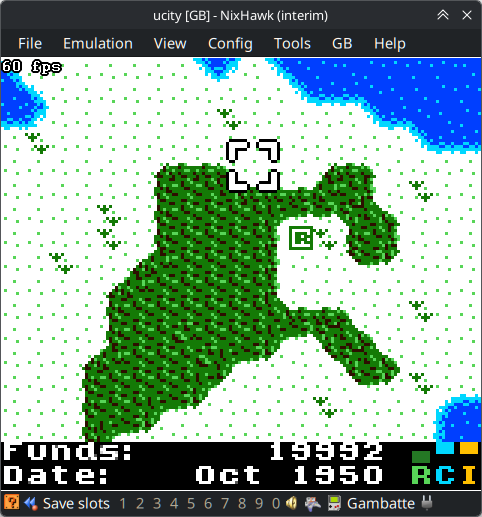
peanutGB or gb-rp2350. Pico 1 cannot quite drive GBC at full speed; Pico 2 handles it comfortably at 60 fps.Figure 2.2.3 — Game Boy Color emulation reference. File:Gambatte Emulator.jpg by Wikimedia Commons contributor. License: CC BY-SA 4.0. Via Wikimedia Commons.
2.2.4 Keyboard-to-controller mapping
The PicoCalc has no gamepad — its 67-key keyboard stands in. Every emulator needs a key map from the PicoCalc’s physical keys to the console’s virtual buttons. The conventions that work well:
| Console button | PicoCalc key | Notes |
|---|---|---|
| D-pad | Arrow keys | Native — the PicoCalc’s four-way D-pad cluster maps 1:1 |
| A | Z | Left-hand home row, comfortable for long sessions |
| B | X | Adjacent to A; mirrors the NES controller layout |
| Start | Enter | Intuitive |
| Select | Right Shift | Out of the way, hard to hit accidentally |
| L / R (GBC) | A / S | Only needed for GBC; mirrors WASD-adjacent placement |
| Turbo A / B | C / V | Optional; some emulators support auto-fire |
Most PicoCalc emulators (pico-infonesPlus, peanutGB, pico-sms) read keys via the STM32 keyboard coprocessor’s I²C interface (same path as normal typing). The key map is typically a #define block near the top of the emulator’s source — edit, rebuild, reflash.
If you want to remap at the keyboard-coprocessor level instead (so the map persists across all firmware), see Volume 6 §6.1 for the STM32 keymap modification procedure.
2.2.5 Audio — making games sound tolerable
The PicoCalc’s stock speakers are small and tinny. For gaming this ranges from “fine for chiptune NES” to “painful for anything with sampled audio.” Three tiers of improvement:
- Software volume control. Most emulators expose a volume setting. Start here — turning down to ~60% eliminates the worst clipping distortion from the tiny speakers.
- Headphone jack. The PicoCalc has a 3.5 mm headphone jack wired to the same audio path. Plug in any decent earbuds and the experience transforms. This is the zero-effort fix.
- Hardware audio mods. Volume 6 §6.2 covers the speaker-grille mod (~6 dB improvement for two minutes of Dremel work). Volume 7 §10.1 covers the PCM5102A I²S DAC add-on — true 24-bit audio with its own headphone amp, which turns the PicoCalc into a genuinely good-sounding device. Overkill for NES chiptunes, but worth it if you’re also using the PicoCalc for music playback or ham-radio audio (Volume 11).