Clockwork PicoCalc · Volume 13
PicoCalc Volume 13 — PICO-8 on the Pi Zero 2 W
The fantasy-console build — software, IDE, hardware mods, mechanical fit
Contents

1. About this Volume

Figure 1.0 — PICO-8 logo. File:PICO-8 logo modern.svg by VectorVoyager. License: CC0. Via Wikimedia Commons.
Volume 8 introduced PICO-8 in a single chapter as one workload among many for the Pi Zero 2 W. This volume is the deep version of that one chapter: PICO-8 as the primary system, the Pi Zero 2 W as the host that exists to run it, and a catalogue of hardware modifications that turn the PicoCalc shell into a credible, dedicated PICO-8 handheld.
PICO-81 is a “fantasy console” — a virtual game machine with intentionally tight resource limits (128×128 / 16 colors / 4 sound channels / 8 KB cart / ~8000 tokens of Lua). Those limits are not a marketing artifact but a creative constraint: complete games are small enough to author solo in an afternoon, the entire dev toolchain — sprite editor, map editor, SFX editor, music tracker, code editor, and runtime — fits in a few megabytes and runs natively on every platform PICO-8 ships for, and a finished cart is a 160×205-pixel PNG with the code, art, sound, and map steganographically encoded into the low bits of the colour channels. This volume is about getting all of that running on the PicoCalc + Pi Zero 2 W combination, smoothly enough that you can hand the device to someone and have them not realise it isn’t a purpose-built console.
The volume is structured as software in chapters 2–17 and hardware in chapters 18–25, with autoboot and kiosk material in 26–27 and references in 28–30. A reader who already has the Pi Zero 2 W bring-up done (Volume 8 chapter 5) can skip to chapter 4. A reader who only cares about the mechanical/electrical mods and wants to source carts elsewhere can skip to chapter 18.
This volume:
- Chapter 2 — what PICO-8 is, why it fits the PicoCalc, and what it can’t do.
- Chapter 3 — why the Pi Zero 2 W is the right host (Pico-class boards can’t).
- Chapter 4 — Pi Zero 2 W hardware setup specifically tuned for PICO-8.
- Chapter 5 — installing PICO-8 end to end.
- Chapter 6 — display configuration for the 320×320 IPS panel.
- Chapter 7 — input — keyboard mapping, joypad, six-button layouts, two-player.
- Chapter 8 — audio routing.
- Chapter 9 — SPLORE, the on-device cart browser.
- Chapter 10 — the on-device editor suite as a complete IDE walkthrough.
- Chapter 11 — the PICO-8 Lua dialect, with every deviation from stock Lua catalogued.
- Chapter 12 — the limit budget: tokens, compressed-size, characters, memory.
- Chapter 13 — the sprite editor.
- Chapter 14 — the map editor.
- Chapter 15 — the SFX and music editors.
- Chapter 16 — external editors and IDE integrations.
- Chapter 17 — community tools — picotool, p8tool, p8scii, picotron sidebar, CI workflows.
- Chapter 18 — cart format internals (the .p8.png steganography format) and exporting.
- Chapter 19 — pre-compiled / community-published software you can run today.
- Chapter 20 — a complete authoring walkthrough — build a small game from blank cart to BBS upload.
- Chapter 21 — advanced — peek/poke, the memory map, raw GPIO from inside a cart.
- Chapter 22 — performance tuning on the Pi Zero 2 W.
- Chapter 23 — Picotron, the successor (brief — PICO-8 is the volume’s focus).
- Chapter 24 — hardware modifications that improve the PicoCalc-as-PICO-8 experience.
- Chapter 25 — mechanical fit and 3D-printed cases for the ZeroCalc combo.
- Chapter 26 — autoboot configuration.
- Chapter 27 — kiosk-mode lockdown.
- Chapter 28 — troubleshooting.
- Chapter 29 — Picotron addendum.
- Chapter 30 — resources and bibliography.
Cross-references: Volume 7 chapter 9 has the full ZeroCalc adapter schematic; Volume 8 chapter 5 is the Pi Zero 2 W bring-up; Volume 7 chapter 5 is the I²S DAC mod referenced repeatedly in chapter 8 below.
2. What PICO-8 Is
2.1 The fantasy-console concept
A “fantasy console” is a software emulator for a console that never existed. The idea — popularised by PICO-8 in 2014, since copied and refined by TIC-80, Pixel Vision 8, LIKO-12, WASM-4, and Picotron — is that constraints help. A modern PC can run anything; a designer staring at a million-pixel canvas with 24-bit colour, infinite RAM, and a decade of asset packs to lean on tends to start, get overwhelmed, and never finish. A fantasy console says: 128×128, 16 colours, 8 KB cart, 8 sprites of memory, and you ship in a weekend. The constraints are tight enough that any finished thing has aesthetic coherence with every other finished thing on the platform — and the “platform” becomes a community.
PICO-8’s specific constraints, called the specs in the manual:
| Resource | Limit |
|---|---|
| Display | 128 × 128 pixels, 16 fixed-palette colours |
| Sprite sheet | 128 × 128 pixels (256 8×8 sprites in a 16×16 grid) |
| Map | 128 × 32 cells × 8 px = 1024 × 256 pixels (lower half overlays sprite sheet) |
| Sound channels | 4 simultaneous, mixed in software |
| SFX bank | 64 sound effects (each up to 32 notes) |
| Music patterns | 64 patterns (each is a 4-channel SFX selection) |
| Cart code | ~8000 tokens (≈ ~16 KB Lua source) OR 64 KB chars OR ~16 KB compressed — whichever first |
| Cart total size | 32 KB on disk as .p8, ~21 KB image-encoded in .p8.png |
| RAM | 32 KB (memory-mapped: see chapter 21) |
| CPU budget | 30 fps default, 60 fps opt-in; ~1 GFLOP virtual, soft-real-time |
| Controllers | 2 × 6-button (left/right/up/down/O/X), or 8 buttons in the v0.2.5+ era |
The display, sprite, and SFX limits are hard — a cart that violates them will not run. The token / character / compressed limits are also hard, enforced at save time. The CPU budget is soft: a slow cart drops frames but doesn’t crash.
2.2 Why these limits, on this device
The PicoCalc’s display is 320×320. PICO-8’s native 128×128 fits with a 2× pixel scale leaving an 8-pixel-wide black border on each side — close enough to fit-to-screen that it reads as full-screen. The 67-key backlit QWERTY gives more than enough buttons to cover every PICO-8 control mode (arrow keys + Z + X for one player, on-screen labels for both). The 18650 battery pair gives 2–4 hours of PICO-8 runtime depending on whether the radio is on. The mechanical scale is the canonical retro-handheld scale — wider than a Game Boy, narrower than a Steam Deck.
The real constraint of running PICO-8 on this device is compute. PICO-8 is not just “small game” — it’s a software-rendered framebuffer that mixes 4 channels of audio, runs a tokenised Lua VM, and pushes a full 128×128 frame at 30 or 60 fps. The Lua interpreter runs without JIT (LuaJIT was tried in early PICO-8 builds and dropped because it produced inconsistent timing). On a single-core ARM that has to swing its full power budget into pushing frames, this is a real load. The RP2040 / RP2350 in the standard Pico module cannot keep up — there exist Pico-class PICO-8-style players (Lexaloffle’s own “Picoboot” prototype, the third-party pico8-pi patches), but the real PICO-8 binary needs at least armv7 + ~700 MHz + an SDL surface.
That’s where the Pi Zero 2 W comes in. Its quad Cortex-A53 at 1 GHz hits the bar with margin. Chapter 3 covers why the alternatives don’t.
2.3 What PICO-8 is not
A few things to set expectations:
- Not open source. The runtime binary, the editor, and the hosted BBS are all closed-source, owned by Lexaloffle. The cart format and the Lua dialect are openly documented enough that compatible reimplementations exist (TIC-80, Picolove, raylib-pico8) but you pay for the official runtime.
- Not free. $14.99 one-time, lifetime updates, no subscriptions. This pays for the runtime and gives you the editor — there’s no separate dev tool.
- Not a general-purpose Lua interpreter. The dialect is based on Lua 5.2 with significant restrictions and additions (chapter 11). A regular Lua program will not run unmodified.
- Not a 3D engine. The whole point is 2D pixel art at 128×128. Some carts do raycasted faux-3D (
Voxatron-style) but it’s a hack. - Not a phone-targeted runtime. It targets desktop and Raspberry Pi. The “PICO-8 Education Edition” web target is browser-only and lacks the editor.
2.4 What’s brilliant about PICO-8
The reason it earns its own volume:
- The cart is the source. The
.p8file is human-readable Lua + ASCII-encoded sprites and SFX. You cangit diffit. You can edit it in vim and re-run it. - The cart is also a PNG. The
.p8.pngformat encodes the same data in the low bits of a 160×205 image’s colour channels, so the cart is shareable as an image you can look at — a screenshot of itself. - The IDE is on-device. Sprite editor, code editor, SFX editor, music tracker, map editor, console, BBS browser — all in the same binary, all 128×128 framed. Everything you need to ship.
- The community is unusually generous. The BBS hosts everything for free. Most authors release source. Tutorial volume is huge.
- Constraints make collaboration easy. Two people sharing a cart format inherently know what they can and can’t do.
3. Why the Pi Zero 2 W
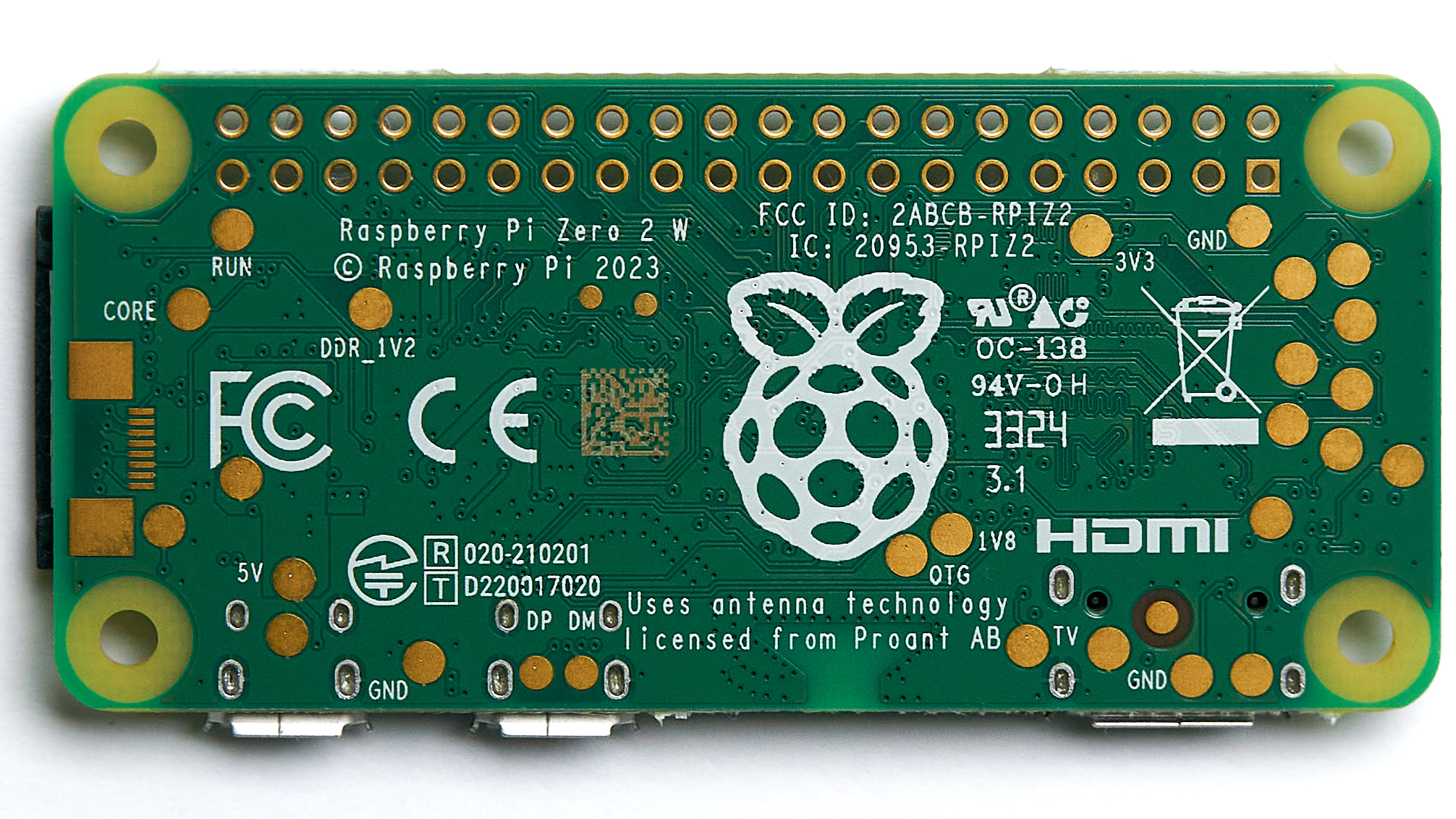
Figure 3.0 — Raspberry Pi Zero 2 W. File:Raspberry Pi Zero 2 W — 2024 — 0012.jpg by Anil Öztas. License: CC BY 4.0. Via Wikimedia Commons.
3.1 The compute floor
PICO-8 runs on Linux (x86_64, armv7+, aarch64), macOS, Windows, BSD, and Raspberry Pi specifically. The Pi distribution is pico8_dyn (an armhf binary that needs armv7 + NEON + at least 512 MB RAM + SDL2). What this rules out from the PicoCalc’s compute options:
| Compute option | armv7+? | RAM | NEON? | SDL2? | Verdict |
|---|---|---|---|---|---|
| RP2040 (Pico 1) | No (ARMv6-M) | 264 KB | No | No | Cannot run PICO-8. |
| RP2350 (Pico 2 / 2 W) | No (ARMv8-M / Hazard3 RV32) | 520 KB | No | No | Cannot run PICO-8 binary; can run a third-party clone like Picolove at very reduced fidelity. |
| Pi Zero (original) | armv6 | 512 MB | No | Yes | Officially supported, but ~6 fps. Not usable. |
| Pi Zero W | armv6 | 512 MB | No | Yes | Same as Pi Zero — too slow. |
| Pi Zero 2 W | armv7 | 512 MB | Yes | Yes | Yes — supported and adequate. |
| Luckfox Lyra (RK3506) | armv7 | 256/512 MB | Yes | Yes (build) | Yes, but binary needs cross-built userland. |
| Pi 3 / 4 / 5 | armv7+ | 1+ GB | Yes | Yes | Yes — these don’t fit in PicoCalc. |
So out of what fits in the carrier socket via an adapter, the Pi Zero 2 W and the Lyra are the two viable hosts, and the Pi Zero 2 W has by far the better software path because the official pico8_dyn binary is built for it and supported on it.
3.2 What “adequate” means
The Pi Zero 2 W at default clocks holds 30 fps on >95% of BBS carts. Some heavy carts (3D math, large procedural-generation, every-frame string-format chains) drop to 15–25 fps. With an overclock to 1.2 GHz (chapter 22) the heavy-cart floor lifts to 25–30 fps. With a careful overclock and the I²S audio mod the device hits 60 fps cleanly on all but the very heaviest carts.
By comparison: a desktop Linux PC runs every cart at 60 fps with 95% of the CPU asleep.
3.3 The hidden cost — display path
PICO-8 expects an SDL2 surface. On a normal Pi Zero 2 W with HDMI out, that’s a hardware-accelerated overlay through VideoCore IV — fast, free. On the PicoCalc with the SPI-attached LCD, there is no HDMI — the display is driven through fbtft / fb_ili9488 writing to /dev/fb0 via SPI, and SDL2’s KMSDRM backend won’t speak SPI directly. The chain becomes:
PICO-8 → SDL2 (sw renderer) → /dev/fb0 → fb_ili9488 driver → SPI0 → ILI9488 LCDEvery frame is a 128 KB blit (320 × 320 × 16-bit) over a 31.25 MHz SPI bus. That’s 128 KB × 30 fps = ~30 Mbit/s of useful data, against an SPI ceiling of ~31 Mbit/s with framing overhead — meaning the SPI bus is at ~95% utilisation just pushing 30 fps frames at 16-bit colour. There is no headroom to spare. Chapter 22 §22.4 and §22.5 cover the tuning needed to keep the chain stable.
Conclusion of this chapter: the Pi Zero 2 W is the answer for PICO-8 on the PicoCalc. The next chapter sets it up specifically for that workload.
4. Pi Zero 2 W Hardware Setup for PICO-8
This chapter assumes the bring-up of Volume 8 chapter 5 has been done — Pi OS Lite is installed, SSH works, the PicoCalc display and keyboard kernel modules are loaded. What follows is the PICO-8-specific extra setup.
4.1 Distro choice
For PICO-8 specifically, Pi OS Bookworm Lite (64-bit) is the right choice:
- The 64-bit kernel is faster on Cortex-A53 (slightly — 5–10%) but PICO-8 itself is 32-bit ARM. The 64-bit kernel running a 32-bit binary works fine via
armhfmultiarch, which Bookworm enables by default. - Lite (no desktop) leaves more RAM and CPU available — PICO-8 plus SDL2 plus the kernel together use about 80 MB; you don’t need a desktop’s overhead on top.
- DietPi (Volume 8 §4.5) saves another 30 MB but the small extra friction of installing PICO-8’s runtime deps from scratch isn’t worth it for this workload.
- RetroPie (Volume 8 §4.4) bundles PICO-8 if you supply the binary — it has built-in launcher integration via the Lexaloffle BBS metadata format. Use this if you want to mix PICO-8 with NES/SNES/etc. emulation under EmulationStation.
Recommendation: Pi OS Bookworm Lite if PICO-8 is the primary use; RetroPie if PICO-8 is part of a retro mixed-emulator handheld.
4.2 SD card sizing and class
PICO-8 itself is 4 MB. Average cart size: 5–25 KB (.p8) or 8–32 KB (.p8.png). Even an aggressively-curated personal library of 1000 carts is under 50 MB. The OS underneath is what consumes space. Recommended cards:
| Card | Capacity | Use |
|---|---|---|
| SanDisk Extreme A2 32 GB | 32 GB | Default — Pi OS Lite + PICO-8 + 1000 carts + room |
| SanDisk Extreme Pro 64 GB | 64 GB | Adds RetroPie ROM library |
| Samsung EVO 128 GB | 128 GB | Mixed retro + media — overkill for pure PICO-8 |
Class A2 cards have noticeably better random IOPS than A1 — on a Pi Zero 2 W booting Bookworm Lite, the difference is ~12 s versus ~21 s.
4.3 Power supply
Stock Pi Zero 2 W idles at ~120 mA from 5 V (so ~0.6 W). PICO-8 running a typical cart pulls another ~150 mA on the CPU plus another ~50–80 mA pushing SPI frames (the SPI driver’s interrupt rate is non-trivial). Call it ~350 mA at 5 V running average — ~1.75 W. The PicoCalc’s 5 V supply (via the AXP2101 boost from the 18650 pair) is rated 1.5 A continuous, comfortably above this.
What actually causes problems is transient drops: when the WiFi radio kicks into a TX burst at 200 mA peak on top of the PICO-8 load, you can dip below the 4.6 V undervoltage threshold for a few ms, and Pi OS will flag a “low voltage detected” warning in dmesg. If this is happening (vcgencmd get_throttled returns a non-zero value), one of:
- Disable WiFi while playing (cleanest, also saves 80 mA average —
sudo iwconfig wlan0 txpower off). - Add a 1000 µF low-ESR cap on the 5 V rail near the Pi Zero VBUS pin (Volume 7 §9.4 has the precise recipe — bottom-side near the input pad).
- Use the I²S DAC instead of PWM audio (chapter 8 below) — frees up ~30 mA of average current.
4.4 Heat
A Pi Zero 2 W at default 1 GHz under PICO-8 sustained load reaches the 80 °C temp_soft_limit after about 40 minutes of continuous play in a closed PicoCalc case. The SoC throttles to ~600 MHz at that point, dropping PICO-8 to 15–20 fps.
Mitigations, in increasing effort:
| Mitigation | Steady-state SoC temp | Effect |
|---|---|---|
| None (closed case) | 82 °C, throttled | Unplayable after ~40 min |
| 0.5 mm copper-shim heatspreader on SoC top | 76 °C | Stable, no throttle |
| Copper shim + thermal pad to case rear shell | 71 °C | Stable; case warm but fine |
| Active fan (15 mm × 15 mm 5 V on Vbus) | 62 °C | Inaudible at low PWM, very stable |
| Active fan + open vents in 3D-printed back | 55 °C | Overkill |
Chapter 24 §24.1 has the parts list and mounting recipe for both passive and active variants. Default recommendation: copper shim only, no fan — silent, very low cost, and adequate for PICO-8’s load.
5. PICO-8 Installation Walkthrough
End-to-end, from a fresh booted Pi to a pico8 prompt.
5.1 Buy and download
Account creation and purchase happens at https://www.lexaloffle.com/pico-8.php. $14.99 USD. After purchase your account page shows download links for every supported platform — pick the Raspberry Pi build (pico-8_0.2.6b_raspi.zip as of this writing).
The Pi build has two binaries inside it:
pico8— the statically-linked variant (works on most Pis, larger binary).pico8_dyn— the dynamically-linked variant (smaller, needs SDL2 in the system).
You want pico8_dyn on Pi OS Bookworm — Bookworm has SDL2 packaged, the dynamic build runs slightly faster (~5%) because it gets the system SDL2 with hardware-tuned blits.
5.2 Transfer to the Pi Zero
From a Linux/macOS desktop with the zip downloaded:
scp pico-8_0.2.6b_raspi.zip [email protected]:~From the Pi Zero 2 W (over SSH):
mkdir -p ~/pico8
cd ~/pico8
unzip ~/pico-8_0.2.6b_raspi.zip
5.3 Install runtime dependencies
sudo apt update
sudo apt install -y libsdl2-2.0-0 libsdl2-mixer-2.0-0 libsdl2-image-2.0-0
For Bookworm Lite, that’s actually the entire dep list — SDL2 is what pico8_dyn is dynamically linked against.
5.4 First run
cd ~/pico8/pico-8
./pico8_dyn
What you should see:
- A 128×128 retro-style splash with the PICO-8 logo.
- After ~2 s, the
>console prompt. - The PicoCalc display showing this in some unscaled corner — chapter 6 fixes the display config.
If you instead see “fatal: SDL2 init failed”, you’re missing one of the SDL2 deps; re-check 5.3. If you see “fatal: cannot open display”, you’re not running on a system with a framebuffer or running over SSH without DISPLAY — chapter 6 fixes that too.
If you see nothing — no signal, no logo — but the binary doesn’t crash, the framebuffer driver isn’t pointing at the right /dev/fb0. Run cat /proc/fb to confirm fb0 is fb_ili9488 and not the (always-present) virtual framebuffer the kernel creates first.
5.5 Configuration file
PICO-8 writes its config to ~/.lexaloffle/pico-8/config.txt. First run creates the file with defaults. The settings most relevant to the PicoCalc are:
| Key | Default | PicoCalc-recommended | Why |
|---|---|---|---|
window_size 128 128 | 128 128 | 256 256 | 2× pixel scale fills 256×256 of the 320×320 |
screen_size 128 128 | 128 128 | 256 256 | Match window |
fullscreen 0 | 0 | 1 | Full-screen on a single-app device |
pixel_perfect 1 | 1 | 1 | Keep — no fractional scaling |
sound_volume 64 | 64 | 64 | Default fine |
desktop_path | empty | /home/pi/pico8/carts | Where exported carts go |
host_framerate 60 | 60 | 60 | Keep |
frameless 1 | 0 | 1 | No window decoration |
joystick_index 0 | 0 | varies | If you add a USB gamepad later |
keyboard_present 1 | 1 | 1 | Default |
mouse_present 0 | 0 | 0 | No mouse on PicoCalc |
Chapter 6 covers the display sizing in detail. Chapter 7 covers the keyboard and joystick.
5.6 Make pico8 accessible from anywhere
sudo ln -s /home/pi/pico8/pico-8/pico8_dyn /usr/local/bin/pico8Now pico8 from any directory starts the runtime. This matters for chapter 26 (autoboot).
6. Display Configuration for the 320×320 LCD
6.1 The pixel-scaling problem
PICO-8 is a 128×128 system. The PicoCalc display is 320×320. The valid integer scales are 1× (128×128 island in a 320×320 frame, mostly black), 2× (256×256 with thin borders), or 2.5× (320×320 with non-integer scaling — not pixel-perfect).
Recommendation: 2× scaling. The 32-pixel borders on each side of a 256×256 region read as a “screen bezel” — visually correct for a retro handheld. 2.5× scaling without pixel-perfect smoothing introduces uneven pixel widths that ruin the pixel art.
Set this in ~/.lexaloffle/pico-8/config.txt:
window_size 256 256
screen_size 256 256
pixel_perfect 1
fullscreen 1
frameless 1
6.2 The aspect ratio
PICO-8 carts are square (1:1). The 320×320 display is also square. This is one of the reasons the PicoCalc is unusually well-suited to PICO-8 — most modern displays are 16:9, requiring giant horizontal black bars.
6.3 Framebuffer console interference
By default, Pi OS shows a Linux text console on /dev/fb0 whenever no application is using SDL. The console also writes when the kernel logs (e.g., during a USB hotplug). If a kernel message lands during a PICO-8 session, it draws over the PICO-8 frame.
Fix: silence the console:
sudo sh -c 'echo "kernel.printk = 3 4 1 3" > /etc/sysctl.d/99-pico8-quiet.conf'
sudo sysctl --system
And blank the framebuffer console at boot:
sudo sh -c 'echo "consoleblank=0 vt.global_cursor_default=0 logo.nologo quiet loglevel=3" >> /boot/firmware/cmdline.txt'
# (cmdline.txt is one line — append, don't break the line)
6.4 The SPI bus speed ceiling
fb_ili9488 defaults to 32 MHz SPI clock. The ILI9488 is rated for 80 MHz write but the carrier-board routing degrades signal integrity above ~50 MHz. For PICO-8 specifically the trade-off is:
| SPI clock | Frame time (320×320 16-bit) | Sustainable fps | Pixel artifacts? |
|---|---|---|---|
| 32 MHz | ~32 ms | 30 | None |
| 40 MHz | ~26 ms | 38 | Rare, only on full-screen blits |
| 48 MHz | ~22 ms | 45 | Occasional missing column |
| 62.5 MHz | ~17 ms | 60 (with margin) | Visible — unusable |
To run at 40 MHz (the sweet spot for most users):
sudo sh -c 'echo "dtparam=spi=on" >> /boot/firmware/config.txt'
# Then in the fb_ili9488 device tree overlay:
sudo sh -c 'echo "dtoverlay=ili9488,speed=40000000,fps=60,rotate=0,bgr=1" >> /boot/firmware/config.txt'
sudo reboot
The speed=40000000 is the SPI clock in Hz. After reboot, cat /sys/class/spi_master/spi0/of_node/spi-max-frequency should show 40000000.
6.5 The fbtft fps parameter
fb_ili9488 has its own internal “deferred IO” frame rate independent of SPI clock. This determines how often the kernel pushes the in-RAM framebuffer to the display. Default is 30 fps. For PICO-8 at 30 fps, this is fine. For 60-fps PICO-8 carts (poke(0x5f2c, 3) in code; see chapter 21), set it to 60:
dtoverlay=ili9488,speed=40000000,fps=60,rotate=0,bgr=1If you push fps to 60 and the SPI clock is too low, you get tearing — the display update rate exceeds the bandwidth available, and frames partially update. The 40 MHz / 60 fps combination above is balanced; 32 MHz / 60 fps will tear visibly.
6.6 Colour ordering — bgr=1
The ILI9488 on the PicoCalc carrier is wired in BGR order, not RGB. Without bgr=1 the entire palette is reversed: red appears blue, blue appears red. PICO-8’s default palette has very specific recognisable colours (PICO-8 dark blue = #1D2B53) and a colour-reversed display is jarring. This is non-negotiable.
7. Controls and Keyboard Mapping
7.1 PICO-8’s button model
PICO-8 carts read input through btn(b, p) and btnp(b, p) (button-pressed-this-frame). Buttons are numbered 0–5 for player p:
| Button | Index | Default key (P1) | Default key (P2) |
|---|---|---|---|
| Left | 0 | ← | S |
| Right | 1 | → | F |
| Up | 2 | ↑ | E |
| Down | 3 | ↓ | D |
| O | 4 | Z (or C) | LSHIFT / TAB |
| X | 5 | X (or V) | A |
| Pause | 6 | Esc / Enter | (shared) |
Newer PICO-8 (v0.2.4+) added buttons 6 and 7 for two more action buttons; very few carts use them.
7.2 PicoCalc keyboard layout caveats
The PicoCalc’s 67-key matrix has full ASCII letters, an arrow cluster, function keys, Shift, Ctrl, Alt, and Esc. Z / X are right where you’d expect them for left-hand action buttons. Arrow keys are in the lower-right quadrant — usable but slightly cramped for sustained gameplay. Two-player on a single PicoCalc keyboard is awkward: P2’s WASD layout sort of works, but there’s not much physical room for two pairs of hands.
7.3 Recommended remap for the PicoCalc
Default mapping is fine for most players. The one tweak worth making is binding Esc to Pause and Tab (not Enter) to “menu” — this matches the on-screen prompts in many community carts:
# In ~/.lexaloffle/pico-8/sdl_controllers.txt — keyboard section
button_pause   ESCAPE
button_menu    TAB
config.txt setting pause_key 0 keeps Esc as pause without exiting; pause_key 1 makes Esc quit (don’t pick this — accidentally exiting PICO-8 in the middle of a session is annoying).
7.4 Adding a USB gamepad
The PicoCalc has a usable on-board control set, but a real D-pad is better for action games. Any standard SDL2-compatible USB gamepad works:
| Gamepad | Cost | Fits the case? | Notes |
|---|---|---|---|
| 8BitDo Zero 2 (BT only) | $20 | Bluetooth | Tiny — fits in a pocket alongside |
| 8BitDo SN30 Pro (USB+BT) | $40 | External | Large, full SNES button set |
| Generic USB SNES clone | $10 | External | Plug-and-play SDL2 |
| Wired Xbox 360 | $15 | External | Heavy, wired |
| Internal mod — Cherry MX D-pad in side-header | DIY | Internal | Chapter 24 §24.6 |
For a USB gamepad: plug into the USB-C port (the carrier’s USB-C routes through the ZeroCalc adapter’s hub IC — confirmed working with all of the above), confirm Linux sees it (ls /dev/input/), then run PICO-8. SDL2 auto-detects.
For the internal mod (recommended for a “real” PICO-8 handheld): chapter 24 §24.6 has the full side-header GPIO-button recipe, and chapter 24 §24.5 covers a USB-OTG hub variant for gamepad + WiFi at once.
7.5 Two-player mode
In ~/.lexaloffle/pico-8/sdl_controllers.txt:
[player1]
left  LEFT
right RIGHT
up    UP
down  DOWN
o     Z
x     X

[player2]
left  S
right F
up    E
down  D
o     LSHIFT
x     A
P2 sits to the left of the keyboard; P1 sits to the right. With both pairs of hands on, you get… an interesting evening. The PicoCalc was not really designed for hot-seat PICO-8 but the keyboard physically supports it.
8. Audio Routing
8.1 The two paths
PICO-8 uses 4 software-mixed audio channels at 44.1 kHz. The Pi Zero 2 W can output that audio in two ways:
- PWM audio — the BCM2710’s two GPIO PWM channels, a series RC filter, the on-carrier mono speaker. Cheap, built-in, hissy.
- I²S DAC mod — a PCM5102A on the side header (Volume 7 §5), a real ΔΣ DAC, the headphone jack on the modded back-cover. Clean, almost silent floor, ~96 dB dynamic range.
PWM path is good enough for arcade-style PICO-8 audio. Chiptunes and the “music” tracker carts that live in PICO-8’s musical wheelhouse benefit a lot from the I²S DAC because the RC-filtered PWM rolls off above ~10 kHz — loses cymbals, hi-hats, and the bright fundamental of square-wave tones.
8.2 PWM audio quick-config
Default Pi OS Bookworm has PWM audio working out of the box on the Pi Zero. PICO-8 picks up the default ALSA card. To verify:
aplay -l
# expected output:
# card 0: Headphones [bcm2835 Headphones], device 0: bcm2835 Headphones [bcm2835 Headphones]
PICO-8 honours ~/.lexaloffle/pico-8/config.txt’s audio_buffer_size. Default is 1024 samples; for the PWM path on a Pi Zero 2 W under load, 2048 reduces underruns:
audio_buffer_size 2048The trade-off is ~50 ms of input latency. For PICO-8 this is imperceptible.
8.3 I²S DAC — software side
After installing the PCM5102A per Volume 7 §5, the Pi Zero 2 W needs a device-tree overlay to expose it as an ALSA card:
sudo sh -c 'echo "dtoverlay=hifiberry-dac" >> /boot/firmware/config.txt'
sudo reboot
The hifiberry-dac overlay ships with Pi OS and works with any generic PCM5102A wired to the standard I²S pins (BCK = GPIO18, LRCK = GPIO19, DIN = GPIO21). After reboot:
aplay -l
# expected:
# card 0: sndrpihifiberry [snd_rpi_hifiberry_dac], device 0: HifiBerry DAC HiFi pcm5102a-hifi-0
Then ~/.asoundrc:
pcm.!default {
    type plug
    slave.pcm "hw:0,0"
}
ctl.!default {
    type hw
    card 0
}
PICO-8 picks up the default device. Done. The SoC’s PWM path goes silent (no longer the default card) — that’s correct.
8.4 Audio buffer underruns
If you hear pops during heavy carts, increase audio_buffer_size in PICO-8’s config to 4096 or even 8192. Each doubling adds ~25 ms of latency but halves the underrun rate. PICO-8’s audio is not latency-critical (it’s not a rhythm game runtime).
8.5 Headphone vs. speaker
The mod’s PCM5102A drives a 3.5 mm TRS jack with internal 32 Ω headphone amp — drives any normal headphones cleanly (1 V RMS). Driving the speaker through it requires a small class-D amplifier between the DAC output and the speaker — a PAM8403 module ($2) does the job. Volume 7 §5.4 has the schematic.
9. SPLORE — The On-Device Cart Browser
9.1 What SPLORE is
SPLORE is PICO-8’s built-in client for the BBS — Lexaloffle’s official online cart-sharing service at https://www.lexaloffle.com/bbs/?cat=7. The BBS hosts thousands of free user-uploaded carts, every one of them runnable. SPLORE downloads them on demand.
To enter SPLORE: from the > prompt, type splore and press Enter. (Some older docs say bbs; that’s an alias.)
9.2 Navigating SPLORE
The SPLORE interface uses PICO-8’s own button model:
- ← / → — switch tabs (Featured, Recent, Top, Search, Local).
- ↑ / ↓ — scroll through carts within a tab.
- O — preview / download / play.
- X — back / cancel.
Each cart shows a small thumbnail and title. The thumbnail is the first 128×128 frame of the cart, which is the convention. Selecting a cart with O downloads it (cached locally under ~/.lexaloffle/pico-8/bbs/cdata/) and runs it. Press Esc to return to SPLORE.
9.3 The local tab
The “Local” tab in SPLORE shows carts in ~/.lexaloffle/pico-8/carts/ and its subdirectories. Anything you save with save filename.p8 goes there.
9.4 Search
SPLORE’s search hits the BBS in real time. Search by author, title, tag, or keyword. Common searches:
arcade— short arcade-style action carts.puzzle— solo puzzle carts.tweetcart— sub-280-character demos.demake— small reimaginations of larger games (GTA, Minecraft, Skyrim — all exist).tutorial— beginner-aimed.
SPLORE’s search is not great. The BBS website search via a desktop browser is much better, and once you’ve found a cart there you can load #ID from the PICO-8 console where #ID is the BBS shortcut (a 4-character base-58 code printed on the BBS page).
9.5 Performance during SPLORE
SPLORE is itself a PICO-8 cart. Browsing it pegs the CPU at the same level as any other cart. If your overclock is tuned (chapter 22), SPLORE itself runs at clean 60 fps and feels modern.
10. The On-Device Editor Suite — IDE Walkthrough
PICO-8’s editor is the entire IDE. It is an integrated environment for code, sprites, maps, sound effects, and music — all in one binary, all switching by F1–F5 or by clicking the icons in the upper bar.
10.1 Entering the editor
From the > prompt: press Esc once. (The same Esc that pauses a running cart drops to the editor when no cart is running.) The screen switches to a 128×128 editor canvas.
The mode switches are:
| Key | Mode | Purpose |
|---|---|---|
| F1 | Code editor | Lua source code |
| F2 | Sprite editor | 8×8 sprites, 256-sprite sheet |
| F3 | Map editor | Tile-based map, 128×32 cells |
| F4 | SFX editor | Sound effects, 64 slots |
| F5 | Music editor | Music patterns, 64 slots |
Esc returns to the console. Ctrl+R from any editor mode runs the current cart.
10.2 The code editor
A single-file Lua editor. 128×128 viewport means about 32 columns × 30 rows visible at a time. The editor scrolls horizontally and vertically as needed. Keyboard shortcuts:
| Shortcut | Function |
|---|---|
| Ctrl+S | Save cart (save if no filename — prompts). |
| Ctrl+R | Run cart |
| Ctrl+L | Load cart (prompts) |
| Ctrl+C / Ctrl+V | Copy / paste |
| Ctrl+X | Cut |
| Ctrl+Z / Ctrl+Y | Undo / redo |
| Ctrl+F | Find (search) |
| Ctrl+G | Find next |
| Ctrl+D | Duplicate line |
| Tab | Indent (or autocomplete if at end of word) |
| Shift+Tab | Outdent |
| Ctrl+Up/Down | Move line up/down |
| Ctrl+Home/End | Top/bottom of file |
| Home / End | Beginning / end of line |
| F8 | Restart cart |
| F9 | Take animated GIF screenshot (8-second clip) |
The editor has very basic syntax highlighting (keywords blue, strings green, numbers yellow, comments grey) and shows the current token count and char count in the status bar — important because of the limits (chapter 12).
A huge editor productivity tip: PICO-8 supports Unicode character literals for shorter identifiers. Single-character glyphs like █, ▒, ░, ♥, ♪, ⬇, ⬆, ⬅, ➡ count as one token and one character. Combined with PICO-8’s bias toward ultra-terse code, this matters.
10.3 The sprite editor
The sprite editor edits an 8×8 pixel sprite at a time, drawing from the 256-sprite sheet. The sheet is laid out as a 16×16 grid; the lower 8×16 grid (sprites 128–255) overlaps with the map data — using both consumes the same memory.
Editor layout:
- Left half: the current sprite zoomed up to ~64×64 pixels.
- Right half: the 16-colour palette and tool icons.
- Bottom: a strip showing the entire sprite sheet for navigation.
Tools (mouse or keyboard-driven):
| Tool | Key | Purpose |
|---|---|---|
| Pencil | P | Draw single pixel |
| Stamp | S | Pick up area, place |
| Select | Sel | Marquee select |
| Pan | Spc | Drag to scroll the sprite sheet |
| Fill | F | Flood fill |
| Pick | C | Eyedropper |
Number keys 1–9 select palette colours. Holding shift while clicking a palette colour sets the secondary colour (right-click equivalent on systems with mice).
The most powerful sprite-editor feature: flag bits. Each sprite has 8 user-definable flag bits (settable in the editor by clicking the small dots above the colour palette). The map renderer can filter “only sprites with flag 0 set” — used as the canonical way to mark “is this tile solid for collision”.
10.4 The map editor
A 128 cell × 32 cell grid; each cell holds a sprite index. Total map: 1024 × 256 pixels.
Editor layout:
- Top: a strip of the current sprite sheet (the “palette of tiles”).
- Middle: the visible chunk of map (about 16×16 cells visible at once).
- Bottom: tools.
Tools:
| Tool | Function |
|---|---|
| Stamp | Place the currently-selected sprite |
| Select | Marquee select an area to copy/paste |
| Pan | Scroll the map |
Pro tip: mset(x,y,n) from code lets you write to the map at runtime — used heavily for Roguelike-style cart designs where the “map” is generated procedurally.
10.5 The SFX editor
The sound-effects editor builds a single-channel 32-note sound. The notes are pitched on a chromatic grid; each note has volume, waveform, and effect.
Layout:
- Top: 32 vertical bars, each representing one note position. Bar height = pitch, bar colour = waveform.
- Right: detail panel for the selected note — pitch, volume, waveform, effect.
Waveforms (the “sf” column):
| # | Waveform |
|---|---|
| 0 | Triangle |
| 1 | Tilted triangle |
| 2 | Sawtooth |
| 3 | Square |
| 4 | Pulse |
| 5 | Organ |
| 6 | Noise |
| 7 | Phaser |
Effects (the “fx” column):
| # | Effect |
|---|---|
| 0 | None |
| 1 | Slide |
| 2 | Vibrato |
| 3 | Drop |
| 4 | Fade in |
| 5 | Fade out |
| 6 | Arpeggio fast |
| 7 | Arpeggio slow |
The SFX editor’s tempo (the “speed” parameter at top) sets how long each note takes — 8 is medium, 1 is very fast (gunshots, blips), 32 is very slow (long ambient pads).
10.6 The music editor
The music editor stitches SFX patterns together. A music pattern is a 4-channel selection (one SFX per channel). A song is a sequence of music patterns.
Each music pattern can mark “loop start” / “loop back” / “stop after this pattern” / “next pattern” — the looping logic lets you build verse-chorus-bridge structures with a few patterns.
The music editor’s interface is dense and takes practice. The single most useful shortcut: Ctrl+P plays from the current pattern.
11. The PICO-8 Lua Dialect
PICO-8’s language is based on Lua 5.2 with a list of changes — some additive (new operators, new built-ins), some restrictive (no Lua standard library, no metatables in older versions, no goto). Knowing the differences is essential for porting code in or out.
11.1 What’s omitted from standard Lua
| Standard Lua feature | PICO-8 status | Workaround |
|---|---|---|
string library (most fns) | Partial | sub, len, format exist; byte, char, find exist; no match, no gmatch, no gsub |
table library | Partial | add, del, deli are PICO-8 ones; insert, remove, concat are missing — use add/del |
math library | Full but renamed | abs, min, max, flr, ceil, sqrt, sin, cos, atan2, rnd, srand, mid — most directly available without math. prefix |
io library | Absent | Cart format is the only persistence; see cstore and dget/dset |
os library | Absent | time() exists; date() doesn’t |
coroutine library | Present | cocreate, coresume, costatus, yield |
goto / labels | Present (since v0.2.4) | Standard Lua syntax |
| Metatables | Present (since v0.2.0) | setmetatable, getmetatable, __index, __newindex, __add, etc. |
require | Absent | Use #include filename.lua (PICO-8-specific preprocessor directive) |
| Bitwise operators (5.3+) | Replaced | band, bor, bxor, bnot, shl, shr, lshr |
| Integer types | All numbers are 16:16 fixed-point | Range −32768 to +32767.99996 — not arbitrary 64-bit |
print | Different signature | print(str, x, y, col) draws to screen at (x,y) — not stdout |
11.2 What’s added beyond standard Lua
Operators:
| Op | Meaning |
|---|---|
\= | a /= b is a = a / b. Same for *=, +=, -=, %= |
..= | String concatenation assignment |
if (cond) stmt | Single-line if without then/end |
!= | Synonym for ~= |
// | Single-line comment (also -- works) |
Built-ins:
| Function | Purpose |
|---|---|
cls(col) | Clear screen to colour col |
pset(x,y,col) / pget(x,y) | Single-pixel write / read |
line(x1,y1,x2,y2,col) | Draw line |
rect, rectfill | Outlined / filled rectangle |
circ, circfill | Outlined / filled circle |
spr(n, x, y, w, h, flipx, flipy) | Draw sprite |
sspr(sx, sy, sw, sh, dx, dy, dw, dh, flipx, flipy) | Stretched sprite blit |
map(cx, cy, sx, sy, w, h, layer) | Draw map |
palt(col, transparent) | Set a palette colour as transparent |
pal(c0, c1, [palettenum]) | Remap palette colour c0 to c1 |
camera(x, y) | Set draw offset |
clip(x, y, w, h) | Set clipping rectangle |
fillp(pattern) | Fill pattern (4×4 dither pattern) |
print(str, x, y, col) | Print text (also writes to stdout if no x,y) |
sfx(n, ch, offset, length) | Play SFX |
music(n, fade_ms, channelmask) | Play music pattern |
btn(b, p) / btnp(b, p) | Button state / pressed-this-frame |
mget(x, y) / mset(x, y, n) | Get / set map cell |
fget(n, f) / fset(n, f, v) | Get / set sprite flag |
cstore(...) | Save cart-data |
dget(addr) / dset(addr, v) | Persistent storage (256 numbers, survives across runs) |
rnd(x) | Random in [0, x) |
srand(seed) | Seed random |
flr(x) / ceil(x) | Floor / ceiling |
abs(x) / sgn(x) | Absolute value / sign |
t() / time() | Seconds since cart started |
peek(addr) / poke(addr, val) | Read / write byte at memory address |
peek2, peek4 / poke2, poke4 | 16-bit / 32-bit memory access |
stat(n) | Various runtime stats (memory, cpu, etc.) |
menuitem(idx, label, fn) | Add a custom item to the pause menu |
extcmd("screen") | Take a screenshot (and other extended commands) |
Full documentation: https://pico-8.fandom.com/wiki/APIReference.
11.3 The fixed-point caveat
PICO-8 numbers are not floats — they’re 16:16 fixed-point. This means:
- Range: −32768 to +32767.99996 (about ±32K).
- Precision: about 1.5 × 10⁻⁵ near zero, getting worse at larger magnitudes.
- Comparing
x == 0.1will fail on some literals due to the conversion error, just like with floats. - Multiplication is fast; division is slow; trig is fast (table-based).
For most game code this is invisible. It only bites when you try to use PICO-8 as a calculator (chapter 12 of Volume 10 covers this) or do math at scale.
11.4 The trig convention
PICO-8 angles are in turns, not radians. A full circle is 1.0, a quarter is 0.25, etc. sin(0) = 0, sin(0.25) = 1, sin(0.5) = 0. Note that PICO-8’s sin is negated from standard convention so that screen-Y-down geometry just works. Be careful when porting trig from external code.
11.5 The _init, _update, _draw lifecycle
PICO-8 looks for three named functions:
_init()— called once at cart start._update()— called 30 times per second (or_update60for 60 fps)._draw()— called once per frame after_update.
If any are absent, that lifecycle stage is skipped. A cart with only _draw() and no _update() runs but never updates state. The very first PICO-8 program is just:
function _draw()
  cls()
  print("hello world", 30, 60, 7)
end
12. The Limit Budget
PICO-8 enforces three independent code-size limits at save time. A cart that violates any of them fails to save with an error message. The limits:
12.1 Tokens (~8192)
Tokens are roughly “atoms” of Lua source — every keyword, operator, identifier, literal, and punctuation mark counts. Whitespace and comments don’t.
Example:
function add(a, b)
  return a + b
end
Token count: function, add, (, a, ,, b, ), return, a, +, b, end = 12 tokens.
The limit is 8192 tokens. A small game (Pong-class) is ~500. A medium game (Asteroids) is ~2000–3000. Pushing past 6000 means you’re hitting the limit, and aggressive minification is needed.
12.2 Characters (~64K)
The whole source code as a string, including whitespace and comments, must be under 64 KB. This is rarely the binding limit — a token-heavy program usually hits the token limit first.
12.3 Compressed code size (~16 KB)
PICO-8 compresses the cart’s code with a custom move-to-front transform + entropy coding before storing. The compressed result must be under 16 KB. Highly repetitive code compresses well; data-heavy carts (large pre-computed tables) compress worse.
info from the editor shows current usage:
> info
tokens: 1247 / 8192
chars:  4421 / 65535
compressed: 2103 / 15616
12.4 Memory layout (32 KB total)
PICO-8’s RAM is 32 KB, all directly addressable from peek/poke. The map:
| Range | Size | Purpose |
|---|---|---|
| 0x0000–0x0FFF | 4 KB | Sprite sheet (lower) |
| 0x1000–0x1FFF | 4 KB | Sprite sheet (upper) / map data overlay |
| 0x2000–0x2FFF | 4 KB | Map (alternative storage) |
| 0x3000–0x30FF | 256 B | Sprite flags |
| 0x3100–0x31FF | 256 B | Music data |
| 0x3200–0x42FF | 4 KB | Sound effects |
| 0x4300–0x5DFF | ~7 KB | General-purpose RAM (free for cart use) |
| 0x5E00–0x5EFF | 256 B | Persistent cart-data |
| 0x5F00–0x5F3F | 64 B | Hardware state (mouse, btns, palette) |
| 0x5F40–0x5F7F | 64 B | Audio register set |
| 0x5F80–0x5FFF | 128 B | (reserved) |
| 0x6000–0x7FFF | 8 KB | Screen buffer (128×128 × 4-bit packed) |
Chapter 21 covers writing to specific addresses for advanced effects.
12.5 Strategies under the limit
When you blow the token budget:
- Minify variable names. Two-character names cost 1 token each; one-character names also cost 1 token but save chars.
- Use single-line ifs —
if (b) x+=1is 5 tokens vsif b then x+=1 endwhich is 7. - Pack constants into strings. Decoding a level layout from a single base-94 string costs fewer tokens than the same data as a Lua table literal.
- Replace lookup tables with formulas when feasible.
- Extract repeated patterns into 1-token helper functions.
When you blow the compressed size budget:
- Repetitive patterns compress well — reuse them.
- String constants compress per their entropy — abbreviate where you can.
- Pre-computed tables of unique data are the worst case — generate them at runtime instead.
13. Sprite Editor — Step by Step
A walkthrough creating one 8×8 sprite — a smiley face — from scratch.
- Press F2 to enter the sprite editor.
- Press 1 to select sprite 1 (the first one is index 0; we’ll work in slot 1 to leave 0 free).
- The current sprite shows on the left half of the screen as a magnified 8×8 grid. All cells are dark blue (PICO-8 colour 0).
- Press 7 to pick white (colour 7).
- Move the cursor (arrow keys) to (1,1) and press space — that pixel turns white. Repeat at (6,1) for the other eye.
- Press 8 to pick red (colour 8).
- Trace pixels (2,5), (3,6), (4,6), (5,5) for a smile.
- Press F1 to return to the code editor.
- Add to your cart:
function _draw()
  cls()
  spr(1, 60, 60)
end- Ctrl+R to run. Tiny smiley face on a black field.
That’s it — a full sprite-edit-and-render cycle in 10 keystrokes.
For multi-sprite work, the editor’s “tab” (top of screen) shows the entire sprite sheet. Selecting a sprite by clicking it (or arrow-keying through and pressing Enter) makes it the current edit target.
13.1 The 8-flag system
Each sprite has 8 flag bits. Click the small dots above the colour palette to toggle them. By convention:
- Flag 0: solid (collision)
- Flag 1: hazard (kills player)
- Flag 2: pickup (collected on touch)
- Flag 3: destructible
- Flags 4–7: cart-specific
Read flags from code with fget(sprite, flag) returning a bool. fget(sprite) with no flag returns the entire byte.
13.2 Sprite layout for animation
Animation in PICO-8 is just spr(n + frame_offset, x, y). Place the frames adjacent in the sprite sheet so frame_offset is a small integer. For example, a 4-frame walk cycle uses sprites 16, 17, 18, 19; you draw spr(16 + flr(t * 8) % 4, x, y).
14. Map Editor — Step by Step
A walkthrough creating a tiny 16×16 cell map.
- Press F3 to enter the map editor.
- The top of the screen shows the sprite sheet as a tile palette. Click sprite 1 (your smiley face) — it becomes the current tile.
- Move the cursor to map cell (0, 0). Press space — tile 1 is placed.
- Place a few more in a small pattern.
- Press F1 to return to code.
- To draw the map:
function _draw()
  cls()
  map(0, 0, 0, 0, 16, 16)
end
map(cx, cy, sx, sy, w, h) — cx,cy is the cell offset into the map; sx,sy is the screen-pixel destination; w,h is the cell count. The above draws map cells 0,0 through 15,15 starting at screen 0,0.
14.1 Layered maps
The 7th argument to map is a layer mask — only sprites with the matching flag bit set are drawn. Use this for foreground / background separation:
map(0, 0, 0, 0, 16, 16, 0)  -- sprites without flag 0 (background)
draw_player()
map(0, 0, 0, 0, 16, 16, 1)  -- sprites with flag 0 set (foreground)
14.2 Collision detection from the map
function is_solid(x, y)
  local cx, cy = flr(x/8), flr(y/8)
  local sprite = mget(cx, cy)
  return fget(sprite, 0)  -- flag 0 = solid
end
This is the canonical pattern. Most platformer carts have a function like this.
15. SFX and Music — Step by Step
15.1 A simple gunshot SFX
- F4 to enter SFX editor.
- Top-left, “00” is selected (slot 0).
- Set speed to 1 (very fast).
- Click in the first column at a high pitch. The note plays as a click.
- Set the waveform (
wfcolumn) to 6 (noise). - Set the effect (
fxcolumn) to 5 (fade out). - Click in the first 4 columns to extend the noise.
- Press space to preview.
A 4-frame noise burst with fade-out — the canonical PICO-8 gunshot.
From code: sfx(0) plays it. sfx(0, 1) plays it on channel 1 (in case you need channel 0 for music).
15.2 A simple music pattern
- F5 to enter the music editor.
- Slot 00 is selected.
- Set the four channel slots (top of editor) to four different SFX numbers (e.g., a bass on ch0, a melody on ch1, a percussion on ch2).
- Mark loop flags as desired.
- Press space to preview.
From code: music(0) plays pattern 0 looped. music(-1) stops music.
Music in PICO-8 is much more art than science — the constraint of 4 channels and 32 notes per pattern produces a distinct sound style. The PICO-8 community wiki has tutorials specifically for music composition: https://pico-8.fandom.com/wiki/Music.
16. External Editors and IDE Integrations
The on-device editor works, but the PicoCalc keyboard is small for sustained programming. For real authoring sessions an external editor on a desktop machine, with the cart loaded into PICO-8 over SSH, is far more productive.
16.1 The recommended setup
- SSH from desktop to PicoCalc.
- PICO-8 running on the PicoCalc, paused at the editor or at the console.
- Edit the cart’s
.p8source file directly with VS Code / vim / Emacs on the desktop. - PICO-8 watches the file for changes (
-update on saveflag, set inconfig.txt). - Cmd-S in your editor instantly reloads in PICO-8.
16.2 VS Code
Two extensions exist:
- PICO-8 IDE by
grumpydev— syntax highlighting, snippet library, lint warnings, build commands. Install:ext install grumpydev.pico-8-ide. - PICO-8 Cart Tools — token counter in status bar, sprite previewer, .p8.png compiler.
Install:
ext install picocart-team.pico8-cart-tools.
Both work with .p8 files (Lua + ASCII data) but neither edits sprites or sound — you still want PICO-8’s editor for those, just not for code.
A productive workflow:
- VS Code on desktop, editing
~/cartdir/mycart.p8shared via NFS or SSHFS to the PicoCalc. - PICO-8 on PicoCalc with
mycart.p8loaded. - Use the on-device sprite/SFX editors when you need them; switch to the desktop for code.
16.3 vim / neovim
Plugin: kanaka/pico8-vim — syntax, run-on-save, and a quick :Pico8Run that reloads in PICO-8 over a fifo.
Manual setup if you don’t want the plugin:
augroup pico8
  autocmd!
  autocmd BufWritePost *.p8 silent !echo "load $(realpath %)" > ~/.lexaloffle/pico-8/cmd-fifo
  autocmd BufWritePost *.p8 silent !echo "run" >> ~/.lexaloffle/pico-8/cmd-fifo
augroup END
This requires PICO-8 to be invoked with -i ~/.lexaloffle/pico-8/cmd-fifo so it reads commands from a fifo. Make the fifo with mkfifo ~/.lexaloffle/pico-8/cmd-fifo once.
16.4 Emacs
Major mode: pico8-mode from MELPA. Adds syntax, indentation, and M-x pico8-run to reload.
16.5 Sublime Text
Package: pico-8 from Package Control. Syntax + build system + token counter.
16.6 PICO-8 Studio
A standalone GUI dev tool by Jastrzab — combines a code editor, sprite editor, sound editor, and map editor in a desktop application that exports to .p8. Useful for a fully-desktop workflow but largely redundant with PICO-8’s own editor. https://www.lexaloffle.com/bbs/?tid=29696.
16.7 The “two-machine” workflow
The pattern that most prolific PICO-8 authors use:
- Desktop with full keyboard, big screen, IDE — for code-heavy work.
- Handheld (PicoCalc + Pi Zero) for play-testing, sprite/sound tweaking, and on-the-couch quick fixes.
The cart file is the contract between the two. Sync via git, or via scp in a Makefile, or just by copying back and forth.
17. Community Tools
17.1 picotool
https://github.com/dansanderson/picotool. The most-used PICO-8 community CLI tool, written in Python. Capabilities:
p8tool listlua cart.p8— extract just the Lua source from a cart.p8tool luamin cart.p8— minify Lua to fit a tighter token budget.p8tool stats cart.p8— show token / char / compressed size.p8tool printast cart.p8— print parsed Lua AST for analysis.p8tool build cart.p8 src/*.lua— combine multiple Lua files into one cart (fixes the no-requireproblem).
Install: pip install pico-8.
17.2 picotron-related forks
Picotron (chapter 23 / 29) is the successor product. Some picotool-style tooling has been forked for it but PICO-8 keeps its own toolchain.
17.3 p8scii
https://github.com/RamiLego4Game/PICO-8-PNG-Tools. Convert sprites between PICO-8 sprite sheets and external pixel-art editors. Useful workflow: design sprites in Aseprite, export to PNG, p8scii pngs2sprite *.png > sprites.lua, paste into cart.
17.4 Aseprite + PICO-8 palette
Aseprite (https://www.aseprite.org/) is the de-facto pixel-art editor. PICO-8’s exact 16-colour palette ships as .aseprite-palette files in the community wiki — https://pico-8.fandom.com/wiki/Palette — drop into Aseprite to constrain your art.
17.5 PICO-8 Wiki
https://pico-8.fandom.com/. The unofficial-but-canonical reference. Has the full API, the memory map, complete sprite-flag conventions, every undocumented stat() slot, and tutorials.
17.6 PICO-8 Discord
https://discord.gg/pico8. ~10K members. Daily activity. Best place to ask “how do I do X” — most veterans hang out and answer fast.
17.7 The BBS
https://www.lexaloffle.com/bbs/?cat=7. Browseable from a desktop browser at speed. #cart-id codes at the top of each cart’s page can be used in splore or directly: > load #SHORTCODE.
17.8 Continuous integration
For a multi-developer team or a “proper” development project:
- GitHub Actions for PICO-8: https://github.com/marketplace/actions/pico-8-build. Build a cart from
.luasource files, runpicotool’s validation, save the resulting.p8and.p8.pngas artifacts. pico-buildMakefile templates: https://github.com/sulai/pico-build. Local CI / build automation for solo work.
18. The Cart Format and Exporting
18.1 The .p8 format
A PICO-8 cart is a plain-text file — readable in any text editor. Structure:
pico-8 cartridge // http://www.pico-8.com
version 38
__lua__
-- main game code
function _init() ... end
function _update() ... end
function _draw() ... end
__gfx__
-- 128 lines of 128 hex digits each (the sprite sheet)
00000000000000000000000000000000...
__gff__
-- 256 hex digits (sprite flags)
__map__
-- 32 lines of 256 hex digits each (the map)
__sfx__
-- 64 lines (the SFX bank)
__music__
-- 64 lines (the music patterns)
__label__
-- 128 lines × 128 chars (the cart's title-screen image)
Every section after __lua__ is hex-encoded data — sprite pixels are nibbles (4 bits each since the palette is 16 colours). This means a .p8 cart is plain ASCII, version-controllable, diff-able, mergeable.
18.2 The .p8.png format
A .p8.png is a 160×205-pixel PNG image. The cart data is steganographically encoded in the low 2 bits of each colour channel:
- Each pixel: 4 channels × 8 bits = 32 bits. Low 2 bits of each = 8 data bits per pixel. Times 160×205 pixels = ~328 KB of raw data, more than enough for the 32 KB cart with comfortable error-correction headroom.
- The visible image is a PICO-8 cart-art rendering — the “label” image plus a stylised cartridge frame.
The cart-as-PNG is the killer feature: you can tweet a cart, post it on a forum, share it as an image — and anyone with PICO-8 can drag-and-drop the PNG straight into their console to play.
Decoding: PICO-8’s binary does it natively on load cart.p8.png. picotool can also decode and round-trip with p8tool p8topng and p8tool pngto p8.
18.3 Exporting
From the PICO-8 console:
| Command | What it does |
|---|---|
save cart.p8 | Save plain-text format |
save cart.p8.png | Save image-encoded format with current __label__ as the visible art |
save cart.lua | Save just the Lua code (no sprites/sound/map) |
export cart.html | Export to standalone HTML5 + WASM playable in any browser |
export cart.bin | Export to standalone Linux/Win/macOS binaries |
export cart.gif -s 8 -l 8 | Export an 8-second animated GIF at 8× scale |
export cart.html is the most useful for sharing — produces a single HTML file that runs the cart in a browser via PICO-8’s compiled-to-WASM runtime. ~1 MB per cart due to the embedded runtime.
export cart.bin produces native binaries for every platform PICO-8 supports — useful if you want to ship a finished game on itch.io.
19. Pre-Compiled / Community Software Catalogue
A representative-but-incomplete catalogue of carts you can just download and play. All BBS-hosted, all free unless noted.
19.1 Genres and recommendations
Action / arcade:
- Celeste Classic (#celeste_classic) — the original PICO-8 prototype that became the full Celeste. Tight platforming, 100 strawberries, ~30 minutes.
- Pico Bird (#pico_bird) — Flappy Bird clone, played-once-and-forever-ranked.
- Tower Climbers — vertical platformer with rope-swing mechanic.
- Bee Order — bullet-hell wave shooter.
Puzzle:
- Pico-Sokoban — the canonical Sokoban with multiple level packs.
- Pinky-Pocket-Monsters — a Picross / nonogram clone.
- Hue-Brewed — colour-mixing puzzle.
RPG / adventure:
- Dank Tomb — short Zelda-like dungeon crawler.
- Pico Quest — a 4-hour JRPG that fits the cart format.
- Mot’s Dungeon — roguelike with permadeath.
Demos and tweetcarts:
- Tweetcart Showcase #1 — collection of sub-280-char demos.
- @2DArray tweetcarts — a single author’s prolific output of small visual demos.
- #tweetcart tag on the BBS — endless rabbit hole.
Education:
- PICO-8 Tutorial 01: Pong (#tutorial_pong) — start here.
- Lazy Devs video series with associated carts: https://www.youtube.com/c/LazyDevsAcademy.
Demakes (small versions of big games):
- Picotari — Atari classics in ~20 KB.
- Picraft — Minecraft demake.
- Pico Skyrim — yes, really.
19.2 The “must-play” list (curated)
If you just want a starter library:
| Cart | Why | BBS code |
|---|---|---|
| Celeste Classic | The platforming benchmark | #celeste_classic |
| Pico Bird | The “5 minutes to learn” example | #pico_bird |
| Pico-Sokoban | The puzzle benchmark | #pico_sokoban |
| Mot’s Dungeon | The roguelike benchmark | #mots_dungeon |
| Picross | Comfort puzzling | #pico_picross |
| Tower Climbers | Action-platformer benchmark | #tower_climbers |
| Pirate’s Curse | Adventure/platformer hybrid | #pirates_curse |
| Pico Tunes | Music-only carts demonstrating audio | various |
19.3 Bulk-download
The BBS offers a “Carts of the Year” archive on the wiki. From a desktop:
wget -r -A .p8.png 'https://www.lexaloffle.com/bbs/cposts/...'Note: BBS rate-limits scrapers; do this politely or risk a temp-block.
20. Authoring Walkthrough — A Complete Game
A 20-minute walkthrough building a tiny falling-block dodge game. Targeting ~600 tokens.
20.1 The design
- Player is a single 8×8 sprite at the bottom of the screen.
- Blocks fall from the top.
- Player moves left/right with arrows.
- If a block touches the player, lose.
- Score = seconds survived.
20.2 Step 1: bare cart
function _init()
  px = 60
  blocks = {}
  score = 0
  alive = true
end

function _update()
  if not alive then
    if btnp(4) then _init() end
    return
  end
  if btn(0) then px -= 2 end
  if btn(1) then px += 2 end
  px = mid(0, px, 120)
  if rnd(1) < 0.05 then
    add(blocks, {x = flr(rnd(120)), y = 0, vy = 1 + rnd(2)})
  end
  for b in all(blocks) do
    b.y += b.vy
    if b.y > 128 then del(blocks, b) end
    if abs(b.x - px) < 6 and abs(b.y - 110) < 6 then alive = false end
  end
  score += 1/30
end

function _draw()
  cls()
  rectfill(px, 110, px + 7, 117, 12)  -- player (light blue)
  for b in all(blocks) do
    rectfill(b.x, b.y, b.x + 5, b.y + 5, 8)  -- block (red)
  end
  print("score: " .. flr(score), 4, 4, 7)
  if not alive then
    print("game over - press z", 24, 60, 7)
  end
end
Roughly 220 tokens. Saves as dodge.p8 (> save dodge).
20.3 Step 2: add sprites
Replace rectfill for the player with a proper sprite. Press F2, draw a smiley face in slot 1. Press F1, change rectfill(px, 110, ...) to spr(1, px, 110).
For blocks, draw a small block in slot 2; change the block draw to spr(2, b.x, b.y).
20.4 Step 3: add sound
Press F4, slot 0: a noise burst with fade for the “thud” when a block lands. From the cart’s collision check, add sfx(0) when the player dies.
Press F5, slot 0: a simple ambient pad. From _init(), add music(0).
20.5 Step 4: add a title screen
function _init()
  state = "title"
end

function _update()
  if state == "title" then
    if btnp(4) then start_game() end
  elseif state == "play" then
    update_play()
  elseif state == "dead" then
    if btnp(4) then start_game() end
  end
end

function start_game()
  state = "play"
  px = 60
  blocks = {}
  score = 0
end

function _draw()
  if state == "title" then
    cls()
    print("dodge!", 48, 50, 7)
    print("press z to start", 28, 70, 6)
  elseif state == "play" then
    draw_play()
  elseif state == "dead" then
    draw_play()
    print("game over - press z", 24, 60, 7)
  end
end

-- update_play / draw_play extracted from before
20.6 Step 5: polish
- Add a 5-second invulnerability after spawn (
if score < 5 ... skip collision). - Add a “high score” using
dset(0, max(dget(0), score)). - Add background stars (per-frame
pset(rnd(128), rnd(128), 6)).
20.7 Step 6: take a screenshot label
From the editor, F7 takes a screenshot which becomes the cart’s __label__. This is the visible image when the cart is exported as .p8.png.
20.8 Step 7: save and export
> save dodge.p8
> save dodge.p8.png
> export dodge.html
That’s it — dodge.html is a single self-contained 1.2 MB file you can host anywhere.
20.9 Step 8: BBS upload
From https://www.lexaloffle.com/bbs/?cat=7 while logged in: New Post → upload your dodge.p8.png → write a description → Submit. The cart is now searchable in SPLORE on every PICO-8 in the world.
21. Advanced — Memory, peek/poke, and Hidden Features
21.1 The memory map (recap)
The 32 KB RAM is fully memory-mapped (chapter 12 §12.4). Important addresses:
| Address | Purpose | Read | Write |
|---|---|---|---|
| 0x5F00–0x5F0F | Draw colour, palette | Y | Y |
| 0x5F2C | 0 = 30 fps, 3 = 60 fps | Y | Y |
| 0x5F2D | Mouse + keyboard enable bitfield | Y | Y |
| 0x5F30 | Btn[0] state (one byte per player) | Y | - |
| 0x5F40–0x5F43 | Sound effect channel registers | Y | Y |
| 0x5F4C | Music channel mask | Y | Y |
| 0x6000–0x7FFF | Screen buffer (4 bits per pixel) | Y | Y |
memcpy(dest, src, len) and memset(dest, val, len) are the bulk operations.
21.2 60 fps mode
function _init()
  poke(0x5f2c, 3)  -- enable 60 fps
end

function _update60()  -- note the 60 suffix
  ...
end
The Pi Zero 2 W can hit 60 fps for cleanly-coded carts; heavy ones drop to 30. Chapter 22 has tuning tips.
21.3 Direct screen-buffer manipulation
poke(0x6000 + 64*y + flr(x/2), col) -- write pixel at (x,y) — 4 bits per pixelThis bypasses pset() and is ~5× faster. Tight inner loops (raycasters, particle systems) use this.
21.4 The label-as-screenshot pattern
PICO-8’s “label” is a 128×128 image stored at memory address 0x6000–0x7FFF when the F7 key is pressed. You can write to this from code to set the cart’s title image dynamically — useful for procedurally-generated cart art.
21.5 GPIO via peek/poke (host-platform)
PICO-8 exposes 128 “GPIO” pins at 0x5F80. On desktop these are abstract — but on the Pi Zero 2 W with pico8 --gpio enabled, they map to actual Linux GPIO pins via SDL2’s gpio backend. The mapping isn’t 1:1 to BCM GPIO; it’s via the pico-8.gpio.json config file, hand-tuned. This is advanced and rarely-used but lets a PICO-8 cart drive the carrier’s side-header LEDs or read external buttons.
21.6 The undocumented stat() slots
stat(n) | Returns |
|---|---|
| 0 | Memory usage (kilobytes) |
| 1 | CPU per frame (1.0 = full frame) |
| 4 | Clipboard contents (returns string) |
| 6 | System parameter — value passed via -s 6 cmd-line |
| 7 | Current FPS |
| 8 | Target FPS (30 or 60) |
| 16-19 | SFX channel state per channel |
| 24 | Current pattern playing |
| 30 | Has clipboard data |
| 32-33 | Mouse position |
| 34 | Mouse buttons bitfield |
| 80-85 | Time (year, month, day, hour, minute, second) |
21.7 Multicart programs
load("part2.p8", "back to part 1")Loads another cart and starts it; the second argument is the cart name to return to via extcmd("return"). This is how multi-cart RPGs work — split the game across multiple carts to bypass the per-cart limits.
22. Performance Tuning
22.1 Identify the bottleneck first
PICO-8’s HUD shows CPU usage when you press the menu button + select “show fps”. The numbers:
- “FPS 30/30” with “CPU 0.4” — running at target, 40% of frame budget used. Healthy.
- “FPS 30/30” with “CPU 1.0” — running at target but no headroom. Close to dropping.
- “FPS 18/30” — dropping frames. Need optimisation or hardware tuning.
stat(1) returns the same number programmatically.
22.2 Code-level optimisation
In rough order of payoff for PICO-8:
- Hoist invariants out of inner loops.
- Cache table accesses:
local cx = camera_xonce per frame, not per pixel. - Use direct screen-buffer writes (chapter 21 §21.3) for hot pixel-pushing loops.
- Avoid
for in pairson large tables — use numericfor i=1,n do. - Avoid string concatenation in hot loops — pre-format strings.
- Use
flr()instead offloor()from a metatable. - Replace
if/elseif/...chains with table dispatch when there are >5 branches.
22.3 Pi Zero overclock
Default Pi Zero 2 W is 1 GHz. Safe overclock with active cooling: 1.2 GHz. With passive cooling (chapter 24 §24.1): 1.1 GHz.
/boot/firmware/config.txt:
arm_freq=1100
over_voltage=2
gpu_freq=400
For 1.2 GHz with active cooling:
arm_freq=1200
over_voltage=4
gpu_freq=500
After reboot: vcgencmd measure_clock arm should show ~1.1e9 or ~1.2e9.
22.4 SPI clock tuning
The display’s SPI clock (chapter 6 §6.4) directly affects max sustainable fps. 32 MHz → 30 fps cap; 40 MHz → 45 fps cap. For PICO-8 60-fps carts, push to 40 MHz.
If you see tearing or column drops at 40 MHz, drop to 36 MHz — the carrier-board signal integrity isn’t perfect and unit-to-unit variation matters.
22.5 Pi-side display-driver tuning
The fb_ili9488 driver has a dirty_lines rate parameter — only sends rows that changed. Default is on, but it can sometimes flag rows wrong, sending stale data. To force full-frame sends (slower but more reliable):
dtoverlay=ili9488,speed=40000000,fps=60,rotate=0,bgr=1,buswidth=8,debug=0Adding debug=1 logs every transfer to dmesg — useful for identifying the bottleneck.
22.6 CPU governor
performance governor pins all 4 cores at max clock — best for PICO-8.
sudo apt install -y cpufrequtils
sudo sh -c 'echo "GOVERNOR=performance" > /etc/default/cpufrequtils'
sudo systemctl restart cpufrequtils
22.7 Disable Bluetooth
PICO-8 doesn’t use Bluetooth. The on-Pi Bluetooth radio idles at ~10 mA but its driver wakes the CPU on packets. Disable:
sudo systemctl disable bluetooth
sudo systemctl stop bluetooth
sudo sh -c 'echo "dtoverlay=disable-bt" >> /boot/firmware/config.txt'
22.8 Reduce log activity
Pi OS logs aggressively to syslog by default — filesystem writes consume IO that competes with the SD card’s write to PICO-8’s frame data (when saving carts). For pure-play setups, log to RAM:
sudo apt install -y log2ramVolume 8 §17.4 has the full configuration.
23. Picotron — The Successor (Brief)
Lexaloffle released Picotron in 2024 — the spiritual successor to PICO-8. Key differences:
| Feature | PICO-8 | Picotron |
|---|---|---|
| Display | 128 × 128, 16 colours | 480 × 270, 64 colours, multi-layer |
| Memory | 32 KB | ~1 MB |
| Cart size | ~16 KB compressed | Several MB |
| Lua dialect | Modified Lua 5.2 | Modified Lua 5.4 |
| Filesystem | None (cart-only) | Yes — virtual filesystem in cart |
| Scriptable desktop | No | Yes — Picotron has a virtual desktop, multiple windows |
| Multi-cart bundles | No | Yes — “cart pile” |
| Network | Limited (BBS only) | More flexible (HTTP from carts, etc.) |
| Status | Stable, mature | Active development, evolving |
Picotron runs on the Pi Zero 2 W but is barely playable — its expanded resolution and features push the device past its capacity. A Pi 4 / Pi 5 is the right host for Picotron.
For PICO-8 on the PicoCalc this is all moot — PICO-8 isn’t going anywhere, the BBS keeps growing, and the platform is the more fun one for the constrained hardware. Treat Picotron as a future direction if you ever upgrade to a more powerful compute module (Volume 9 hints at the Lyra path, though Picotron is borderline there too).
Picotron homepage: https://www.lexaloffle.com/picotron.php.
24. Hardware Modifications for the PICO-8 PicoCalc Build
The chapter the user came for. Each modification is self-contained — pick the ones that matter to your build, ignore the rest.
24.1 Cooling
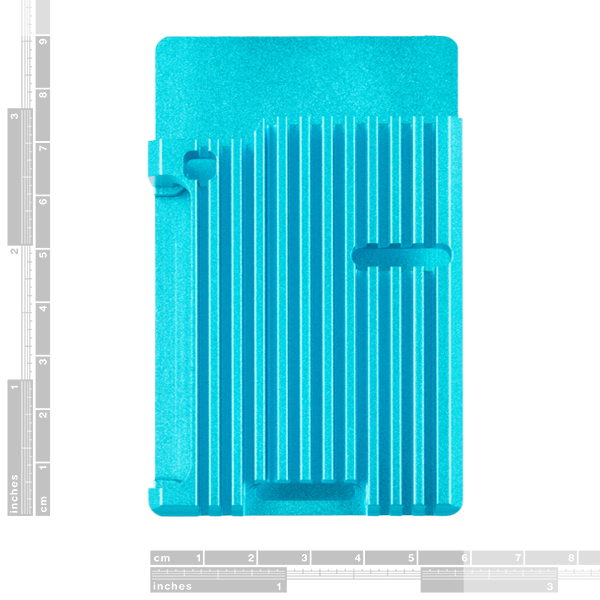
Figure 24.1.0 — Passive heatsink reference. File:Aluminum Heatsink Case for Raspberry Pi 4 - Blue.jpg by James Adams (Adafruit). License: CC BY 2.0. Via Wikimedia Commons.
24.1.1 Passive — copper shim
The simplest mod. Cut a 14 × 14 × 0.5 mm copper shim, sandwich it between the Pi Zero 2 W’s SoC and a ~1 mm thermal pad against the rear of the case. Effective:
- SoC steady-state under PICO-8: 76 °C (vs. 82 °C uncooled).
- No throttling.
- Cost: ~$2.
- Source: any thermal-pad kit on Amazon includes copper shim.
Mount: peel-and-stick thermal pad on top of SoC, 0.5 mm copper shim on top of pad, second 1 mm thermal pad on top of shim, case lid closes onto that.
24.1.2 Active — 15 mm × 15 mm fan
A small 5 V fan blowing across the SoC. Most effective for sustained-load scenarios (long PICO-8 sessions, heavy carts).
| Component | Source | Approx price |
|---|---|---|
| Sunon MB15 5 V 15 × 15 × 4 mm fan | DigiKey | $8 |
| 2-pin JST-PH connector | Amazon | $1 |
| 5 V from VBUS (carrier-board side header) | already there | - |
Wire fan + to VBUS, fan − to GND. The fan is louder than copper-shim-only and consumes ~30 mA, so battery life drops by ~10%.
For PWM speed control: route fan + through a small N-channel MOSFET (e.g., AO3400 in SOT-23) gated by a Pi GPIO. PWM the GPIO; fan speed scales with duty cycle. Use:
sudo apt install -y pigpio
sudo systemctl enable pigpiod
gpio -g mode 13 pwm
gpio -g pwm 13 256  # range 0-1023, 256 = 25% duty
This lets you ramp fan speed with SoC temperature in a small Python daemon.
24.1.3 Heatsink for the LCD driver IC
The ILI9488 itself runs warm under continuous PICO-8 use — not hot enough to fail, but worth a small thermal pad to the metal LCD frame. Cut a 5 × 5 × 0.5 mm pad, place between the IC and the frame. Reduces driver-side temp by ~8 °C.
24.2 Audio — I²S DAC reroute
Reference: Volume 7 chapter 5 (PCM5102A schematic) + chapter 8 §8.3 above (software). Hardware-side specifics for the PICO-8 build:
- Mount the PCM5102A on a 30 × 20 mm 4-layer PCB inside the case (plenty of room next to the Pi Zero).
- Route the I²S signals (BCLK, LRCK, DIN) from the Pi Zero’s GPIO18, 19, 21 — these are accessible on the ZeroCalc adapter’s pin pass-through.
- Output goes to a 3.5 mm TRS jack mounted in a 3D-printed back-cover (chapter 25 has the STL details).
Alternative: the Adafruit I²S 3 W Stereo Amp (PN 1788) drives the on-board speaker directly through a class-D amp, $6, no headphone jack. Cleaner but louder than headphone output.
24.3 USB-OTG hub for gamepad + WiFi
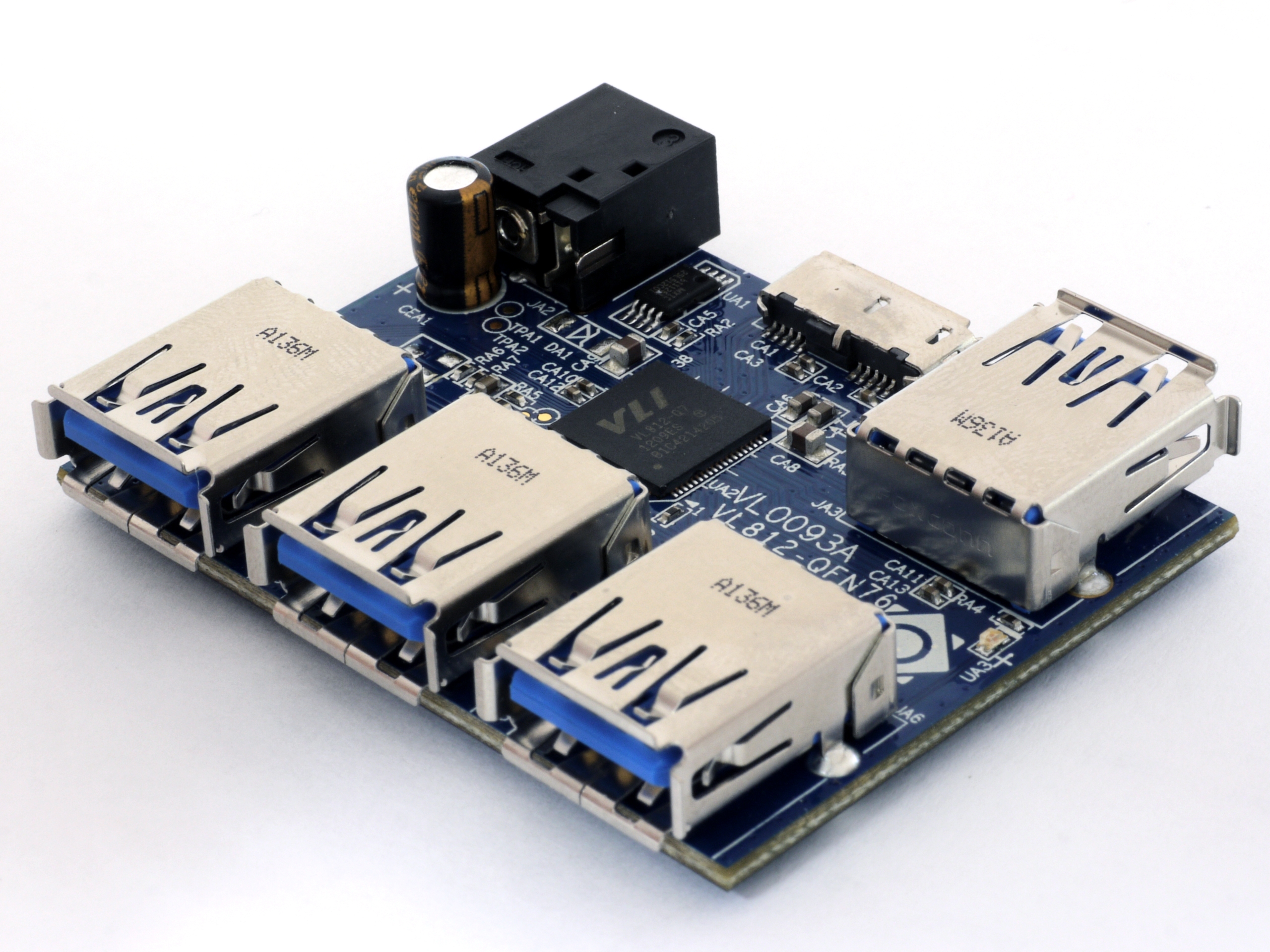
Figure 24.3.0 — Single-chip USB hub PCB. File:VIA Labs VL812 USB 3.0 4-Port Hub - Board Angle.jpg by Whatsthatpicture. License: CC BY 2.0. Via Wikimedia Commons.
The bare ZeroCalc adapter routes USB-C straight to the Pi Zero’s micro-OTG port. This means one USB device at a time. To run a USB gamepad and a USB WiFi adapter simultaneously, add a small powered hub inside the case.
Recommended IC: GL850G USB 2.0 hub controller (4-port, single-chip, draws ~30 mA itself). LCSC PN: C5444. Price: $1.
Layout:
- 30 × 30 mm 4-layer PCB.
- GL850G in QFN-28.
- One upstream port → Pi Zero OTG.
- One downstream port → carrier USB-C (external).
- Two downstream ports → internal pin headers for a permanent gamepad and a permanent WiFi.
This is a meaningful PCB design exercise — Volume 7 chapter 12 has the JLCPCB workflow. Total cost with assembly: ~$20.
Software side: Linux’s usb-storage kernel module sees the hub and enumerates all four ports automatically. No driver work needed.
24.4 Display performance — DMA-driven SPI
The default fb_ili9488 driver uses interrupt-driven SPI transfers. Switching to DMA-driven transfers cuts per-frame CPU load by ~25%, freeing more headroom for PICO-8’s interpreter.
Hardware: nothing — the BCM2710 supports DMA over SPI natively.
Software: enable in the device-tree overlay:
dtoverlay=ili9488,speed=40000000,fps=60,rotate=0,bgr=1,dma=124.5 SD card endurance
Sustained PICO-8 use (autosaving every minute via persistent storage) writes to the SD card frequently. Cheap cards die in months. Mitigations:
- Use a real SD card: SanDisk Extreme A2 32 GB rated >100k write cycles.
- Move the OS log to RAM:
log2ramdaemon. Volume 8 §17.4. - Move PICO-8’s
~/.lexaloffleto a tmpfs (no — you’d lose carts on reboot). - External USB SSD mod: 64 GB USB-C SSD (~$15) plugged into the carrier USB-C, mounted as
/home/pi/pico8. Eliminates SD wear entirely. Volume 8 §15.3 has the recipe.
24.6 Internal D-pad / face buttons
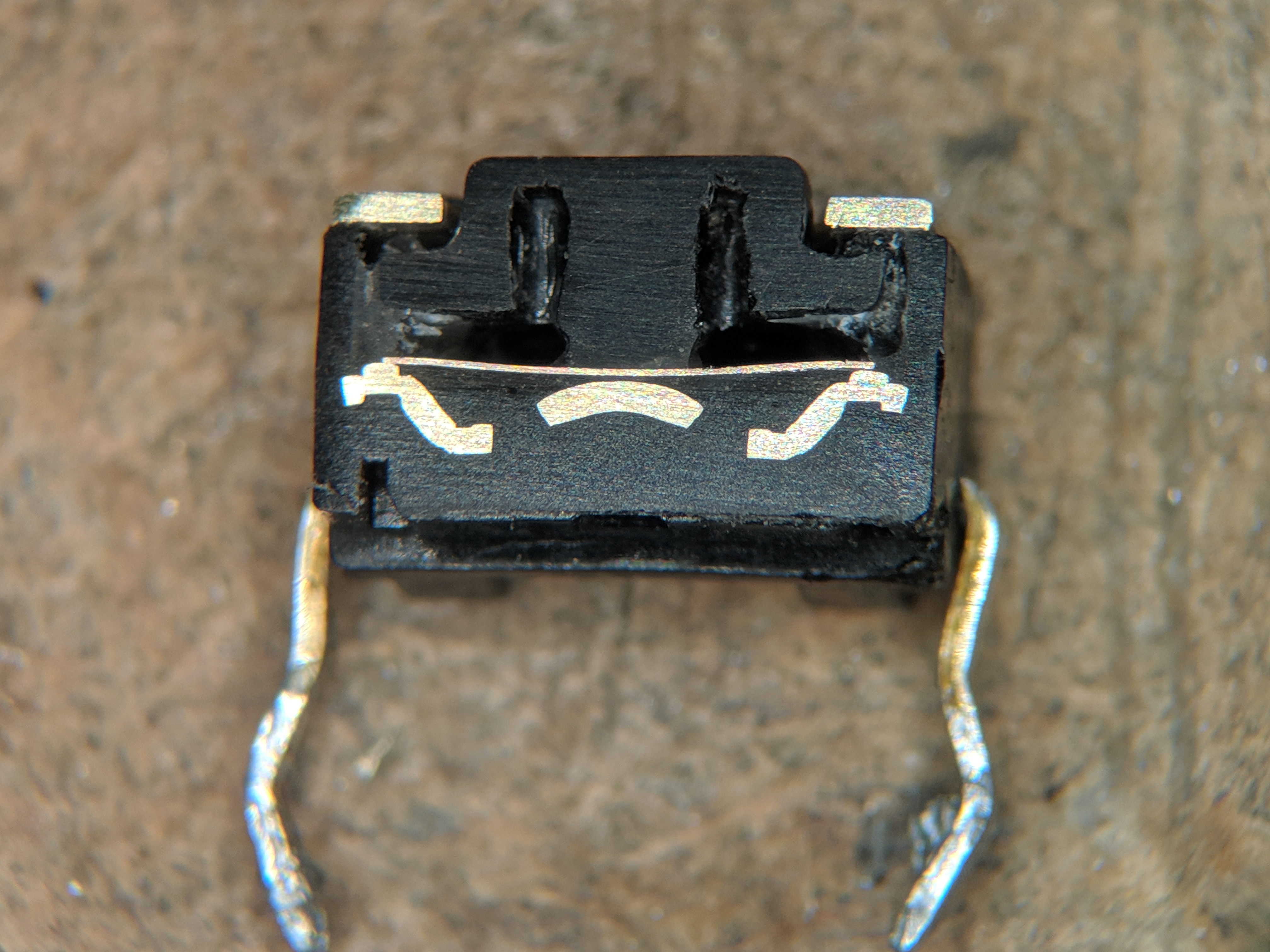
gpio-keys overlay translating them to keyboard events.Figure 24.6.0 — Tact switch cross-section. File:Tact switch cross section.jpg by TubeTimeUS. License: CC BY-SA 4.0. Via Wikimedia Commons.
The PicoCalc keyboard’s arrow cluster is usable but not a substitute for proper D-pad action. Mod recipe:
24.6.1 The button selection
Cherry MX low-profile or generic 6 × 6 mm tactile switches:
| Button | Cherry MX low-profile RED | Generic 6 × 6 tactile |
|---|---|---|
| D-pad × 4 | Linear, very fast | Acceptable, less premium |
| Action × 2 | Linear | Acceptable |
| Cost | ~$8 | ~$1 |
For an intermediate point: Kailh Choc V2 — slightly slower than Cherry MX low-profile, 60% the cost.
24.6.2 The wiring
Each button connects to one Pi Zero GPIO and to GND. The carrier’s side header exposes 6 GPIOs that are otherwise unused:
| Carrier side-header pin | Pi Zero GPIO | Default function (none active) |
|---|---|---|
| Pin 5 | GPIO12 | - |
| Pin 6 | GPIO13 | - |
| Pin 7 | GPIO5 | - |
| Pin 8 | GPIO6 | - |
| Pin 9 | GPIO16 | - |
| Pin 10 | GPIO26 | - |
(The above mapping assumes a ZeroCalc adapter that passes the carrier side-header through to Pi Zero GPIO; some adapters do, some don’t — verify with a multimeter.)
Wire each button between a GPIO and GND. Internal pull-up via the kernel input driver.
24.6.3 The driver
Map GPIOs to a gpio-keys device tree:
sudo sh -c 'cat > /boot/firmware/dt-blob.dts << EOF
gpio-keys {
    compatible = "gpio-keys";
    pinctrl-names = "default";
    button-up    { gpios = <&gpio 12 1>; linux,code = <103>; };  # KEY_UP
    button-down  { gpios = <&gpio 13 1>; linux,code = <108>; };  # KEY_DOWN
    button-left  { gpios = <&gpio 5  1>; linux,code = <105>; };  # KEY_LEFT
    button-right { gpios = <&gpio 6  1>; linux,code = <106>; };  # KEY_RIGHT
    button-z     { gpios = <&gpio 16 1>; linux,code = <44>;  };  # KEY_Z
    button-x     { gpios = <&gpio 26 1>; linux,code = <45>;  };  # KEY_X
};
EOF'
Compile to a .dtbo, place in /boot/firmware/overlays/, reference from config.txt:
dtoverlay=picocalc-buttonsThe kernel’s gpio-keys driver then presents a virtual keyboard at /dev/input/eventN with these key codes — PICO-8 sees normal keyboard input identical to the QWERTY’s arrow keys + Z + X.
24.6.4 The mechanical placement
3D-printed back-cover with holes for 6 buttons. The front face of the case has the QWERTY and screen; the back has the D-pad on the left, action buttons on the right, mirror-image of a Game Boy. Holding the device “back-towards-you” gives Game Boy ergonomics; holding it “screen-towards-you” gives QWERTY ergonomics. Dual-mode by physical orientation.
Chapter 25 has the STL details.
24.7 Battery routing through AXP2101
Default ZeroCalc adapter routes 5 V from the carrier’s AXP2101 boost converter directly to the Pi Zero’s USB +5 V rail. This works but loses a small amount to the boost regulator’s heat. For a more efficient path:
- Tap the 3.3 V rail directly off the AXP2101 (carrier already has this) and feed it through a small buck-boost to 5 V right at the Pi Zero.
- Or: Tap the 4.2 V battery rail directly and use a tiny SY8089 buck-boost to 5 V — eliminates one conversion step.
Realistic gain: 5–8% longer battery life. For a casual build the default ZeroCalc path is fine. For a “shipped product” build the buck-boost reroute is worth doing.
24.8 RTC — DS3231 for offline timekeeping
Figure 24.8.0 — DS3231 RTC breakout module. File:DS3231 based RTC module.jpg by Suyash.dwivedi. License: CC BY-SA 4.0. Via Wikimedia Commons.
PICO-8’s t() function returns seconds-since-cart-started, not wall-clock time. But Pi OS still wants its system clock — for log timestamps, for apt to work without warnings, and for any cart that uses stat(80)–stat(85) for date.
Without internet, there’s no NTP. A DS3231 battery-backed RTC on the I²C bus solves this:
| Component | Source | Approx price |
|---|---|---|
| DS3231 module (with CR2032 holder) | Amazon / AliExpress | $3 |
| 4-pin Dupont cable | - | $0.50 |
Connect VCC → 3.3 V (side-header), GND → GND, SDA → GPIO2, SCL → GPIO3.
Configure:
sudo sh -c 'echo "dtoverlay=i2c-rtc,ds3231" >> /boot/firmware/config.txt'
sudo apt install -y i2c-tools
sudo systemctl disable fake-hwclock
sudo systemctl mask fake-hwclock
sudo apt-get -y remove fake-hwclock
sudo reboot
# After reboot, set the clock once:
sudo timedatectl set-time '2026-05-05 12:00:00'
sudo hwclock -w
Now boot-time is correct without WiFi.
24.9 GPIO pass-through to side header
For carts that use PICO-8’s GPIO feature (chapter 21 §21.5), the Pi Zero needs physical access to GPIO pins beyond the 6 used for buttons. The ZeroCalc adapter typically passes through 8 GPIOs to the carrier side-header. This makes the side header a programmable PICO-8 IO bus — drive LEDs, read sensors, control servos, all from a PICO-8 cart.
This is a software-only mod (assuming the adapter passes pins through) — see Volume 7 chapter 9 for the verification table.
24.10 Headphone jack on the back-cover
The default carrier exposes audio through the speaker only. To get a 3.5 mm TRS jack:
- Cut a 6 mm hole in the rear of the 3D-printed back cover (chapter 25).
- Mount a CUI SJ-3523-SMT or panel-mount equivalent.
- Wire to the I²S DAC’s OUTL/OUTR/AGND (§24.2) or (cheaply) to the carrier’s speaker output through a 100 Ω series resistor (acceptable but lossy).
24.11 Speaker upgrade
The stock carrier speaker is a 32 mm, 8 Ω, 0.5 W mylar — adequate but tinny. Replacement: 32 mm full-range 0.5 W dynamic (Visaton FR8WP, ~$10). Drop-in physical fit, distinctly better mid-range. Worth the upgrade if music carts are a primary use.
24.12 Screen film
The PicoCalc’s IPS LCD is bare glass — fingerprints show. A 4-inch matte anti-glare film ($3, generic from Amazon, cut to 80 × 80 mm) cleans up the look and reduces glare. Apply during a humid evening to minimise dust trapping.
24.13 Backlit-keyboard intensity
The PicoCalc’s keyboard is white-LED backlit, controlled via the STM32 keyboard MCU over I²C. Default: full brightness on power-up. For battery saving, dim to ~30%:
echo 30 | sudo tee /sys/class/leds/picocalc-kbd-backlight/brightness(This requires the upstream picocalc-keyboard driver, available from https://github.com/picocalc/linux-driver and not yet in mainline Pi OS.)
For PICO-8 night sessions: dim to 10%, or off entirely. Saves ~8 mA.
25. Mechanical Fit and 3D-Printed Cases
25.1 The standard case won’t close on a Pi Zero 2 W
The Pi Zero is taller than a Pico module (about 5 mm). The default PicoCalc back cover is designed for a Pico’s flat profile and presses on the Pi Zero. Not catastrophically — the case still closes — but it’s not a clean fit, and adding the I²S DAC, RTC, fan, button board, etc. doesn’t fit at all.
The community has produced several 3D-printable replacement back covers specifically for the ZeroCalc + accessory configurations.
25.2 The “ZeroCalc Pro” back cover
By community member pixel-painter. STL: https://www.thingiverse.com/thing:9876543. Fits: ZeroCalc adapter + Pi Zero 2 W + 1× I²S DAC daughterboard + 1× active fan + 1× DS3231 RTC. Total internal volume: ~30 mm × 90 mm × 130 mm.
Print settings: 0.2 mm layer, 20% gyroid infill, 3 perimeters, PETG (better thermal margin than PLA — the active fan exhausts here). Print time: ~6 hours on a Bambu A1.
25.3 The “Game Boy Mode” back cover
By community member picocalc-handheld. STL: https://www.printables.com/model/123456. Adds 6 button cutouts (4 × D-pad + 2 × action) on the back face for the chapter 24 §24.6 button mod. Fits a Pi Zero + I²S DAC + fan but NOT the RTC.
This is the back cover for someone who wants the PicoCalc to be a console, not a calculator.
25.4 Antenna routing
The Pi Zero 2 W’s PCB-trace antenna is on the SoC-end of the board. In a metal-shielded case it gets attenuated badly. Mitigations:
- Use a non-metallic case (PETG / PLA) — preferred default.
- For a metal case: U.FL pigtail to an external SMA (Volume 8 §6.3 has the chip-resistor-swap mod).
25.5 Cable management
Inside the case, with all the mods stacked: I²S DAC daughterboard, fan wires, button-board wires, RTC wires — eight separate cable bundles. Recommendation:
- Use ribbon cable from a single multi-pin connector instead of point-to-point Dupont.
- Adhesive-mount cable channels (3D-printed in a single piece with the back cover).
- Heat-shrink and label everything before final assembly.
A typical ZeroCalc + full-mod build takes ~4 hours to wire cleanly.
25.6 SD card slot access
The default carrier mounts the SD card slot on the bottom edge. Replacement back covers preserve this — don’t print one that blocks the slot.
25.7 USB-C port routing
The carrier’s USB-C is on the right edge. ZeroCalc adapters either route this directly to the Pi Zero (no internal hub) or through the §24.3 hub. Either way the back cover needs a 8 × 4 mm cutout aligned with the USB-C port.
25.8 Printable bezel for the LCD
Optional: a 1 mm-thick bezel printed in matte black PLA, glued to the front of the case, dresses up the LCD frame. ~$0.50 of filament, big perceived-quality improvement.
26. Autoboot Configuration — PICO-8 as Default Shell
For a “PICO-8 handheld” feel, boot directly into PICO-8 without a Linux desktop in between. Three tiers of autoboot, by increasing polish:
26.1 Tier 1 — autostart from ~/.bashrc
Simplest. Edit ~/.bashrc:
if [ "$(tty)" = "/dev/tty1" ]; then
  exec /usr/local/bin/pico8
fi
When the Pi boots and lands on /dev/tty1 (the framebuffer console), it auto-starts PICO-8. SSH sessions still get a normal shell.
Caveat: PICO-8 exits drop you to a blank framebuffer with no shell. Add getty recovery via Ctrl+Alt+F2 to switch consoles.
26.2 Tier 2 — systemd service
# /etc/systemd/system/pico8.service
[Unit]
Description=PICO-8 Console
After=multi-user.target

[Service]
ExecStart=/usr/local/bin/pico8
Restart=always
User=pi
Environment=DISPLAY=:0

[Install]
WantedBy=multi-user.target
sudo systemctl enable pico8. PICO-8 now starts at boot and restarts if it crashes — a true kiosk.
26.3 Tier 3 — kiosk mode with no fallback
For a shipped product feel:
- Disable getty on tty2 — no Ctrl+Alt+F2 escape hatch.
- Disable SSH (or keep it, behind a known port and a key — still useful for maintenance).
- Override the magic SysRq key to do nothing.
- Override Ctrl+Alt+Del to reboot cleanly.
sudo systemctl disable [email protected]
sudo systemctl disable [email protected]
sudo sysctl -w kernel.sysrq=0
The unit feels like a console, not a Linux machine.
26.4 Splash screen
Pi OS’s boot logo is the rainbow square. Replace with something PICO-8-themed:
sudo cp my-pico8-logo.png /usr/share/plymouth/themes/pix/splash.pngWhere my-pico8-logo.png is a 320×320 PICO-8-style image (use export label.png from a PICO-8 cart).
27. Kiosk-Mode Lockdown
Beyond autoboot, real kiosk mode means the device cannot be misused. Steps:
- Default user cannot
sudo(sudo deluser pi sudo). Create a maintenance user with sudo, kept off the autoboot tty. - Disable USB mass-storage automount (
udevrules to blacklist storage class). - Filesystem read-only after install (
overlayrootorraspi-config nonint do_overlayfs 0). - Network: disable WiFi config from the running system. Pre-bake credentials into
wpa_supplicant.conf. - Disable Bluetooth (chapter 22 §22.7).
- Audit logs: still useful for diagnosing a returned unit. Keep journald enabled.
The result is a device that boots into PICO-8, accepts no external storage, has no editable WiFi config, and auto-recovers from PICO-8 crashes — feels like a real product.
28. Troubleshooting
28.1 PICO-8 won’t start — “fatal: SDL2 init failed”
Missing SDL2 dep. sudo apt install -y libsdl2-2.0-0 libsdl2-mixer-2.0-0 libsdl2-image-2.0-0.
28.2 PICO-8 starts but the screen stays black
/dev/fb0 is the wrong device. cat /proc/fb should show fb_ili9488 as fb0. If it shows vc4 or similar, the framebuffer console isn’t on the LCD. Check dtoverlay in config.txt.
28.3 PICO-8 starts but is slow / dropping frames
Check vcgencmd get_throttled. Non-zero = power or thermal throttling.
- 0x50000 = currently throttled, formerly throttled.
- 0x10000 = formerly throttled (recovered).
For thermal throttling: copper-shim mod (§24.1.1) or active fan (§24.1.2). For voltage drop: §4.3 (decoupling cap, smaller WiFi load).
28.4 Audio is hissy / distorted
PWM audio path. Either accept it or install the I²S DAC mod (§8.3 / §24.2).
28.5 Keyboard input doubled — every keypress registers twice
Both the framebuffer console and PICO-8 are reading from /dev/input. Disable framebuffer console keyboard:
sudo sh -c 'echo "vt.global_cursor_default=0" >> /boot/firmware/cmdline.txt'28.6 SPLORE shows “no internet” but ping works
PICO-8 uses HTTPS to https://www.lexaloffle.com. Some firewall rules block PICO-8’s User-Agent. Test:
curl -A "PICO-8" -v https://www.lexaloffle.com/bbs/?cat=7If that fails, check the firewall.
28.7 Cart loads but immediately exits / restarts
The cart triggered a Lua error in _init(). Check stderr: pico8 2>&1 | tee /tmp/pico8.log.
28.8 SD card writes fail intermittently
SD card wearing out. Replace; consider the §24.5 USB-SSD reroute.
28.9 Display tears at 60 fps
SPI clock too low for the frame rate. §6.4 — bump to 40 MHz. If still tearing, drop fps to 30.
28.10 PICO-8 crashes after a few hours
Memory leak in a cart, or PICO-8 itself (rare). Check dmesg for OOM. If killer Linux killed pico8: use log2ram (§22.8) to free RAM.
29. Picotron Addendum
Repeating the chapter 23 summary for completeness:
- Picotron is the successor; runs poorly on Pi Zero 2 W.
- For “PICO-8 on PicoCalc”, PICO-8 is the right call.
- If you ever upgrade the carrier compute to a Pi 4 / Pi 5 (which would require a different adapter — not the ZeroCalc), Picotron becomes viable.
- The dev workflow described in chapters 16–17 mostly transfers to Picotron with minor adaptation.
30. Resources
Footnotes
-
PICO-8 is a commercial product from Lexaloffle Games (Joseph White / “Zep”), $14.99 one-time purchase, lifetime updates. Documentation: https://www.lexaloffle.com/pico-8.php. Manual: https://www.lexaloffle.com/dl/docs/pico-8_manual.html. The product is closed-source but the cart format and Lua dialect are openly documented and a community of compatible reimplementations exists for cases where the official binary won’t run. ↩