Clockwork PicoCalc · Volume 5
PicoCalc Volume 5 — Programming Stacks & Software Sources
Where to download every PicoCalc-aware stack, what each is good for, and how to connect to the device from your dev machine
Contents
1. About this Volume
Thirteen distinct programming stacks have been built for or ported to the PicoCalc. This volume reviews each — what it’s good at, where it falls short, where to download canonical builds, what tracking-the-release looks like, and a quick-start example program so you can try it within a few minutes. The “where to find software” chapter (Chapter 2) is the single canonical map of every authoritative source for PicoCalc-aware firmware as of 2026.
Chapter 3 covers connecting to the running device from a host PC over USB-C — terminal options on Windows / macOS / Linux, picotool, mpremote, Thonny, and USB CDC printf debugging.
2. Where to Find Software and Firmware
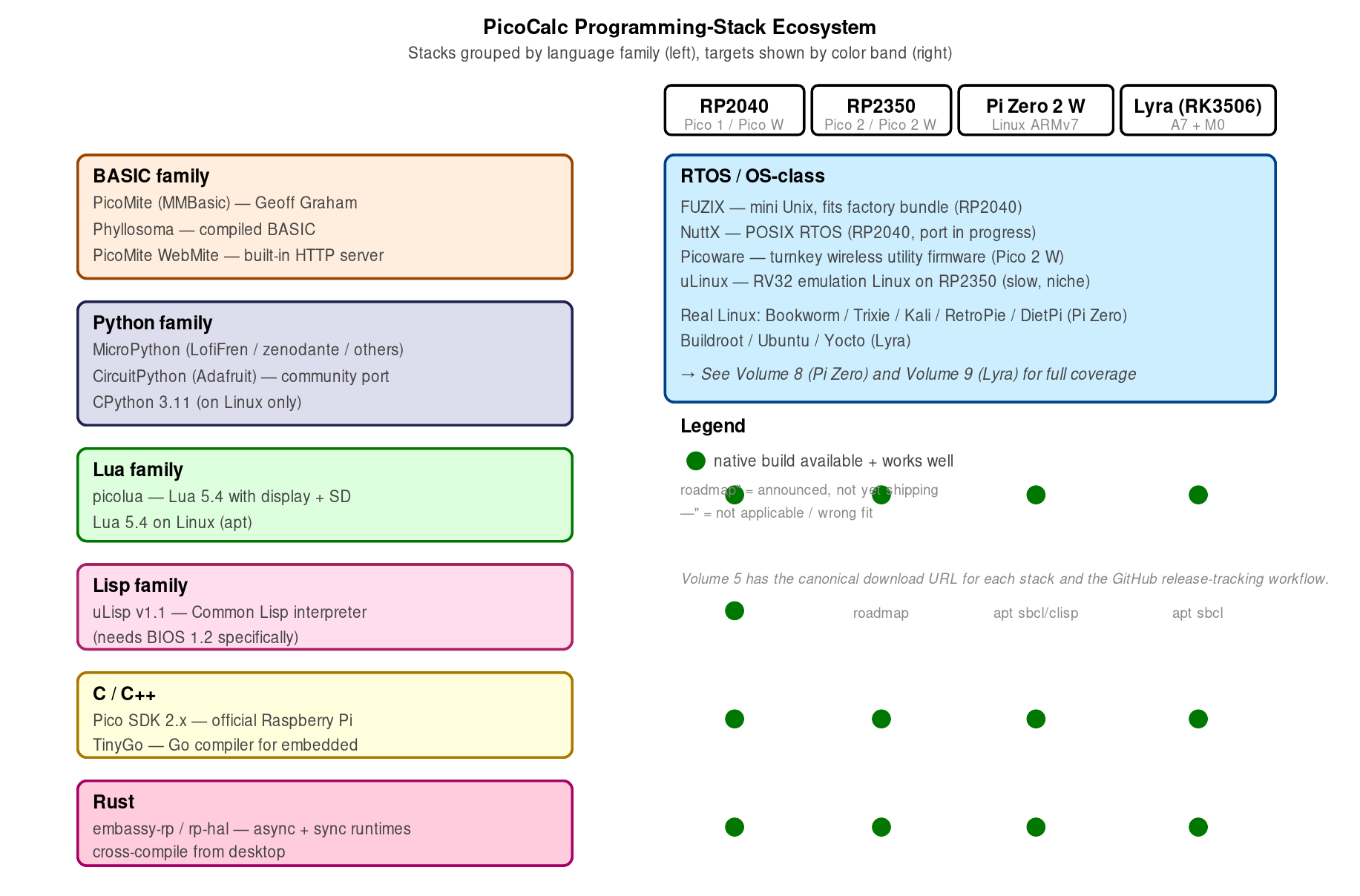
Figure 2.0 — Programming-stack ecosystem map. Hand-authored for this volume.
There is no central “PicoCalc store.” Every stack lives in its own repository, often run by an individual maintainer. This chapter is the canonical map — every URL that has actually shipped working firmware for the PicoCalc, organized by stack, with notes on how to track new releases.
2.1 Raspberry Pi (the official source)
- Pico SDK (C/C++): https://github.com/raspberrypi/pico-sdk. Tagged releases. SDK 2.x supports both RP2040 and RP2350. Track via GitHub Releases or the
developbranch for cutting-edge. - MicroPython for Pico (official UF2s): https://micropython.org/download/RPI_PICO/ for Pico, and the corresponding
RPI_PICO_W,RPI_PICO2, andRPI_PICO2_Wpages for the other variants. These are the generic MicroPython builds — they do not include the PicoCalc display or keyboard drivers. For PicoCalc-aware MicroPython, use the LofiFren fork below. - Official Pico documentation hub: https://www.raspberrypi.com/documentation/microcontrollers/. Datasheets, getting-started guides, pinouts, errata.
- picotool (host-side flashing): https://github.com/raspberrypi/picotool. Pre-built binaries for Linux/Mac/Windows on the Releases page. Required for several flashing workflows in Chapter 8.
2.2 PicoMite (MMBasic) — Geoff Graham and Peter Mather
PicoMite is the BASIC dialect (MMBasic) ported to the Pico family by Geoff Graham and Peter Mather. The PicoCalc has first-class support — PicoMite ships with a built-in display and keyboard driver for the kit.
- Primary download (firmware + manual): https://geoffg.net/picomite.html. Always grab the firmware from this page rather than from third-party mirrors.
- TheBackShed forum (community support, beta firmware): https://www.thebackshed.com/forum/Microcontrollers. Geoff and Peter both post on this forum daily; new beta firmware is announced there before the geoffg.net download is updated.
- Fruit of the Shed (code library): https://fruitoftheshed.com. A wiki of MMBasic snippets, tested programs, and game source.
- PicoMite User Manual (canonical reference): linked from the geoffg.net page; current version is 6.02.x. The manual is also bundled in the firmware ZIP. A copy is in
05-resources/Programs/PicoMite_Firmware/PicoMite_User_Manual.pdfof this project. - Variant matrix. The PicoMite firmware ZIP contains roughly twelve UF2s — the right one depends on (a) RP2040 vs RP2350, (b) USB-CDC console vs UART console, (c) HDMI / VGA / WebMite support, and (d) sound subsystem. For PicoCalc the build to use is
PicoMiteRP2040USBV6.02.01.uf2for Pico 1,PicoMiteRP2350USBV6.02.01.uf2for Pico 2, and theWebMite*variants if you want the built-in HTTP server (Pico W / Pico 2 W only). - Tracking releases: subscribe to the “Latest Firmware” thread on TheBackShed; geoffg.net does not have an RSS feed.
2.3 PicoCalc-aware MicroPython — LofiFren and forks
The standard MicroPython UF2 from micropython.org has no PicoCalc display or keyboard awareness. The community fork that is currently the most active and feature-rich is LofiFren’s:
- LofiFren/PicoCalc: https://github.com/LofiFren/PicoCalc. MicroPython-based environment with a display showcase, a Python code editor (Dashboard), a Synth 4.0 module synthesizer with QWERTY-piano-mapped input, and a built-in MCP server for AI coding assistants. Built on top of the underlying
picocalc-micropython-driver. - zenodante/picocalc-micropython-driver: https://github.com/zenodante/picocalc-micropython-driver. The lower-level driver layer (LCD + keyboard scanning) that LofiFren and others depend on. Use this directly if you want to build your own MicroPython firmware with PicoCalc support.
- marvins/picocalc-micropython and ohm69/PicoCalc-micropython: alternative forks with different tweaks. ohm69’s fork has UI polish improvements over the LofiFren baseline.
- jamesmunro/PicoCalc_MicroPython and kotenev/PicoCalcMicroPython: smaller forks with minor changes. Use the LofiFren or zenodante repos for production work; these are useful mostly for picking up specific bug fixes or alternate display drivers.
- Tracking releases: GitHub “Watch → Releases only” on LofiFren/PicoCalc. New builds drop every 4-8 weeks.
2.4 Picoware — wireless tools custom firmware
Picoware is jblanked’s open-source custom firmware for PicoCalc, the Flipper Zero Video Game Module, and other RP2040/RP2350 devices.
- GitHub: https://github.com/jblanked/Picoware.
- Releases: https://github.com/jblanked/Picoware/releases. UF2s are tagged per board.
- Forum thread: https://forum.clockworkpi.com/t/picoware-open-source-custom-firmware/18536. Active development discussion, requested features, bug reports.
- What it does: built-in apps for GPS, weather, social media (Mastodon, BlueSky), Bluetooth, games, screensavers, WiFi tools (basic SSH, HTTP). Targets Pico W and Pico 2 W primarily; a non-wireless build exists but is feature-limited.
- Caveat for hacking-tool use: Picoware is not a Marauder/Bruce-class deauth/handshake-capture firmware — those workloads need an ESP32 (Cardputer is the better tool, see
../_shared/comparison.md). Picoware is best understood as “useful WiFi-aware utilities,” not “wireless attack toolkit.”
2.5 picolua — Lua REPL with display + SD
- GitHub: https://github.com/dreamcat4/picolua (and forks). Lua 5.4 REPL with PicoCalc display and SD-card filesystem support.
- Pre-built UF2: in the GitHub Releases section; rebuild from source if you need a custom Lua module set.
- Documentation: README in the repo. Lua reference manual at https://www.lua.org/manual/5.4/.
2.6 uLisp — Common Lisp on the metal
- Primary site: http://www.ulisp.com/show?37CC. The PicoCalc port page, with download links.
- GitHub mirror: https://github.com/technoblogy/ulisp-arm (uLisp itself); the PicoCalc-specific fork is linked from the primary site.
- Caveat: uLisp v1.1 currently ships RP2040-only. RP2350 support is on the roadmap. uLisp also requires PicoCalc keyboard BIOS 1.2 — the 1.4 BIOS breaks compatibility for now (see Chapter 5).
2.7 Phyllosoma — compiled BASIC
- GitHub: https://github.com/davidwhitten/phyllosoma. A compile-to-bytecode BASIC dialect that runs faster than PicoMite for compute-heavy programs. PicoCalc port included.
- Status: less active than PicoMite; useful as a fallback if PicoMite’s interpreter is too slow for a specific workload.
2.8 NuttX RTOS
- Apache NuttX: https://nuttx.apache.org/. POSIX-like RTOS with PicoCalc board support in progress.
- PicoCalc board file: https://github.com/apache/nuttx/tree/master/boards/arm/rp2040. Search for
picocalcin the boards directory. - Status: experimental — get it for the learning experience and the POSIX API, not for production work.
2.9 FUZIX — mini Unix for tiny machines
- GitHub: https://github.com/EtchedPixels/FUZIX. A tiny System-V-like Unix; a PicoCalc port exists and ships in the factory multi-boot bundle. Filesystem is the 32 MB raw partition at the tail of the SD card.
- PicoCalc-specific notes: search the ClockworkPi forum at https://forum.clockworkpi.com/c/picocalc/?q=fuzix for the current FUZIX thread. Login as
root, no password by default. C compiler is on-device; expect long build times for non-trivial programs.
2.10 Pico SDK projects with PicoCalc support
These are not full firmware bundles — they’re SDK-based starter projects you build yourself:
- clockworkpi/PicoCalc (official drivers): https://github.com/clockworkpi/PicoCalc. The reference repo for the LCD, keyboard, audio, and SD drivers. Clone this first if you’re writing your own SDK app.
- picocalc-text-starter (text-mode skeleton): https://github.com/topics/picocalc — search for the most-recent fork.
- PicoCalc-uf2loader (the SD bootloader, see Chapter 7): https://github.com/pelrun/uf2loader.
- PicoCalc_SD_Boot (predecessor to UF2 Loader, original SD-multi-boot): https://github.com/adwuard/Picocalc_SD_Boot.
2.11 Game-emulator firmware
- NES —
pico-infonesPlusby fhoedemakers: https://github.com/fhoedemakers/pico-infonesPlus. Supports both RP2040 and RP2350. UF2 builds in Releases. - Game Boy / GBC —
pico-peanutGBby fhoedemakers: https://github.com/fhoedemakers/pico-peanutGB. RP2350-only (Pico 2 / Pico 2 W). HDMI output is the default; PicoCalc-LCD port is in active development as of 2026-Q1. - Game Boy (RP2040) —
Pico-GBby YouMakeTech: https://github.com/YouMakeTech/Pico-GB. Pico 1 / Pico W; performance is borderline but playable on simple titles. - Game Boy (RP2350) —
gb-rp2350by Altaflux: https://github.com/Altaflux/gb-rp2350. RP2350-targeted for full-speed emulation. - TIC-80 fantasy console — port to RP2350: https://github.com/topics/tic-80 — search forks targeting
pico2. - Multi-emulator —
infonesPlusandpeanutGBare usually paired; install both and switch via the SD multi-boot.
2.12 ClockworkPi multi-boot bundle
- Official multi-boot SD image: linked from the kit page https://www.clockworkpi.com/picocalc. Updated occasionally; the version that ships pre-loaded on the kit’s 32 GB SD card is usually slightly behind the current release.
- GitHub release: https://github.com/clockworkpi/PicoCalc. Look in the
firmware/directory for the latestmultiboot-*.zip. - What’s in it: the UF2 Loader bootloader, the menu UI binary, and a curated set of UF2s — typically PicoMite, MicroPython, picolua, uLisp, FUZIX, an MP3 player, and the NES emulator. Use this as your starting SD layout, then add your own UF2s on top.
2.13 Tracking releases — a practical checklist
For the dozen-plus repositories above, manual checking is infeasible. Two reasonable workflows:
- GitHub watch list: log into GitHub, navigate to each repo’s main page, click Watch → Custom → Releases. New tags arrive in your notifications inbox.
- RSS/Atom: every GitHub repo exposes
https://github.com/<user>/<repo>/releases.atom. Add each to a feed reader (Feedly, NewsBlur, Inoreader). The Apache NuttX, geoffg.net, and ulisp.com pages don’t expose RSS — for those, set a calendar reminder to check quarterly. - Forum subscription: the ClockworkPi PicoCalc subforum at https://forum.clockworkpi.com/c/picocalc is the unofficial central nervous system for the platform. New firmware almost always gets announced there within a few days. Subscribe to “watching” on the category for an inbox-style feed.
3. Programming Stacks
The PicoCalc is variant-compatible with every major Pico stack — not all of them are equally useful on the kit, but each has a niche where it wins. This chapter reviews each stack with practical PicoCalc-specific notes.
3.1 PicoMite (MMBasic) — the default
PicoMite is the BASIC interpreter of choice for the Pico family, with first-class PicoCalc support built into the firmware. The factory multi-boot bundle launches PicoMite if no other selection is made.
Why use it: BASIC is the fastest path from “I want to do X” to “X is now happening on the screen.” MMBasic in particular has direct primitives for the LCD, SPI, I²C, audio, file I/O, and even the multi-tasking model — you can write a fully usable graphing-calc-class app in 50 lines.
Where to download: https://geoffg.net/picomite.html — pick PicoMiteRP2040USBV6.02.01.uf2 for Pico 1, PicoMiteRP2350USBV6.02.01.uf2 for Pico 2. The WebMite variants are required if you want PicoMite’s built-in HTTP server (Pico W or Pico 2 W only).
Install: drop the UF2 onto the BOOTSEL drive once; thereafter it lives in flash and starts at boot. To use multi-boot instead, copy it into pico1-apps/ or pico2-apps/ on the SD.
First program: at the > prompt:
CLS
PRINT "Hello from PicoMite"
FOR i = 1 TO 100
  CIRCLE 160, 160, i, 1, 1, RGB(i*2, 100, 255-i*2)
NEXT i
Display + sound from BASIC:
TEXT 10, 10, "PicoCalc!", "LB", 4, 1, RGB(WHITE), RGB(BLACK)
PLAY TONE 440, 200, 50, B
PLAY TONE 880, 200, 50, B
Save and run: SAVE "myprog.bas" → RUN "myprog". Programs persist across reboots in the Pico’s flash.
Documentation: PicoMite User Manual (in 05-resources/Programs/PicoMite_Firmware/), 530+ pages. The PicoMiteHDMIV6.02.01.uf2 and PicoMiteRP2350VGAUSBV6.02.01.uf2 builds add HDMI/VGA output via separate hardware that doesn’t fit the PicoCalc — ignore those for kit use.
3.2 PicoCalc-aware MicroPython (LofiFren / zenodante)
The standard MicroPython UF2 has no PicoCalc-specific drivers. The community fork that has the best polish is LofiFren’s:
Download: https://github.com/LofiFren/PicoCalc/releases — pre-built UF2s for Pico 1, Pico W, Pico 2, Pico 2 W.
Install: drag onto BOOTSEL or copy into the SD’s pico*-apps/.
First program: at the REPL (connect via USB-C or directly on the device with a repl.py file):
from picocalc import display, keyboard
display.fill(0)
display.text("Hello, MicroPython", 10, 10, 0xFFFF)
display.show()
while True:
    key = keyboard.read()
    if key:
        display.text(f"Got: {chr(key)}", 10, 30, 0xFFFF)
        display.show()
What’s in the LofiFren build:
picocalcmodule withdisplay(320×320 framebuffer),keyboard(read events),audio(PWM stereo),sd(SD-card filesystem),battery(read AXP2101).- A bundled REPL editor (LofiFren’s “Dashboard”) that runs on the device — full Python editor with syntax highlighting.
synth.py— a 4-instrument synthesizer mapped to the QWERTY keyboard.- An optional MCP server that talks to AI coding assistants over USB.
mip package manager: import mip; mip.install("ssl") will install MicroPython packages from micropython-lib on a Pico W or Pico 2 W with WiFi configured. Without WiFi, you copy .py files manually.
Documentation: https://docs.micropython.org/ (upstream) plus the LofiFren README for PicoCalc-specific extensions.
3.3 picolua
A Lua 5.4 REPL with display and SD support. Useful if you prefer Lua’s syntax (or you’re prototyping for embedded work where Lua is the deployment target).
Download: https://github.com/dreamcat4/picolua/releases.
First program:
display.clear()
display.text("Hello, Lua", 10, 10)
display.show()
Why pick Lua over MicroPython: smaller runtime (~70 KB vs MicroPython’s 250 KB), faster startup, simpler memory model. Better fit for compute-heavy code where Python’s interpreter overhead bites.
3.4 uLisp
Common Lisp on bare metal. Niche but compelling if you’re a Lisp person.
Download: http://www.ulisp.com/show?37CC.
Caveats:
- v1.1 is RP2040-only. Pico 2 support is on the roadmap.
- Requires PicoCalc keyboard BIOS v1.2 specifically. v1.4 breaks current uLisp builds. If you flash uLisp and the keyboard hangs, downgrade BIOS to 1.2 (Chapter 5).
First program:
(princ "Hello, Lisp")
(terpri)
(loop (let ((c (read-char))) (princ c) (terpri)))
3.5 Phyllosoma — compiled BASIC
A faster BASIC dialect that compiles to bytecode rather than interpreting source.
Download: https://github.com/davidwhitten/phyllosoma/releases.
When to pick over PicoMite: when you have a hot inner loop in BASIC that’s slower than you want. Phyllosoma can be 5-10× faster on math-heavy workloads. Trade-off: smaller library, less mature, smaller user base.
3.6 Pico SDK — C/C++ on the bare metal
When you want maximum performance, fine control over peripherals, or full access to PIO and DMA.
Setup (Linux / WSL):
sudo apt install gcc-arm-none-eabi cmake ninja-build
git clone -b master https://github.com/raspberrypi/pico-sdk.git
cd pico-sdk
git submodule update --init
export PICO_SDK_PATH=$PWD
A minimal PicoCalc app (CMakeLists.txt):
cmake_minimum_required(VERSION 3.13)
include($ENV{PICO_SDK_PATH}/external/pico_sdk_import.cmake)
project(picocalc_hello C CXX ASM)
set(CMAKE_C_STANDARD 11)
pico_sdk_init()
add_executable(picocalc_hello main.c)
target_link_libraries(picocalc_hello pico_stdlib hardware_spi hardware_i2c)
pico_enable_stdio_usb(picocalc_hello 1)
pico_add_extra_outputs(picocalc_hello)main.c:
#include "pico/stdlib.h"
#include "hardware/spi.h"
#include "picocalc_lcd.h"
#include "picocalc_keyboard.h"

int main() {
    stdio_init_all();
    picocalc_lcd_init();
    picocalc_keyboard_init();

    picocalc_lcd_clear(0x0000);
    picocalc_lcd_text(10, 10, "Hello from C", 0xFFFF, 0x0000);

    while (true) {
        int key = picocalc_keyboard_get_key();
        if (key > 0) {
            // do something
        }
        sleep_ms(10);
    }
}
Build with mkdir build && cd build && cmake .. -DPICO_BOARD=pico && ninja. Resulting picocalc_hello.uf2 goes onto BOOTSEL or the SD.
For Pico 2: replace pico with pico2 in -DPICO_BOARD. Use SDK 2.x. Add -DPICO_PLATFORM=rp2350-arm-s to target Arm cores; use rp2350-riscv for Hazard3.
3.7 Rust (embassy-rp / rp-hal)
Two competing Rust ecosystems for Pico:
- embassy-rp: async/await runtime, modern Rust. Easier for I/O-bound work.
- rp-hal: traditional embedded-hal style. More mature, lots of community examples.
Setup:
rustup target add thumbv6m-none-eabi  # Pico 1 (Cortex-M0+)
rustup target add thumbv8m.main-none-eabihf  # Pico 2 (Cortex-M33)
cargo install elf2uf2-rs
cargo install probe-rs --features cliTemplates: cargo install cargo-generate; cargo generate --git https://github.com/rp-rs/rp2040-project-template.
PicoCalc-specific: a third-party picocalc-rs crate exists; check GitHub for the most current.
3.8 TinyGo
Go for microcontrollers. Working RP2040 support; RP2350 support is improving.
Setup: tinygo flash -target=pico my_app.go flashes directly via picotool.
PicoCalc support: tinygo-org/drivers has a pico-display driver — partial but workable. Expect to write some glue.
3.9 CircuitPython
Adafruit’s Python fork. Easier than MicroPython for absolute beginners; less performant.
Download: https://circuitpython.org/board/raspberry_pi_pico/.
PicoCalc display driver: not first-class — community ports exist, search “CircuitPython picocalc.”
3.10 Picoware
Reviewed in §4.4. The “ready-built UI for WiFi-aware utilities” firmware. Useful if you want a turnkey app launcher with apps already written for you.
3.11 NuttX RTOS
Apache NuttX with a PicoCalc board file. POSIX API, multi-threading, the whole RTOS package.
Build:
git clone https://github.com/apache/nuttx.git
git clone https://github.com/apache/nuttx-apps.git apps
cd nuttx
./tools/configure.sh raspberrypi-pico:picocalc
makeStatus: experimental but functional. Best fit for “I want to learn an RTOS and the platform doesn’t matter much” or “I have an existing NuttX app I want to bring to Pico.”
3.12 FUZIX
Tiny Unix; ships in the factory bundle. Filesystem on the 32 MB raw partition at the tail of the SD.
First boot: select FUZIX from the multi-boot menu. Login as root, no password.
Available: a C compiler (cc), a shell (sh), basic Unix utilities (cat, ls, cp, mv, rm, vi).
Caveats: glacial. The 32 MB filesystem fills fast. Mostly a curiosity.
3.13 Linux on Pico — yes, technically
uLinux ports targeting RP2350 exist. They are slow (RV32 emulation under no-MMU Linux) and the community is small. For real Linux on the PicoCalc, use a Pi Zero 2 W or Lyra module — see Doc 3 and Doc 4.
3.14 Stack-vs-use-case recommendation matrix
| Use case | Best stack | Acceptable substitute |
|---|---|---|
| Learning / quick scripts | PicoMite | MicroPython |
| Calculator-class math | PicoMite | MicroPython, picolua |
| Graphical UI (LVGL etc.) | C/C++ SDK | Rust + embassy |
| Audio / synth | C/C++ SDK | MicroPython (LofiFren synth) |
| WiFi HTTP | MicroPython | PicoMite WebMite, Picoware |
| Sub-GHz radio research | C/C++ SDK | MicroPython |
| Game emulator | C/C++ SDK only | — |
| RTOS / multi-thread | NuttX | Rust + embassy |
| Functional / Lisp fans | uLisp | — |
| Compiled BASIC speed | Phyllosoma | C/C++ SDK |
| Daily-driver REPL | MicroPython | PicoMite |
4. Connecting to a Computer (USB-C)
The PicoCalc’s USB-C port routes through the AXP2101 PMU for charging and connects directly to the Pico’s USB pins for data. This chapter covers everything host-side.
4.1 What the connection actually gives you
When you plug the PicoCalc into a host PC, depending on the running stack:
- No app / BOOTSEL held: the Pico appears as a USB Mass Storage device named
RPI-RP2(Pico 1) orRP2350(Pico 2). Drag UF2s; the Pico flashes itself and reboots. - PicoMite or MicroPython running: a USB CDC virtual serial port appears (
COM*on Windows,/dev/ttyACM*on Linux/Mac). Connecting at 115200 baud lands you at the REPL. - C/C++ app with
pico_enable_stdio_usb(... 1): same —printfoutput flows out the USB CDC. - UF2 Loader menu open with USB MS mode active: SD card appears as a Mass Storage device.
4.2 Driver situation per OS
- Windows 10/11: Pico (in BOOTSEL or running) and Pico 2 are class-compliant; no drivers needed for either MS storage or CDC serial. Older Windows versions (7/8) need the
usbser.infdriver, available from https://github.com/raspberrypi/pico-sdk/tree/master/src/host/usb_drivers. - macOS: works out of the box.
- Linux: works out of the box.
dmesgwill showcdc_acm 1-1:1.0: ttyACM0: USB ACM deviceor similar.
4.3 Finding the COM port (Windows)
Open Device Manager → Ports (COM & LPT). Look for “USB Serial Device (COMx)” or “Pico (CDC) (COMx).” If multiple Picos / Arduinos are connected, note which one corresponds to the PicoCalc by power-cycling.
4.4 Terminal options
Windows:
- PuTTY (https://www.chiark.greenend.org.uk/~sgtatham/putty/) — classic. Set Connection type → Serial; Serial line →
COM*; Speed → 115200; Open. - Tera Term (https://teratermproject.github.io/) — better Unicode handling than PuTTY, especially for MicroPython REPL with non-ASCII output.
- Windows Terminal + plink — the modern path. Add a profile that runs
plink -serial COM* -sercfg 115200,8,n,1,N.
macOS / Linux:
screen /dev/tty.usbmodem* 115200— quit withCtrl-A K.minicom -D /dev/ttyACM0 -b 115200— quit withCtrl-A X.picocom /dev/ttyACM0 -b 115200— quit withCtrl-A Ctrl-X.
4.5 mpremote — best for MicroPython
mpremote is the official MicroPython REPL/file-management CLI:
pip install mpremote

mpremote                          # land at the REPL
mpremote ls                       # list device filesystem
mpremote cp local.py :remote.py   # upload
mpremote cp :remote.py local.py   # download
mpremote run script.py            # run without copying
mpremote soft-reset               # Ctrl-D in REPL
mpremote reset                    # hardware reset
4.6 Thonny — graphical IDE
For Python beginners, Thonny (https://thonny.org) is the gentlest entry. Tools → Options → Interpreter → MicroPython (Raspberry Pi Pico) → port → COM* / /dev/ttyACM*.
4.7 USB CDC printf debugging for C/C++
If your CMakeLists has pico_enable_stdio_usb(my_app 1):
#include "pico/stdlib.h"
#include <stdio.h>
int main() {
    stdio_init_all();
    sleep_ms(2000); // wait for host to enumerate
    while (true) {
        printf("loop tick %llu\n", to_us_since_boot(get_absolute_time()));
        sleep_ms(1000);
    }
}
Connect a terminal, see the loop. This is the standard “debugging” path until you graduate to SWD + GDB (Chapter 19).
4.8 Troubleshooting connection issues
- No COM port appears: try a different USB cable (charge-only cables are an extremely common cause). Try a different USB port (some laptop USB-C ports are charge-only or DisplayPort-only). Power-cycle the PicoCalc.
- COM port appears then vanishes: the running app crashed and rebooted. On Windows the COM number sometimes changes — re-check Device Manager.
- REPL shows garbage characters: baud-rate mismatch between the Pico’s UART and your terminal. Verify both sides are set to the same rate (115200 is the default for most stacks). If baud matches, suspect electrical noise — try a shorter USB cable, add a ferrite bead, or move away from switched-mode supplies.