HaleHound · Volume 7
HaleHound Volume 7 — Flashing the Firmware
Browser-based Web Serial flashing at flash.halehound.com, the CH340 driver story per OS, first-boot calibration, OTA from SD, and recovery when a board goes dark
7.1 About this Volume
HaleHound ships without firmware. Every build path in Vols 4–6 — the pre-built Complete units, the DIY kits, the Fire Weasel board, and a bare exposed-SPI CYD — arrives as unprogrammed hardware, and the firmware is a separate (free) step the owner performs once, in a browser. This volume covers that step end to end: the Web Serial flasher at flash.halehound.com, the browser and driver prerequisites, what actually lands in flash, the first-boot touch calibration, the over-the-air (OTA) update path from the SD card, and the recovery moves for a board that will not enumerate or will not boot.
The flasher deliberately hides almost all of this. The vendor’s own instruction is two lines: plug in, pick the board, flash. That is accurate for a healthy board on a machine that already sees it. The depth here is for the other cases — the wrong cable, the missing driver, the board stuck mid-write, the display that comes up rotated or mis-touching — because those are where an hour disappears. Nothing in this volume is offensive; flashing and calibration are neutral provisioning steps, and the capability surface the firmware exposes afterward is the subject of Vol 8.
Note — The firmware is proprietary (© 2026 Jesse C. Hale, all rights reserved — free to flash and run, source not published), descended from CiferTech’s MIT ESP32-DIV. “Free to flash” is not “open source.” The web flasher serves a pre-built binary; there is no published source tree to compile from, so §10’s build-from-source path applies only to the hooks the repo exposes, not to a full source checkout.
7.2 The web flasher at a glance
The flasher is a static web page that speaks the Web Serial API directly to the board’s USB-serial bridge. No desktop application is installed; the browser is the flashing tool. This is the same family of in-browser ESP32 flashers (ESP Web Tools / esptool-js lineage) used across the CYD-firmware ecosystem — SquachWatch, Bruce, and others flash the identical way — so the mechanics transfer between projects.
  HOW A BROWSER FLASHES AN ESP32 (no local app)
  ════════════════════════════════════════════════════════════════

   flash.halehound.com                 USB cable          CYD board
   ┌─────────────────────┐          (DATA, not            ┌──────────────┐
   │  Web page (JS)      │           charge-only)         │  CH340 USB   │
   │  ├ esptool-js core  │  Web Serial API                │  ↔ UART      │
   │  ├ board manifest   │ ───────────────────────────────┤  bridge      │
   │  └ pre-built .bin   │   115200+ baud, DTR/RTS lines   │              │
   └─────────────────────┘                                │  ESP32-WROOM │
            │                                              │  (flash mem) │
            │ 1. open serial port (user grants)            └──────┬───────┘
            │ 2. toggle DTR/RTS → download (boot) mode            │
            │ 3. stub loader uploaded to RAM                      │
            │ 4. bootloader + partitions + app written     ┌──────┴───────┐
            │ 5. hard reset → run                          │ 2.8"/3.5"    │
            └──────────────────────────────────────────────┤ touchscreen  │
                                                            └──────────────┘
The important consequences of this architecture:
- It is a Chromium-only feature. Web Serial exists in Chrome and Edge on the desktop. Safari does not implement it, and mobile browsers (including Chrome on Android/iOS) do not expose it. “Chrome or Edge on desktop” is a hard requirement, not a recommendation.
- The browser needs OS-level access to the serial device. That is where the CH340 driver (§4) comes in — if the OS cannot enumerate the bridge as a serial port, the browser’s port picker shows nothing to grant.
- One shot writes everything. A single flash lays down bootloader, partition table, and the application image, always the latest v4.0 build. There is no “update just the app” from the web flasher; that is what the OTA path (§8) is for.
7.3 Prerequisites: browser, cable, driver
Three things must be true before the flasher can talk to a board. Missing any one of them produces the same visible symptom — an empty port picker — so check all three before theorising.
Table 1 — 3. Prerequisites: browser, cable, driver
| Requirement | Good | Bad / blocked |
|---|---|---|
| Browser | Chrome or Edge, desktop, reasonably current | Safari (no Web Serial), Firefox (no Web Serial by default), any phone/tablet browser |
| OS | Windows 10/11, macOS, Linux (kernel 5.x+) | — |
| USB cable | A data cable (USB-A/USB-C → the board’s port) | A charge-only cable — powers the board, carries no data, picker stays empty |
| Driver | CH340 serial driver present (§4) | No driver → no serial device → nothing to pick |
| Port free | No other app holding the port | A serial monitor, Arduino IDE, or PlatformIO holding the port locks the browser out |
Warning — The single most common failure is the cable. Many USB cables sold with phones and battery packs are charge-only: the board’s backlight comes on, which looks like success, but no serial device ever appears. If the board powers up but the browser’s picker is empty, swap the cable for one known to carry data before installing drivers or changing browsers.
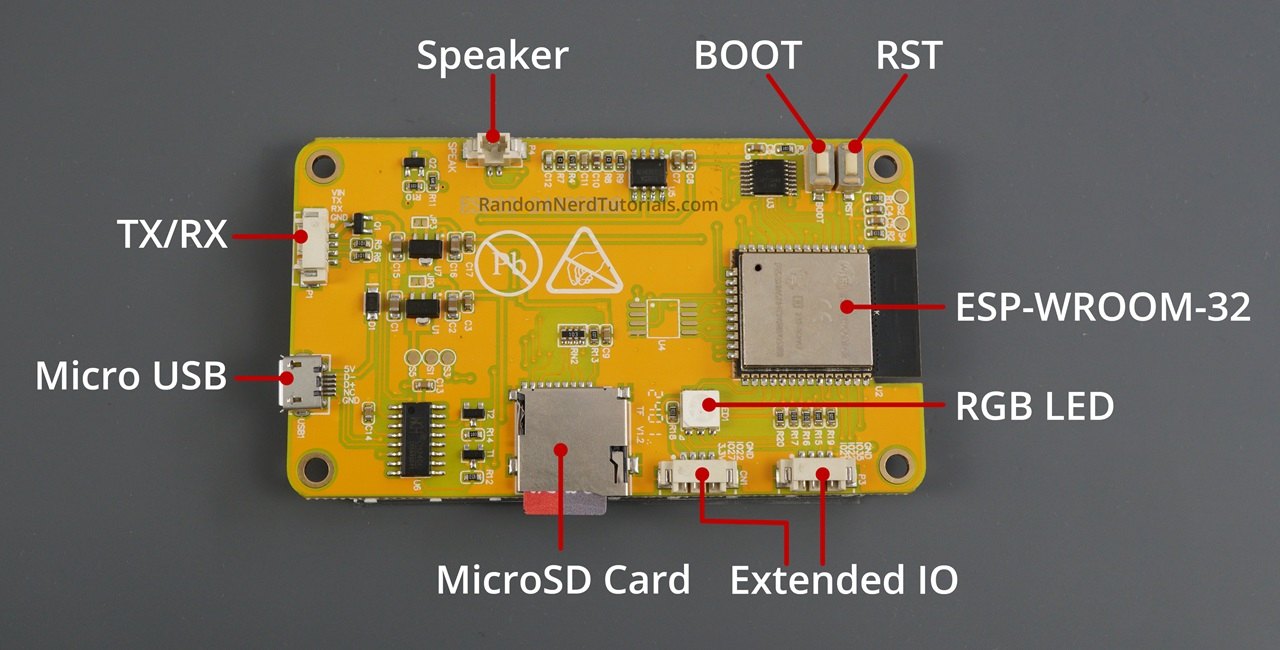
The board’s USB connector varies by revision — original micro-USB, USB-C-only, and the two-port “CYD2USB” board that carries both (Figure 7.1). All of them flash identically; the connector only dictates which cable to reach for. On a two-port board, either port works for flashing, but use one port at a time.
7.4 The CH340 USB-serial bridge, per OS
CYD boards use the WCH CH340 (sometimes marked CH340C/CH340G) as their USB-to-serial bridge. The ESP32 has no native USB; the CH340 is what the host actually enumerates, and it is what presents the DTR/RTS control lines the flasher toggles to drop the chip into download mode. If the host has no CH340 driver, there is no serial port, and the flasher cannot begin.
Table 2 — 4. The CH340 USB-serial bridge, per OS
| OS | Driver source | Notes |
|---|---|---|
| Windows | CH341SER.EXE from WCH (wch-ic.com/downloads/CH341SER_EXE.html) | Run installer, replug board. Appears as COMx in Device Manager under Ports. |
| macOS | CH341SER_MAC.ZIP from WCH | Recent macOS often has a built-in CDC driver; install WCH’s only if the port never appears. May require approving the kext/driver in System Settings → Privacy & Security, then reboot. |
| Linux | Built into the kernel (5.x and newer) | No install. Device appears as /dev/ttyUSB0. The user must be in the dialout group (or run with sufficient permission) for the browser to open it. |
   DOWNLOAD-MODE ENTRY (why the driver's control lines matter)
   ───────────────────────────────────────────────────────────
     Browser asserts:        CH340 drives:        ESP32 sees:
        DTR ───────────────▶  (via auto-program  ─▶  IO0 (boot select)
        RTS ───────────────▶   transistor pair)  ─▶  EN  (reset)

     Sequence to enter download mode:
        1. EN low   (hold in reset)      ── RTS
        2. IO0 low  (select ROM loader)  ── DTR
        3. EN high  (release reset)      ── RTS
        4. IO0 high (normal after sync)  ── DTR
The auto-program circuit on the CYD lets the flasher enter and leave download mode with no button presses, which is why the web flow needs no “hold BOOT while tapping RESET” dance on a healthy board. When that automatic entry fails (a flaky cable, a non-standard board), the manual button method in §9 is the fallback.
Tip — On Linux, if
/dev/ttyUSB0exists but the browser’s picker is still empty or the open fails, it is almost always a permissions issue, not a driver one. Add the user todialout(sudo usermod -aG dialout $USER) and log out/in. TheModemManagerservice grabbing the port briefly on hotplug can also block the first connect attempt.
7.5 What the flash actually writes
A web flash is not a single blob dropped at address zero. It writes several images at fixed offsets that together make a bootable ESP32. The flasher’s board manifest selects the correct set per build target (the four supported boards share a firmware but differ in display/pin configuration — see Vol 2). The layout below is the standard ESP32 single-app-plus-OTA scheme the firmware uses so that the OTA path in §8 has somewhere to land.
   ESP32 FLASH MAP (typical for an OTA-capable single-app build)
   ═══════════════════════════════════════════════════════════════
   Offset      Image / partition      Role
   ──────────  ─────────────────────  ──────────────────────────────
   0x1000      2nd-stage bootloader   brings up the chip, loads app
   0x8000      partition table        the map below
   0x9000      nvs                    settings: PIN, rotation, cal,
                                       VALHALLA/Blue-Team state
   0xe000      otadata                which OTA slot is active
   0x10000     ota_0 (app)            HaleHound firmware, slot 0
   0x1?0000    ota_1 (app)            OTA target slot (used by §8)
   (tail)      spiffs/littlefs        bundled assets, if present
Table 3 — 5. What the flash actually writes
| Written by | Covers | When |
|---|---|---|
| Web flasher | bootloader + partition table + app (slot 0), latest v4.0 | First provisioning and any clean reflash |
| OTA (Tools → Update Firmware) | app only, into the inactive OTA slot | In-field updates (§8) |
nvs (preserved) | PIN, rotation, touch calibration, mode | Survives OTA; a full erase (§9) clears it |
The practical reading: a web flash gives a known-good whole-device image every time (“bootloader, partitions, and app, always the latest build” is one-shot, every time), while OTA only swaps the application half and keeps the device’s saved settings. That is why a web reflash resets a confused board to a sane state and an OTA does not.
7.6 Step-by-step: flashing a board
The following is the canonical flow for any supported board (2.8” ESP32-2432S028, 3.5” E32R35T, 2.8” E32R28T, NM-RF-Hat). It assumes the driver (§4) and a data cable (§3) are in place.
   FLASH SEQUENCE
   ──────────────
   [1] Connect the board to the computer with a DATA USB cable.
         Backlight on = powered. (Not proof of a data link.)
   [2] Open https://flash.halehound.com in Chrome or Edge, desktop.
   [3] Select the matching board / build target on the page.
   [4] Click Connect — the browser shows a serial-port chooser.
         Pick the CH340 port (USB-SERIAL CH340 / COMx / ttyUSB0).
   [5] Click Flash. The tool: syncs → uploads stub → erases regions
         → writes bootloader, partitions, app → verifies.
   [6] When it reports done, POWER-CYCLE the board (unplug/replug
         or tap reset). It boots into HaleHound.
Timing and signals to expect:
Table 4 — Timing and signals to expect
| Stage | Visible sign | If it stalls |
|---|---|---|
| Connect | Port chooser lists a CH340 device | Empty list → cable/driver/browser (§3, §4) |
| Sync | Progress bar starts | ”Failed to connect” → manual boot mode (§9) |
| Erase/write | Progress climbs; board screen may blank | Repeated resets → bad cable or a held port |
| Verify | ”Done / success” | Verify mismatch → reflash; suspect flash wear if persistent |
| First boot | Touch-calibration crosshairs (§7) | Blank screen → §11 |
Note — Selecting the wrong board target still flashes and boots, but the display or touch can come up wrong (controller mismatch, inverted colours, dead touch). It is not destructive — reflash with the correct target. Match the target to the physical board using Vol 2’s board/controller table (ILI9341 on the 2.8” boards, ST7796 on the 3.5” E32R35T).
Because the flasher always serves the latest build, flashing is also the update mechanism of last resort: a board on an old build can simply be reconnected and reflashed to current, at the cost of its saved nvs settings being overwritten by defaults on the next calibration.
7.6.1 Verifying the flash actually worked
A successful web-flash report and a booting UI do not by themselves prove the external radios are wired and responding — they prove the ESP32 and display are. For a freshly built Classic or Fire Weasel unit (Vols 5–6), the verification step is Tools → Radio Test, a built-in hardware self-test that probes each external radio (CC1101, NRF24, PN532, GPS) and reports whether it answered, with 4-page visual wiring diagrams on the device for cross-checking a pin. The sane bring-up order after a flash is therefore:
   POST-FLASH BRING-UP ORDER
   ─────────────────────────────────────────────
   1. First boot + touch calibration          (ESP32 + display OK)
   2. Settings → Device Info                   (heap/CPU/flash sane)
   3. Tools → Radio Test                       (each radio answers?)
         ├─ CC1101  OK / FAIL  → check CS pin per board (Vol 3)
         ├─ NRF24   OK / FAIL  → 10 µF cap, CSN/CE pins
         ├─ PN532   OK / FAIL  → DIP CH1 OFF / CH2 ON (SPI)
         └─ GPS     OK / FAIL  → GPIO1 line, 9600 baud, sat lock
   4. Only then trust any capability screen
A radio that reports FAIL at this stage is a wiring or power fault, not a firmware one — reflashing will not fix it. The common culprits map directly to Vol 3’s wiring notes: a CC1101 on the wrong CS pin for the board, an NRF24 browning out without its 10 µF cap or its PA module sharing the CYD 3.3 V rail instead of the independent buck, a PN532 with its DIP switches set for I²C instead of SPI, or a GPS on the wrong UART pin.
7.6.2 Flashing several boards
For a bench being provisioned in bulk, the web flasher is still the simplest route — connect, pick target, flash, next — but a few mechanics speed it up. Each board must be granted its serial port individually in the browser; the port handle is not reused across unplug/replug, so expect to re-pick the CH340 device for every unit. Keep the browser tab open between boards to avoid reloading the manifest and binary. Where a bench mixes board types (some 2.8”, some 3.5”), label the units physically, because an esp32-cyd image on an esp32-e32r35t board boots wrong (§6 note) and the only way back is a reflash with the right target. For a genuinely scripted rollout the PlatformIO path (§10) can be driven from a shell loop, but for anything short of dozens of units the browser is less setup.
7.7 First boot: touch calibration and rotation
The first boot after a clean flash runs touch calibration automatically. The screen shows crosshairs in sequence at the four corners; tapping each one as accurately as possible builds the resistive-touch calibration matrix that maps raw ADC readings to screen coordinates. This is stored in nvs and persists across reboots and across OTA updates — it is only re-run on a fresh flash or when invoked manually.
   FIRST-BOOT FLOW
   ───────────────
   power on ─▶ touch cal (tap 4 corner crosshairs) ─▶ home screen
                                                        │
      display rotated or mirrored? ──────────────────▶ Settings → Rotation
      touch offset / drift later? ───────────────────▶ Tools → Touch Calibrate
Two display corrections, both software, no reflash:
Table 5 — Two display corrections, both software, no reflash
| Symptom | Fix | Where |
|---|---|---|
| Image upside-down or 90° off | Rotation: 0° / 180° / 90° CW / 90° CCW | Settings → Rotation |
| Colours wrong (red/blue swapped) | Swap Colors (BGR ↔ RGB) | Settings |
| Whole image inverted | Invert Display toggle | Settings |
| Touch lands off-target later | Re-run 4-corner calibration | Tools → Touch Calibrate |
Tip — The XPT2046 resistive panel on these boards is calibrated by pressure-point, so tap the exact centre of each crosshair with a fingernail or stylus rather than a fingertip pad. A sloppy first calibration is the usual cause of “touch is off everywhere” and is fixed by re-running Tools → Touch Calibrate, not by reflashing.
The four display corrections interact, and it is worth understanding why each exists rather than cycling toggles blindly. The CYD family ships with several panel variants that differ in colour order and scan direction even under the same ILI9341/ST7796 controller part number, which is why a single firmware needs runtime toggles instead of a fixed configuration:
Table 6 — The four display corrections interact, and it is worth understanding why each exists rather than cycling toggles blindly. The CYD family ships with several panel variants that differ in colour order and scan direction even under the same ILI9341/ST7796 controller part number, which is why a single firmware needs runtime toggles instead of a fixed configuration
| Correction | Underlying cause | Right use |
|---|---|---|
| Rotation (0/90/180/270) | Panel mounted at a different orientation than firmware default | Set once so the UI reads upright for your enclosure |
| Swap Colors (BGR↔RGB) | Panel wired BGR vs RGB subpixel order | Flip only if reds and blues are transposed |
| Invert Display | Panel is a normally-black vs normally-white variant | Flip only if the whole image is photo-negative |
| Color Mode | Accessibility, not a panel fix | Colorblind / High-Contrast as needed |
Set rotation first (it is the common one), and only touch Swap Colors / Invert if the colours are actually wrong — a correctly flashed board on a standard panel needs neither. All four are stored in nvs and survive reboot and OTA, so this is a one-time setup per board.
The resistive panel (XPT2046) is the same across all four supported boards; only the display controller and resolution differ (240×320 on the 2.8” boards, 320×480 on the 3.5”). The UI scales automatically between the two resolutions, so a correct board target plus a clean calibration is all that first boot needs.
7.8 OTA updates from the SD card
Once a board is running, it does not need the browser again for routine updates. The firmware carries an Update Firmware module (Tools → Update Firmware) that performs an over-the-air (OTA) flash from the SD card — “OTA” here meaning the ESP32’s dual-slot self-update mechanism, not a wireless download. The new application image is read from a file on the SD card and written into the inactive OTA slot (§5); on success the bootloader’s otadata is flipped to boot the new slot.
   SD-CARD OTA PATH
   ────────────────
   PC: download new HaleHound .bin  ──▶  copy to  SD:/firmware/*.bin
        │
        └─▶ insert SD in CYD ─▶ Tools → Update Firmware ─▶ pick .bin
                                   │
                                   ▼
             write app into inactive OTA slot (ota_1) ─▶ verify
                                   │
                                   ▼
             flip otadata to new slot ─▶ reboot ─▶ runs new build
                                   │
                        (old slot stays as fallback if the new one
                         fails to boot cleanly)
Key properties of the SD/OTA path versus a web reflash:
Table 7 — Key properties of the SD/OTA path versus a web reflash
| Web flash (§6) | SD OTA (this section) | |
|---|---|---|
| Needs a PC + browser | Yes | No (just an SD card prepared once) |
| Writes bootloader/partitions | Yes | No — app only |
Preserves settings (nvs) | No (defaults return) | Yes |
| Rollback safety | Clean slate | Inactive-slot write; old slot remains |
| Use when | Provisioning, recovery, target change | Routine version bumps in the field |
The SD card is FAT32 and the OTA images live in the top-level /firmware/ folder, alongside the other loot/log folders the firmware uses (/subghz/, /eapol/, /wardriving/, etc. — see Vol 8 for the full SD layout). Nothing on the SD is required for the device to run; every folder is created or tolerated-missing gracefully, and /firmware/ only matters when an update image has been placed there.
Warning — Only place a genuine HaleHound build (matching the board’s target) in
/firmware/. OTA-flashing a mismatched or corrupt image writes the inactive slot; a bad image that will not boot should fall back to the previous slot, but the clean recovery is always a web reflash (§9). Keep one known-good.binarchived off-device.
7.9 Reflash, erase, and recovery
Most “bricked” CYDs are not bricked. The ESP32’s ROM bootloader cannot be overwritten by a user flash, so the download path is always physically available even when the app will not boot. Recovery is a ladder — try the cheapest rung first.
   RECOVERY LADDER (cheapest first)
   ════════════════════════════════
   1. Power-cycle. Many one-off hangs clear on a clean reset.
   2. Re-run the web flasher (§6). Overwrites a corrupt app with
      a known-good whole-device image.
   3. Manual download mode: hold BOOT (IO0 low) while tapping
      RESET/EN, release BOOT, THEN connect+flash. Forces the ROM
      loader when auto-program entry fails.
   4. Full erase, then flash. Clears a poisoned nvs / bad OTA
      state that a plain reflash leaves in place.
The manual download-mode entry (rung 3) is the fallback for the automatic DTR/RTS sequence in §4 — useful when a marginal cable or an unusual board revision will not sync on its own. Not every CYD breaks out BOOT/RESET to accessible buttons; where it does, the sequence is hold BOOT → tap RESET → release BOOT, then start the flash with the board already in the loader.
A full erase (rung 4) is the move when a reflash alone does not fix a board that boots but behaves strangely — stuck in a mode, ignoring calibration, refusing a setting. Erasing wipes nvs, so the PIN lock, the saved rotation/calibration, and the VALHALLA/Blue-Team state all return to defaults, and the next boot re-runs calibration. If the web flasher does not expose an erase control, the command-line route is:
# Erase the whole flash (clears nvs, OTA data, everything),
# then the next web/CLI flash lays down a clean image.
# Replace the port with your CH340 device.
esptool.py --chip esp32 --port /dev/ttyUSB0 erase_flash

# (Windows COMx / macOS /dev/cu.usbserial-xxxx accordingly)
Warning — A full erase clears the 4-digit boot PIN along with everything else. That is the intended recovery for a forgotten PIN, and it is also why the PIN is a deterrent against casual access, not a data-at-rest protection: physical USB access plus a flash tool resets it. Treat anything saved to the removable SD card as the real exposure surface, and handle it per the OPSEC notes in Vol 9 and the legal/authorization envelope in Vol 12.
7.10 The build-from-source alternative
For owners who would rather drive the hardware from a toolchain than the browser — or who are developing against the board — the repo supports a PlatformIO build/upload flow. This does not imply the firmware is open source; it is proprietary, and the published repo exposes the build hooks and board environments rather than a full source checkout. Where the source is not available, PlatformIO is simply an alternate loader for the same binary against named board environments.
# PlatformIO installed, board plugged in via a data cable:

pio run -e esp32-cyd        --target upload   # 2.8" ESP32-2432S028
pio run -e esp32-e32r35t    --target upload   # QDtech E32R35T 3.5"
pio run -e esp32-e32r28t    --target upload   # QDtech E32R28T 2.8"
pio run -e esp32-cyd-hat    --target upload   # NM-RF-Hat 2.8"

# Watch serial output (board logs at 115200):
pio device monitor -b 115200
Table 8 — Watch serial output (board logs at 115200):
| Board | PlatformIO env | Display | Resolution |
|---|---|---|---|
| ESP32-2432S028 (2.8”) | esp32-cyd | ILI9341 | 240×320 |
| QDtech E32R35T (3.5”) | esp32-e32r35t | ST7796 | 320×480 |
| QDtech E32R28T (2.8”) | esp32-e32r28t | ILI9341 | 240×320 |
| NM-RF-Hat (2.8”) | esp32-cyd-hat | ILI9341 | 240×320 |
Note — PlatformIO depends on a working Python. The toolchain runs on Python 3.10–3.13; Python 3.14 breaks PlatformIO and needs a
platform.pypatch. On a machine with 3.14 as the default, point PlatformIO at a 3.10–3.13 interpreter rather than fight the patch. For most owners the browser flasher (§6) is strictly simpler and is the recommended path; the source route matters only for development or for scripting a bench full of boards.
7.11 Troubleshooting matrix
The flash and first-boot failures cluster into a short list. The table consolidates the vendor’s known-issues notes with the field-recovery moves above; work it top-down.
Table 9 — 11. Troubleshooting matrix
| Symptom | Most likely cause | Fix |
|---|---|---|
| Browser port picker is empty | Charge-only cable | Swap to a data USB cable (§3) |
| Port picker empty, cable is good | No CH340 driver / Linux perms | Install CH341SER (§4); add user to dialout |
| ”Failed to connect” during sync | Auto download-mode entry failed | Manual BOOT+RESET entry, then flash (§9) |
| Flash restarts / resets mid-write | Marginal cable or held port | Better cable; close any serial monitor / IDE |
| Verify mismatch after write | Transient, or worn flash | Reflash; if persistent suspect the board |
| Display upside-down after flash | Default rotation ≠ panel | Settings → Rotation (no reflash) |
| Colours red/blue swapped | Panel is BGR not RGB | Settings → Swap Colors |
| Touch offset / drift | Calibration needed | Tools → Touch Calibrate (re-run 4-corner) |
| Display/touch dead after flash | Wrong board target chosen | Reflash with the correct target (§6) |
| GPS fights the USB serial line | GPIO 1/3 shared with UART0 | Handled in firmware (Serial.end() during GPS) — see Vol 3 |
| NRF24 random resets after power-up | PA module supply dip | Solder 10 µF cap across NRF24 VCC/GND (Vol 3) |
| Board boots but behaves oddly | Poisoned nvs / bad OTA state | Full erase, then reflash (§9) |
| PlatformIO upload fails to start | Python 3.14 | Use Python 3.10–3.13 or patch platform.py (§10) |
7.12 Cheatsheet and cross-references
A laminate-ready condensation; the full field cards are in Vol 12.
  HALEHOUND FLASH — QUICK CARD
  ════════════════════════════════════════════════════════════════
  BROWSER   Chrome / Edge, DESKTOP only (Web Serial). No Safari, no phone.
  CABLE     DATA USB cable (not charge-only). Backlight ≠ data link.
  DRIVER    CH340: Win CH341SER.EXE · mac CH341SER_MAC.ZIP · Linux built-in (dialout)
  FLASH     flash.halehound.com → pick board → Connect → pick CH340 port → Flash → power-cycle
  WRITES    bootloader + partitions + app, latest build, one shot
  1st BOOT  tap 4 corner crosshairs (auto). Wrong orientation → Settings → Rotation
  OTA       copy .bin → SD:/firmware/ → Tools → Update Firmware (keeps settings)
  STUCK     power-cycle → reflash → manual BOOT+RESET → full erase → reflash
  ERASE     clears PIN, rotation, calibration, VALHALLA/Blue-Team state
  ════════════════════════════════════════════════════════════════
Where this volume connects to the rest of the deep dive:
- Vol 2 (CYD platform) — the four board targets, display controllers, USB-connector variants, and the SD/VSPI bus the OTA path reads from.
- Vol 3 (radios) — the GPS/UART0 conflict (§11) and the NRF24 10 µF cap are wiring facts, detailed there; a clean flash does not fix a wiring fault.
- Vols 5–6 (builds) — what is in the box before flashing (Classic and Fire Weasel); flashing is the step after the hardware is assembled and continuity-checked.
- Vol 8 (capabilities & UI) — the home screen the device lands on after first boot, the Settings/Tools menus referenced here, and the VALHALLA / Blue-Team state that a full erase resets.
- Vol 12 (cheatsheet/legal) — the authorization envelope that governs using the device once it is flashed.
Comments (0)