OpenSourceSDRLab PortaRF · Volume 4
OpenSourceSDRLab PortaRF Volume 4 — Display, Buttons, and Controls
PortaPack-class UI hardware, button/encoder/keyboard layout, Mayhem menu navigation, brightness vs power tradeoffs
4.1 About this volume
Vol 4 covers PortaRF’s user interface: the display, the input controls, and the Mayhem-firmware-level interaction patterns. The UI hardware is PortaPack-class — same general design as the H2+ that porta runs, possibly the H4M variant in premium PortaRF builds. Most porta-tested Mayhem workflows port directly; this volume highlights the deltas.
Cross-reference: HackRF One Vol 4-5 cover Mayhem’s UI architecture and app catalog in full depth. This volume focuses on PortaRF-specific UI considerations — physical hardware, ergonomics in handheld field use, brightness vs runtime tradeoffs, and the distinction between H2+-class and H4M-class PortaRF builds.
4.2 Display — TFT specs and rendering
4.2.1 Likely panel specifications
Table 1 — 2.1 Likely panel specifications
| Aspect | Likely value | Confidence | Notes |
|---|---|---|---|
| Size | 2.4” diagonal | High | PortaPack standard |
| Resolution | 320 × 240 pixels (QVGA) | High | PortaPack standard |
| Color depth | 16-bit (RGB565) | High | Standard TFT framebuffer format |
| Controller | ST7789 / ST7789P3 (depending on revision) | High | Sitronix family; well-supported by Mayhem |
| Interface | SPI 4-wire (CS, CLK, DATA, DC) | High | Standard for this controller family |
| Backlight | White LED, PWM-controlled | High | Brightness adjustable via PWM duty cycle |
| Refresh rate | ~30-60 Hz effective (SPI-limited) | Medium | Fast enough for waterfall scrolling; not gaming-class |
| Viewing angle | ~60° before color shift | Medium | TN-class TFT; not IPS |
| Touch | None (PortaPack convention) | High | H4M Clifford may have touch overlay — verify |
The 320×240 / 16-bit color combination is the canonical PortaPack format — every Mayhem app is designed around it. Pixel density is ~167 ppi (sharp enough for text, not retina-class).
4.2.2 Rendering performance
The PortaPack’s STM32 + the ST7789 controller can sustain:
- Full-screen redraws: ~30-60 fps depending on SPI clock
- Spectrum waterfall: smooth scrolling at typical sample rates
- Text + menu UI: imperceptible to the user
- Anti-aliasing: minimal — PortaPack rendering is bitmap-driven, not vector
For Mayhem’s typical use (spectrum + waterfall + menu), the rendering is more than adequate. For high-frame-rate animations or complex visualizations: not the right platform.
4.2.3 Display layout — Mayhem convention
┌────────────────────────────────────────┐
│ Frequency  Gain  Battery  Recording    │  ← Top status bar (~12 pixels)
├────────────────────────────────────────┤
│                                        │
│                                        │
│        Main app content area           │
│      (spectrum, waterfall, menu,       │
│       decoder output, etc.)            │
│                                        │
│                                        │
├────────────────────────────────────────┤
│ [Back]    [Action]    [Menu]           │  ← Bottom dynamic button labels (~12 pixels)
└────────────────────────────────────────┘
The status bar and button labels are consistent across all Mayhem apps; the main content area is per-app. This convention makes Mayhem navigation predictable — once you learn one app, the others share the same framing.
4.2.4 Color usage in Mayhem
Mayhem uses a limited but functional color palette:
- Background: black (saves power on LCD backlight; doesn’t strictly save on TFT but reduces eye strain)
- Text + UI: white
- Active selection: cyan or yellow highlight
- Spectrum / waterfall: rainbow palette (red = strong, blue = weak)
- Warnings: red
- Status indicators: green (good), yellow (warning), red (alert)
The palette is designed for information density, not aesthetics. Recognizable across PortaPack-class devices.
4.3 Buttons + encoder + optional QWERTY
4.3.1 Standard PortaPack control layout
Table 2 — 3.1 Standard PortaPack control layout
| Control | Function | Typical placement |
|---|---|---|
| D-pad (4 directions + center) | Menu navigation; field selection | Front face, lower-left or center |
| Rotary encoder | Frequency tuning; parameter adjustment; press for action | Front face, top or side |
| Back button | Exit current app or menu level | Front face, dedicated location |
| Menu button | Enter app menu or main menu | Front face |
| Select / Action button | Confirm selection; enter sub-menu | Often the encoder press; sometimes dedicated |
| Power button | On/off; sleep | Side or top edge |
Most PortaPack builds have a 5-button cluster + encoder + power. Exact button assignment varies by build.
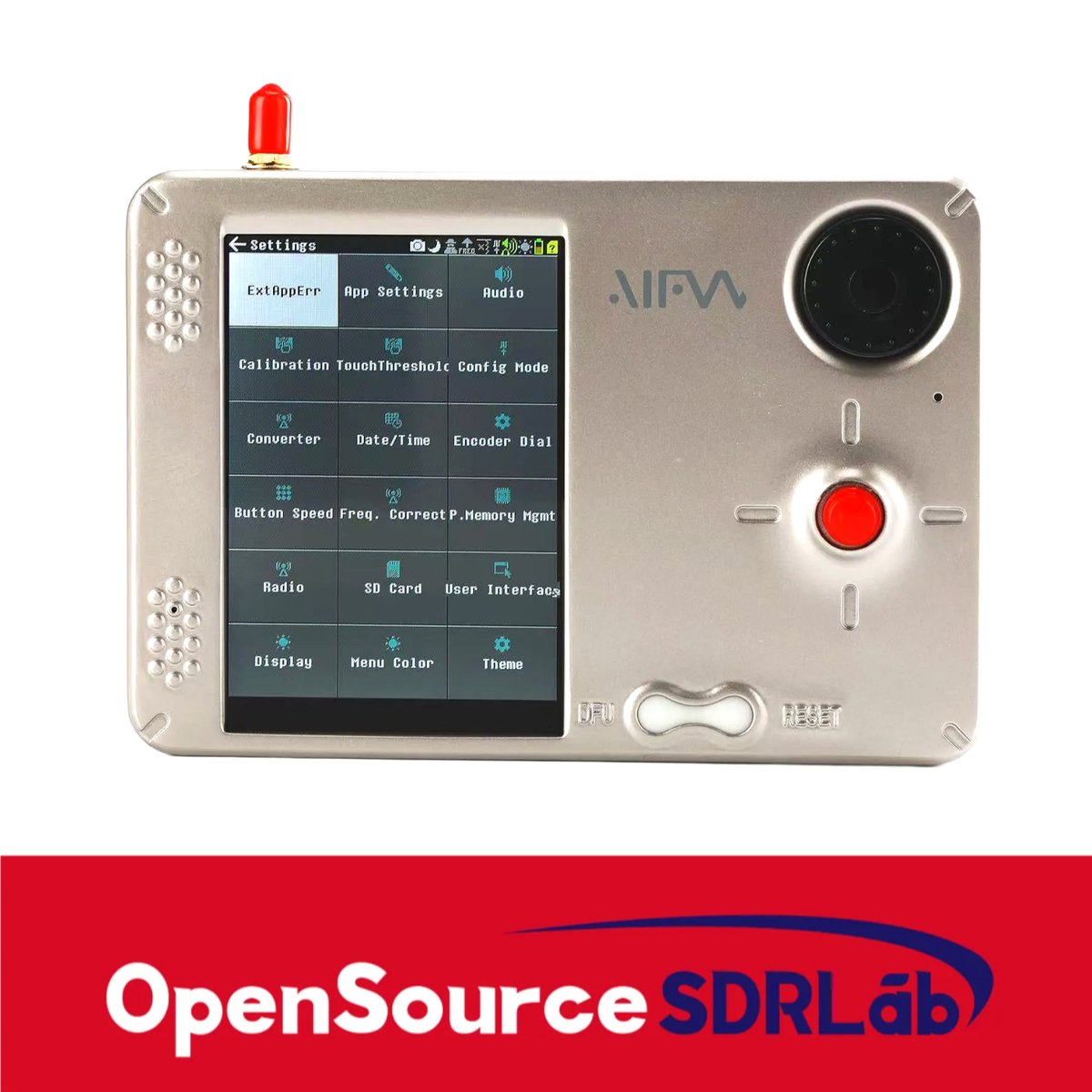
4.3.2 Encoder behavior
The rotary encoder is the primary input for adjusting continuous values:
- Frequency tuning: rotation = frequency change; usually with selectable digit increment (1 Hz, 100 Hz, 1 kHz, etc.)
- Gain adjustment: rotation = gain step (typically 8 dB increments per click)
- Sample rate: rotation = cycle through preset rates
- Volume (if audio jack present): rotation = volume up/down
- Press: secondary action — often “lock in selection” or “switch to next parameter”
Encoder feel matters in the field — a quality encoder with detents and press-action is the difference between fluid operation and constant misinputs. Verify on the actual PortaRF.
4.3.3 The optional QWERTY keyboard (H4M only)
If PortaRF ships with the H4M PortaPack: a small QWERTY keyboard adds typing capability:
Table 3 — If PortaRF ships with the H4M PortaPack: a small QWERTY keyboard adds typing capability
| QWERTY use | Benefit |
|---|---|
| Direct frequency entry | Type “433920000” instead of dialing with the encoder; saves many seconds |
| File naming | Type capture file names instead of cycling through alphabet with the encoder |
| Search / filter | Find an app or preset by typing its name |
| Settings input | Edit configuration values directly |
| Future: scripting / shortcuts | If Mayhem firmware adds command-line / scripting features |
The QWERTY is membrane-style (rubber-dome or similar), small (~30-40 mm wide), and limited in tactility. Not a productive typing experience for prose; functional for short inputs. If your workflow involves heavy text entry (capture descriptions, complex frequency lists), the QWERTY is a meaningful upgrade.
If PortaRF ships with H2+ (no QWERTY): frequency entry is via encoder-with-digit-cycling — slower but workable. Most operators adapt.
4.3.4 Ergonomic considerations
Handheld field use exposes UI ergonomics:
- Encoder accessibility: easy to reach with the index finger or thumb while holding the unit
- D-pad spacing: enough separation between directions to avoid misinputs while moving
- Button feedback: detents (encoder), tactile bumps (buttons), and confirmation beeps (if implemented) reduce input errors
- Glove operation: most PortaPack controls work with thin gloves; thick gloves are problematic
- One-handed operation: with a thumb on the encoder and an index finger on the D-pad, one-handed operation is possible for most tasks
Compare to porta’s stacked design: porta has the same controls in the same configuration; PortaRF integrates them into a more deliberate enclosure shape.
4.3.5 Common input gotchas
- Encoder bounce: encoders sometimes register adjacent positions during fast rotation; Mayhem debouncing usually handles, but a fast-spinning encoder can skip
- Sticky buttons: dust, debris, or moisture in the button mechanism can cause sticking; cleaning per the case design
- Accidental power-off: holding the power button too long shuts the unit down; some builds have a confirmation prompt
- Battery-out wake: when battery is at <5%, the unit may refuse to wake from sleep until charged
4.4 Mayhem menu navigation patterns
4.4.1 Home screen → app grid
When PortaRF boots, Mayhem displays an app grid — typically a 4×N grid of app icons categorized by function. Categories include:
- Receive: narrowband RX, wideband spectrum, capture-mode apps
- Transmit: replay, beacon, jam, generate-signal apps
- Decode: protocol decoders (ADS-B, AIS, POCSAG, etc.)
- Tools: file manager, settings, calibration
- Apps (or similar) for special-purpose features
D-pad navigates the grid; encoder may scroll if too many apps to fit; press select to launch.
4.4.2 In-app navigation
Once inside an app, the typical pattern:
   Main display: signal/spectrum/decoder output
            │
   D-pad: move between input fields
   Encoder: adjust the active field
   Encoder-press: toggle / confirm
   Back button: exit to app menu or home
   Menu button: open app's settings menu
Most apps have a primary action button that does the main thing (start recording, transmit, decode) and a secondary action button for stopping or pausing.
4.4.3 Frequency entry — the most common operation
Tuning to a specific frequency is the most frequent task. Patterns:
Encoder-only (H2+ class):
- Press encoder to cycle which digit is selected
- Rotate encoder to change that digit
- Press encoder again to lock in
- Repeat for each digit; multi-step
QWERTY (H4M class):
- Type the frequency directly
- Press enter to confirm
The H4M approach is ~5× faster for frequencies you need to type exactly.
4.4.4 Recording / capture workflows
Mayhem’s I/Q recorder typical flow:
   App: I/Q recorder
            │
   Select frequency + sample rate + gain
            │
   Press [Action] button → recording starts
            │
   Status bar shows recording indicator + elapsed time
            │
   Press [Stop] button → recording stops; file saved to SD
            │
   File appears in /captures/ folder named by date+time
Recording continues until stopped, SD fills, or battery dies. Long captures (>4 GB) auto-split into multiple files.
4.4.5 Settings + configuration
Mayhem’s settings menu (typically accessible from the home grid):
- Display: backlight brightness, sleep timeout, color theme (if available)
- Audio: volume, audio source (if audio jack present)
- RF: default gain values, frequency offset (PPM calibration)
- Date/time: clock setting (some Mayhem builds have an RTC)
- Region / regulatory: country setting; affects band filtering
- About: Mayhem version, HackRF version, serial number
For PortaRF: configure the region setting on first boot. This determines which bands Mayhem may filter for “restricted” warnings (cellular bands, etc.).
4.5 PortaPack revision identification
4.5.1 Which PortaPack does PortaRF use?
Pre-purchase verification: vendor product page should specify. If it doesn’t, ask. The two common possibilities:
H2+: cost-optimized PortaRF
- 240×320 TFT (ST7789)
- D-pad + encoder + buttons
- No QWERTY
- Mature, well-tested
H4M (or H4M Clifford Edition): premium PortaRF
- 240×320 TFT (ST7789P3)
- D-pad + encoder + buttons + QWERTY (sometimes)
- Possibly resistive touch overlay
- “Clifford Edition” adds Heath HackRF modifications to the PortaPack carrier (not the HackRF below)
4.5.2 How to tell post-purchase
If the vendor page is vague or the unit arrives without clear documentation, identification methods:
Table 4 — If the vendor page is vague or the unit arrives without clear documentation, identification methods
| Test | H2+ result | H4M result |
|---|---|---|
| Boot screen banner | ”PortaPack H2+" | "PortaPack H4M” |
| Mayhem “About” screen | Lists H2+ | Lists H4M |
| QWERTY presence | None | Yes (~30 keys) |
| Display controller (firmware reads) | ST7789 | ST7789P3 |
| Physical thickness | Standard | Slightly thicker (extra components) |
| Vendor SKU code | Distinct suffix | Distinct suffix |
The Mayhem boot screen is the easiest authoritative identifier.
4.5.3 Implications for firmware update path
Mayhem releases come in variant-specific .bin files:
portapack-h2p-mayhem.binfor H2+portapack-h4m-mayhem.binfor H4Mportapack-h4m-clifford-mayhem.binfor H4M Clifford Edition (if separate)
Using the wrong .bin can brick Mayhem — verify your unit’s variant before downloading. Cross-ref Vol 8 (flashing + updating).
4.5.4 Implications for porta firmware portability
The owned porta runs H2+ on a Heath HackRF. If PortaRF is also H2+: porta’s Mayhem custom builds (if any) port directly. If PortaRF is H4M: builds need to be re-targeted for H4M (different display controller, different keyboard handling).
For most use, mainline Mayhem releases work on both — only custom forks need explicit variant targeting.
4.6 Display brightness + power tradeoffs
4.6.1 Backlight power profile
The TFT backlight is the dominant non-RF power draw. Approximate current at various brightness levels:
Table 5 — The TFT backlight is the dominant non-RF power draw. Approximate current at various brightness levels
| Brightness | Backlight current | Total system current (display on, no RF) | Notes |
|---|---|---|---|
| 100% (max) | ~50 mA | ~100 mA | Indoor / dim environment |
| 75% | ~38 mA | ~88 mA | General field use |
| 50% (typical) | ~25 mA | ~75 mA | Default Mayhem setting |
| 25% (dim) | ~13 mA | ~63 mA | Outdoor / well-lit indoor |
| Off (sleep) | ~0.5 mA | ~30 mA | Display blanked |
The difference between max and dim is ~40 mA — significant over an 8-hour engagement.
4.6.2 Practical implications
For battery-only operation:
- General use: 50% brightness is the comfortable default; gives good visibility without aggressive battery drain
- Outdoor / sunlit: full brightness is necessary; budget for ~10% shorter runtime vs typical
- Indoor / dim: 25-35% brightness extends runtime ~5%
- Sleep mode: when idle for >2 minutes, Mayhem should auto-sleep (configurable timeout); ~95% power savings
4.6.3 Adaptive vs static brightness
Most PortaPack builds use static brightness — set once in Settings, stays at that level. Some advanced builds may have:
- Time-based: dim at night, bright by day (rare)
- Ambient-light-sensor-based: not standard on PortaPack
- Burst-mode: bright briefly on input activity, then dim
For PortaRF specifically: assume static brightness unless verified otherwise. Set it appropriately for the environment before deployment.
4.6.4 Sleep behavior
When PortaRF is idle:
- Display turns off after timeout (Mayhem default ~2 minutes)
- CPU goes to low-power state (LPC4320 may enter sleep mode)
- RF stays on if an app was running (recording continues, RX continues)
- Wake on button press — instant; full display restored
Sleep does NOT pause running operations — captures continue while the display is off. This is good for long unattended captures. The savings are modest (~70-80 mA at the display + CPU level) but additive over many hours.
4.6.5 Display longevity
TFT backlights are LED-based; typical lifetime ~30,000-50,000 hours at full brightness. At 8 hours/day usage, this is 10+ years — well beyond the battery’s useful life.
Backlight dimming extends backlight lifetime marginally. More practically: keeping the unit out of extreme heat (which accelerates LED degradation) matters more than brightness setting.
4.7 Field readability — sunlight, glare, viewing angles
4.7.1 TFT display in sunlight
Standard TFT displays (TN technology, which most PortaPack panels are) wash out in direct sunlight:
- At full brightness in direct overhead sun: marginally readable
- In angled bright sunlight: contrast significantly reduced; menus harder to read
- Under tree shade or in shadowed indoor: fine
- In direct sun + back-glare: nearly unreadable
Mitigations:
- Anti-reflective screen film (aftermarket, optional)
- Shade the display with your body when reading
- Cup the unit under the brim of a hat or hood for high-sun work
- Schedule field work for cloudy days or early morning when possible
4.7.2 Viewing angle limitations
TN panels have ~60° viewing angle before color shift becomes obvious. Practically:
- Looking straight at the screen: full color and brightness
- 30° off-axis: minor color shift; usable
- 60° off-axis: significant color shift; spectrum waterfall colors misleading
- >60°: nearly black or inverted
For field use: hold the unit at a comfortable viewing angle; don’t try to glance at it from oblique angles.
4.7.3 Color-based UI considerations
Mayhem uses color-coded UI elements (rainbow palette for spectrum, color codes for signal strength). If the display has limited viewing angle / sunlight visibility, these become harder to interpret:
- Strong signals (red on the palette): visible; harder to distinguish from background
- Weak signals (blue on the palette): hard to see; may miss in sunlight
- Warning indicators (red): visible enough to catch attention
- Status text: always readable; text-based info less affected than color-coded info
For critical field operations: rely on text-based confirmation over color-only indicators.
4.7.4 Night vision considerations
For low-light / nighttime field work:
- Display backlight at full brightness destroys dark adaptation — switch to night mode if available
- Some Mayhem builds have a “red night mode” that uses only red text — preserves dark adaptation, reduces visibility from a distance
- Dim the display to <25% for visibility without compromising nightvision
For covert work: shield the display from observers; consider how much light the unit emits at full brightness (can be seen from significant distance).
4.8 Common UI workflows on PortaRF
4.8.1 “Quick tune” — receive a known frequency
- Boot PortaRF (Mayhem loads, ~3 seconds)
- From app grid, navigate to “Receive” → “Narrowband” (or similar)
- Tune to known frequency:
- H2+: encoder cycles digits, rotates to set, encoder-press to next
- H4M: type frequency directly via QWERTY
- Set gain to ~24-32 dB (default starting point)
- Observe spectrum waterfall + listen (if audio jack present)
Time to “on a known frequency”: ~10-15 seconds with H2+, ~5 seconds with H4M.
4.8.2 “Sweep search” — find unknown signals in a band
- From app grid, “Receive” → “Wideband Sweep”
- Set start frequency (e.g., 433.0 MHz)
- Set stop frequency (e.g., 434.0 MHz)
- Set step size (e.g., 100 kHz)
- Start sweep
- Observe spectrum; identify peaks
- Narrow in on interesting peaks for detailed RX
Useful for site recon; identifies unknown emitters quickly.
4.8.3 “Capture for offline analysis” — record I/Q to SD
- From app grid, “Capture” → “I/Q Recorder”
- Set frequency + sample rate + gain
- Set filename (or use auto-generated)
- Start recording
- Stop when done; verify file saved
- Transfer SD to host PC for GNU Radio analysis
Captures are typically large (10 MS/s × 8-bit I + 8-bit Q × 60 sec = 1.2 GB); plan SD capacity accordingly.
4.8.4 “Replay attack” — transmit a captured signal
- Capture target signal first (workflow 8.3)
- From app grid, “Transmit” → “Replay”
- Browse to capture file on SD
- Confirm authorization for TX
- Press transmit button — signal goes out at original RF
- Verify reception (if appropriate) on a second receiver
Critical: confirm regional rules + authorization before TX. Vol 11.
4.8.5 “Sub-GHz beacon” — transmit a known signal
- From app grid, “Generate” → “Beacon” (or similar)
- Set frequency, modulation, payload
- Set duty cycle (1% for compliance with most ISM rules)
- Start beacon
- Verify reception on a separate receiver
- Stop when done
Useful for testing receiver coverage, validating engagement scenarios.
4.8.6 “Decode known protocol” — receive + decode ADS-B (example)
- From app grid, “Decode” → “ADS-B”
- Mayhem auto-tunes to 1090 MHz
- Set gain to ~20-28 dB
- Wait — incoming aircraft messages decoded automatically
- Display shows aircraft list with hex ID, altitude, position (if Mode S extended)
- Capture decoded data to SD for analysis
Built-in decoders make Mayhem powerful for known protocols. For unknown / novel protocols: capture I/Q and decode offline.
4.8.7 Workflow speed comparison: PortaRF vs porta
For most workflows above, PortaRF and porta are equivalent in operator time — same Mayhem firmware, same controls. The differences:
- Boot time: PortaRF may be marginally faster (sealed enclosure means no PortaPack auto-detection step)
- Frequency entry: H4M PortaRF with QWERTY is ~5× faster than H2+ for typed frequencies
- Stable platform: PortaRF’s single-box ergonomics reduce hand fatigue over long sessions
- No cable management: nothing to disconnect/reconnect; faster engagement starts
The speed advantage of PortaRF (if H4M with QWERTY) is real but moderate. Not the load-bearing reason to buy.
4.9 Resources
HackRF + Mayhem UI (cross-ref)
- HackRF One Vol 4 (Mayhem UI walkthrough canonical reference):
../../../HackRF One/03-outputs/HackRF_One_Complete.html - HackRF One Vol 5 (Mayhem app catalog): same path
Mayhem firmware
- Mayhem repo: https://github.com/portapack-mayhem/mayhem-firmware
- Mayhem wiki — UI navigation: https://github.com/portapack-mayhem/mayhem-firmware/wiki
- Mayhem screenshots gallery: same wiki
PortaPack revisions
- PortaPack revision history (Sharkrf legacy): https://www.sharebrained.com/portapack/
- Mayhem wiki revision compatibility matrix: https://github.com/portapack-mayhem/mayhem-firmware/wiki
Display controllers
- ST7789 datasheet (Sitronix)
- ST7789P3 datasheet (Sitronix; minor command differences)
- ILI9341 datasheet (legacy PortaPack H1 / H1+)
Field-deployment ergonomics
- Handheld electronics ergonomic studies (general HCI literature)
- Anti-reflective screen films for outdoor electronics use
Sibling references
- porta inventory (the comparison reference):
../../../HackRF One/00-inventory/porta.md - Hack Tools comparison:
../../../_shared/comparison.md
End of Vol 4. Next: Vol 5 covers the battery + thermal + power profile — the dimension that most-clearly differentiates PortaRF (handheld with integrated battery) from porta (stacked + USB-powered).
Comments (0)