Parrot OS · Volume 10
Parrot OS Volume 10 — Other Essential Tools and Lab VMs
Editors, browsers, password managers, VPNs, KVM, Docker, the intentionally-vulnerable lab VMs to practice against
10.1 Editors — VS Code / VSCodium, neovim
10.1.1 VS Code or VSCodium
Visual Studio Code is Microsoft’s free code editor. It’s the de facto “code editor for everyone in 2026.” VSCodium is the same source compiled without Microsoft’s telemetry binaries and proprietary extensions.
Table 1 — 1.1 VS Code or VSCodium
| VS Code | VSCodium | |
|---|---|---|
| Source | MIT (vscode) + Microsoft’s MIT-incompat binary | MIT only |
| Telemetry | On by default, disable in settings | None |
| Marketplace | Microsoft Marketplace (richer; some extensions are Microsoft-only) | Open VSX Registry (smaller but growing) |
| Live Share, Pylance, C/C++ extension | Available | Restricted (Microsoft EULA forbids on non-Microsoft builds) |
Install VS Code:
sudo apt install code # may already be in Parrot's repoOr VSCodium:
# Add repo (one-time)
wget -qO - https://gitlab.com/paulcarroty/vscodium-deb-rpm-repo/raw/master/pub.gpg | gpg --dearmor | sudo dd of=/usr/share/keyrings/vscodium-archive-keyring.gpg
echo "deb [signed-by=/usr/share/keyrings/vscodium-archive-keyring.gpg] https://download.vscodium.com/debs vscodium main" | sudo tee /etc/apt/sources.list.d/vscodium.list

sudo apt update
sudo apt install codium
Recommended extensions (work on both):
- GitLens — supercharged git annotation
- Python (ms-python on VSCode, open-source equivalent on VSCodium)
- Ruff — fast Python linter
- Markdown All in One — preview, TOC, keybindings
- Better TOML, YAML, JSON Tools
- Hex Editor (vscode-hexeditor)
- REST Client — make HTTP requests from .http files (Postman alternative)
- Remote SSH — edit files on remote hosts as if local
- Docker — container management
10.1.2 neovim
For terminal-native editing:
sudo apt install neovimOptional: a “distribution” (preconfigured config) like LazyVim, NvChad, or AstroNvim. LazyVim is the most maintained in 2026:
# Back up existing config first
mv ~/.config/nvim ~/.config/nvim.bak 2>/dev/null

git clone https://github.com/LazyVim/starter ~/.config/nvim
nvim
# First launch installs plugins; takes 30-60 seconds.
LazyVim gives nvim VS-Code-like ergonomics — file tree, LSP integration, fuzzy file find, integrated git.
10.1.3 vim
Vim ships by default. For quick edits over SSH, vim is universal — no install needed. Learn the basic motions (hjkl, i, a, Esc, :w, :q, /search, dd, yy, p) — they survive every environment.
10.2 Browsers — Firefox hardened, Brave, Tor
10.2.1 Firefox (default + hardened)
Firefox is pre-installed. For privacy / hardening, two approaches:
Hardened user.js (arkenfox): https://github.com/arkenfox/user.js. Drop the user.js into your Firefox profile to apply ~500 carefully-curated about:config tweaks (disable telemetry, prefer HTTPS, restrict WebRTC, isolate cookies, disable Pocket).
# Find Firefox profile dir
ls ~/.mozilla/firefox/
# Look for the *.default-* dir

cd ~/.mozilla/firefox/abc12345.default-esr/
wget https://raw.githubusercontent.com/arkenfox/user.js/master/user.js
# Restart Firefox.LibreWolf: a Firefox fork with hardening preconfigured. AppImage from https://librewolf.net/installation/. No tweaking needed; ready out of the box.
10.2.2 Brave
Chromium-based, ad-blocking by default, built-in Tor mode (per-window Private Browsing with Tor).
# Add Brave's repo + install
sudo apt install curl
sudo curl -fsSLo /usr/share/keyrings/brave-browser-archive-keyring.gpg https://brave-browser-apt-release.s3.brave.com/brave-browser-archive-keyring.gpg
echo "deb [signed-by=/usr/share/keyrings/brave-browser-archive-keyring.gpg arch=amd64] https://brave-browser-apt-release.s3.brave.com/ stable main" | sudo tee /etc/apt/sources.list.d/brave-browser-release.list

sudo apt update
sudo apt install brave-browser
Useful as a second browser — keep Firefox for personal browsing, Brave for engagement-specific (with profile-per-engagement isolation).
10.2.3 Tor Browser
For clear-browser Tor (without system-wide AnonSurf):
# Download the Tor Browser bundle
wget https://www.torproject.org/dist/torbrowser/<latest>/tor-browser-linux64-<version>.tar.xz
tar xJf tor-browser-linux64-*.tar.xz -C ~/Applications/
~/Applications/tor-browser/start-tor-browser.desktop --register-app   # adds to MATE menu
10.3 Burp Suite Community + OWASP ZAP
10.3.1 Burp Suite Community
The industry-standard web app pentest proxy. Free Community Edition is sufficient for learning + many engagements; Pro adds active scanning + extensions worth $400/year for professional use.
Install (Parrot’s parrot-tools-web includes it):
sudo apt install burpsuite
burpsuite &
Or AppImage from https://portswigger.net/burp/communitydownload.
Workflow basics:
- Launch Burp → Temporary Project → Use Burp Defaults.
- Open Firefox → install FoxyProxy extension → add proxy entry “Burp” pointing at
127.0.0.1:8080. Switch to “Burp” when proxying. - Burp’s “CA Certificate” must be trusted by Firefox to intercept TLS. Burp → Proxy → Options → Import / Export CA Certificate → DER → save as
burp.cer. Firefox → about:preferences → Privacy → Certificates → Authorities → Import → check “Trust to identify websites.” Now TLS interception works. - Browse target site through Firefox-with-FoxyProxy-Burp. Burp’s Proxy → HTTP History shows all requests. Send to Repeater, Intruder, Decoder, Comparer for analysis.
10.3.2 OWASP ZAP
Open-source alternative to Burp. Includes active vulnerability scanning in free tier.
sudo apt install zaproxy
zaproxy &
Similar workflow — set up browser proxy at 127.0.0.1:8080, trust ZAP’s CA cert, browse, analyze.
Use Burp for interactive testing, ZAP for automated scanning. Both can run in parallel proxying through each other.
10.3.3 mitmproxy
CLI-first HTTP proxy. Excellent for scripted manipulation:
sudo apt install mitmproxy
mitmproxy --listen-port 8081
# or interactive curses UI:
mitmproxy
# or web UI:
mitmweb
Inline Python scripts (--script) modify requests/responses programmatically.
10.4 Password managers — KeePassXC + Bitwarden
10.4.1 KeePassXC
Local-file password vault. The .kdbx file lives on disk; passwords never leave your machine. Encrypted with AES-256 + KDF (Argon2id).
sudo apt install keepassxc
keepassxc &
Recommended setup:
- Create a new database under
~/Documents/vaults/personal.kdbx. - Master password: 6-7 word Diceware (separate from LUKS passphrase).
- Optional second factor: key file (
personal.keystored on a USB stick — vault won’t open without both). - Browser integration: KeePassXC has a Firefox / Brave / Chrome extension (KeePassXC-Browser) that auto-fills.
Per-engagement vault: keep a separate .kdbx per engagement (as documented in Vol 7 § 8). Cleaner blast-radius if a vault is exposed.
10.4.2 Bitwarden
Cloud-synced, mobile-friendly. Free for personal use. Self-host option (Vaultwarden — community-maintained Rust server, much lighter than the official Bitwarden server).
# Desktop client
sudo apt install bitwarden
# or AppImage from bitwarden.com

# CLI (useful for scripting / shell autofill)
sudo apt install bitwarden-cli
# or:
pipx install bitwarden-cli
Use cases:
- Personal: KeePassXC primary, Bitwarden as a backup or for mobile-sync convenience.
- Engagement creds: KeePassXC (per-engagement .kdbx files, not on Bitwarden cloud).
10.5 VPN — OpenVPN + WireGuard + Tor
10.5.1 OpenVPN
The mature VPN protocol. Used by most commercial VPN providers and the HTB / TryHackMe / VulnLab lab connections.
sudo apt install openvpn
# Run a config:
sudo openvpn --config htb-academy.ovpn
# Background:
sudo openvpn --config htb-academy.ovpn --daemon --log /var/log/openvpn-htb.log
For NetworkManager integration (toggle from MATE applet):
sudo apt install network-manager-openvpn-gnome
# Then: NetworkManager → VPN Connections → Add → Import from file → htb-academy.ovpn
10.5.2 WireGuard
Modern VPN protocol — simpler, faster, smaller code base than OpenVPN. Native Linux kernel module (no userspace daemon).
sudo apt install wireguard wireguard-tools

# Bring up an interface from a config file
sudo wg-quick up wg0     # reads /etc/wireguard/wg0.conf
sudo wg-quick down wg0

# Show status
sudo wg show
/etc/wireguard/wg0.conf example:
[Interface]
Address = 10.66.66.2/32
PrivateKey = <your private key>
DNS = 1.1.1.1

[Peer]
PublicKey = <server public key>
Endpoint = vpn.example.com:51820
AllowedIPs = 0.0.0.0/0
PersistentKeepalive = 25
Many commercial VPN providers (Mullvad, ProtonVPN, IVPN) offer WireGuard configs. For “always-on-when-on-untrusted-Wi-Fi,” WireGuard’s faster handshake makes it the right pick.
10.5.3 Tor (without AnonSurf)
For clear-browser-only Tor use, install Tor Browser (Vol 10 § 2.3). For system-wide Tor use, AnonSurf (Vol 5 § 4). For specific apps through Tor:
sudo apt install tor torsocks

# Run any TCP-only app through Tor
torsocks curl https://check.torproject.org/api/ip
torsocks ssh user@host
10.6 KVM + libvirt + virt-manager — local hypervisor
KVM is the Linux kernel’s hypervisor. Combined with libvirt + the virt-manager GUI, it gives a VirtualBox / VMware Workstation-equivalent experience with better Linux integration and zero proprietary dependencies.
10.6.1 Install
sudo apt install qemu-system-x86 qemu-utils \
                 libvirt-daemon-system libvirt-clients \
                 bridge-utils virt-manager virtinst \
                 ovmf swtpm

sudo systemctl enable --now libvirtd
sudo usermod -aG libvirt,kvm $USER
# Log out + back in
Verify KVM available (VT-x must be enabled per Vol 2 § 4):
kvm-ok           # apt install cpu-checker if missing
# Expected: INFO: /dev/kvm exists; KVM acceleration can be used
10.6.2 virt-manager — GUI
virt-manager (MATE menu → System Tools → Virtual Machine Manager). The GUI lets you create / start / stop / clone / snapshot VMs.
Create a VM:
- New → Local install media → browse to ISO.
- RAM: 4-8 GB (for daily-driver VMs); 2 GB minimum for Kali (Xfce) or small Linux.
- Disk: qcow2 image, default 20-40 GB.
- Network: NAT (default — internet access via host’s interface) or Bridged (VM gets its own IP on the LAN).
- Customize before install → Overview → Firmware → UEFI (use ovmf, not legacy BIOS, for modern guests).
- Boot Options → enable boot from CD-ROM first.
- Begin Installation. Install the guest as usual.
10.6.3 USB passthrough — connecting hardware tools to VMs
This is the killer feature for hardware-heavy pentest setups. To use, say, a HackRF One inside a Kali VM:
- With the VM running: virt-manager → VM window → View → Details.
- Add Hardware → USB Host Device → select “Great Scott Gadgets HackRF One.”
- Click Finish. The HackRF disappears from the host’s
lsusband appears inside the guest’s.
Works for any USB device. Some quirks:
- USB 3 SuperSpeed may need the guest’s USB controller to be “USB 3 xHCI” (not the default USB 2 EHCI). Edit the guest’s hardware → USB controller.
- Multiple devices can be passed simultaneously.
- Hot-unplug the device from the host before passing to the guest if the host has a driver bound.
10.6.4 SPICE display + clipboard sharing
QEMU’s SPICE protocol gives the VM a high-quality display + shared clipboard + folder sharing. Install in the guest: spice-vdagent (Debian-family) or equivalent.
10.6.5 Snapshots
virt-manager → VM → Snapshots tab → New. Snapshot before any destructive testing. Restore in one click.
10.6.6 Common patterns
- Windows 10/11 VM: for testing Windows-specific tools or for the “Windows victim” side of a lab. 4-8 GB RAM, 60 GB disk.
- Second Kali VM: as a target to practice against your own attacks. 2 GB RAM, 20 GB disk.
- OWASP Juice Shop / DVWA target: 1-2 GB RAM, 10 GB disk.
10.7 Docker + Compose
Docker is the right tool for ephemeral / disposable services. Many pentest “labs” and tools ship as Docker images.
sudo apt install docker.io docker-compose
sudo systemctl enable --now docker
sudo usermod -aG docker $USER
# Log out + back in

docker --version
docker run hello-world
10.7.1 Common pentest containers
# OWASP Juice Shop (vulnerable web app to practice on)
docker run --rm -p 3000:3000 bkimminich/juice-shop
# Browse to http://localhost:3000

# DVWA (Damn Vulnerable Web App)
docker run --rm -p 80:80 vulnerables/web-dvwa

# WebGoat (OWASP, JVM-based vulnerable training)
docker run --rm -p 8080:8080 webgoat/goatandwolf

# bWAPP (multi-vuln training app)
docker run --rm -p 80:80 raesene/bwapp
10.7.2 docker-compose for multi-container labs
# docker-compose.yml — example labs stack
version: '3'
services:
  juiceshop:
    image: bkimminich/juice-shop
    ports: ["3000:3000"]
  dvwa:
    image: vulnerables/web-dvwa
    ports: ["8080:80"]
  webgoat:
    image: webgoat/goatandwolf
    ports: ["9080:8080", "9090:9090"]
docker-compose up -d # start all
docker-compose down # stop and remove10.7.3 Don’t run sketchy images as root
If using Docker as sudo docker run (without the docker group), containers run with root capabilities mapped to host root. With the user-in-docker-group setup above, daemon still runs as root but docker run doesn’t require sudo. Default container UID is 0 inside the container, mapped via user namespaces (or directly to host UID 0 in older configurations).
Treat docker-group membership as equivalent to root. Anyone in the docker group can mount the host filesystem read-write inside a container and own the box. Don’t grant it loosely.
10.8 Vagrant for reproducible lab environments
Vagrant manages VM lifecycle declaratively. Good for setting up lab topologies that should be reproducible.
sudo apt install vagrant
vagrant --version

# Use the libvirt provider (KVM-backed) instead of default VirtualBox
sudo apt install vagrant-libvirt
A Vagrantfile describes a VM:
Vagrant.configure("2") do |config|
  config.vm.box = "debian/bookworm64"
  config.vm.network "private_network", ip: "192.168.56.10"
  config.vm.provider :libvirt do |v|
    v.memory = 2048
    v.cpus = 2
  end
end
vagrant up # provision + start
vagrant ssh # SSH into VM
vagrant halt # stop
vagrant destroy # remove VMFor multi-host labs (Active Directory simulations, multi-tier web app), Vagrant + provisioning scripts is the productive path.
10.9 Lab VMs — HTB, TryHackMe, OWASP Juice Shop, DVWA, Metasploitable, VulnHub
Practice environments. Use these to develop skill and to verify tools without risking real systems.
10.9.1 Hack The Box (HTB) — paid lab platform
https://www.hackthebox.com/. Free + paid (VIP $14/mo). Provides VPN-connected machines spun up on-demand for offensive practice. The OffSec equivalent for CTF-style learning.
Connection workflow:
- Subscribe / register at hackthebox.com.
- Download OpenVPN config from your profile.
sudo openvpn --config htb.ovpn— your laptop joins the HTB lab network.- Browse the lab’s machine list, spawn a target, get its IP, attack it.
HTB’s web-based Pwnbox (Parrot in the browser) is a paid feature — but a local Parrot install does the same job with full hardware control.
10.9.2 TryHackMe — paid + free tiers
https://tryhackme.com/. More tutorial / guided than HTB; great for newcomers. Free tier limited; subscription ~$10/mo for full access.
OpenVPN-based, same workflow.
10.9.3 VulnHub — free downloadable VMs
https://www.vulnhub.com/. Free, downloadable VM images (mostly VirtualBox .ova or VMware .vmdk). Convert with qemu-img convert for KVM:
qemu-img convert -O qcow2 source.vmdk target.qcow2Then import into virt-manager.
Notable VulnHub series:
- Kioptrix (boot2root classics)
- Holynix
- DC-1 through DC-9
10.9.4 Metasploitable
The intentionally-vulnerable Linux VM specifically designed for Metasploit Framework practice. Two versions:
- Metasploitable 2 (2012) — old but well-documented. Ubuntu 8.04 base; ~30 services, all vulnerable.
- Metasploitable 3 (2017) — newer; Windows + Linux variants. Built with Vagrant.
Download Metasploitable 2 from SourceForge, import as KVM VM.
10.9.5 Vulnerable web apps (locally hosted)
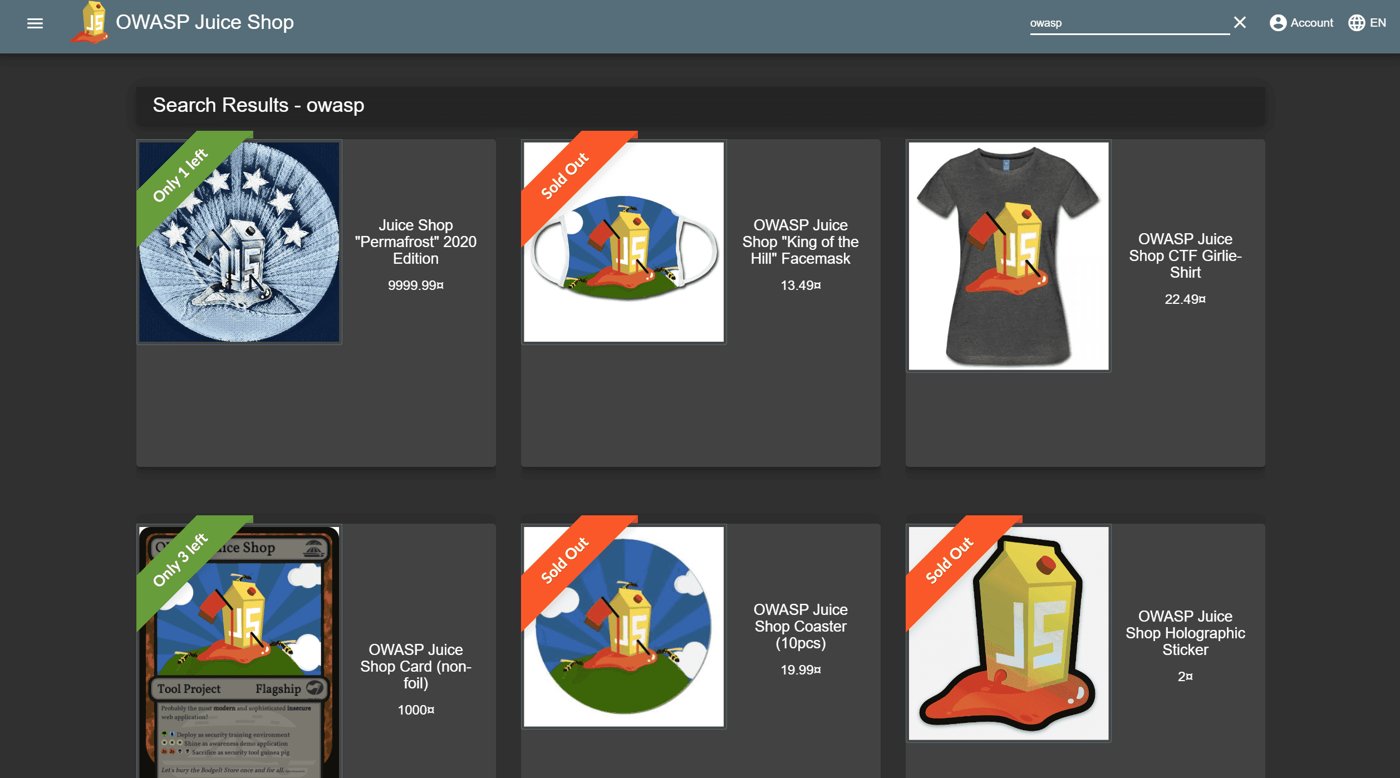
- OWASP Juice Shop — JavaScript / Node.js modern web app, dozens of vulns including modern (JWT, SSRF, race conditions).
- DVWA — PHP / MySQL classic; ten vulnerability categories at three difficulty levels.
- WebGoat — Java / Spring; extensive OWASP-aligned curriculum.
- bWAPP — PHP; ~100 vulnerabilities across the OWASP Top 10 + extras.
- Mutillidae II — PHP; OWASP-aligned, more browsable than WebGoat.
- HackTheBox Sherlocks / Academy — defensive / blue-team scenarios; subscription.
All available as Docker images (§ 7.1) for instant setup/teardown.
10.9.6 Active Directory practice — GOAD (Game Of Active Directory)
https://github.com/Orange-Cyberdefense/GOAD. A pre-built vulnerable Active Directory environment (3 domain controllers, several Windows hosts, a SQL Server). Provisioned via Vagrant + Ansible. Heavy: ~40 GB disk, 16+ GB RAM. The standard environment for Active Directory pentest practice.
10.10 Remote compute — when the i5-8250U isn’t enough
The T480’s i5-8250U is good for editing, browsing, scanning, light SDR, light analysis. It is not good for:
- Password cracking at scale (no GPU; hashcat on CPU is 100x slower than on a $200 GPU).
- Heavy GNU Radio flowgraphs (the i5 will manage but real-time at high sample rates is tough).
- Compiling large codebases (15 W TDP CPU; expect long compile times).
- Heavy ML model inference.
Solutions:
- Rent GPU time: vast.ai, paperspace, AWS p3 instances. $0.50-$2/hour for a serviceable GPU. SSH in, run hashcat, scp results back. Far cheaper than buying a dedicated cracking rig for occasional use.
- Build a home cracker: an RTX 4060 / 4070 + cheap board + i3 CPU + 16 GB RAM = ~$700. SSH-only, headless, in the basement. Wakes via WoL.
- HackRF heavy DSP: offload to a Raspberry Pi 5 / Pi 4 + HackRF stack as a remote receiver; Parrot drives the analysis side.
- Compiles: cloud build runner (GitHub Actions, sourcehut builds) for anything > 5 minutes.
10.11 File sync / backup — Syncthing, restic, rclone
10.11.1 Syncthing
P2P file sync between your own devices (laptop ↔ desktop ↔ phone). Encrypted in transit, no cloud servers. Continuous.
sudo apt install syncthing
# Or:
sudo systemctl enable --now syncthing@$USER.service
# Web UI at http://127.0.0.1:8384
Use case: keep ~/Documents/notes/ (Obsidian vault) synced between your laptop and a backup host.
10.11.2 restic
Modern, encrypted, deduplicated backup. Repository can be local, on a remote SSH server, on S3, on Backblaze B2.
sudo apt install restic
# Or:
sudo apt install restic-rest-server   # if hosting a restic server

# Initialize a repo
restic -r /mnt/backup/restic init

# Back up
restic -r /mnt/backup/restic backup ~/Documents ~/engagements ~/.config

# Restore
restic -r /mnt/backup/restic restore latest --target /tmp/restore
Run via cron or systemd timer for scheduled backups.
10.11.3 rclone
Multi-cloud sync (S3, Dropbox, OneDrive, Google Drive, Backblaze B2, Mega, dozens). Encrypted-at-rest option (rclone crypt overlay).
sudo apt install rclone
rclone config            # interactive setup of a remote
rclone sync ~/Documents/ remote:backup/documents/
Useful for off-site backups complementing on-site restic.
10.12 Mail, IM, video — Thunderbird, Element, Signal, Zoom
10.12.1 Mail
Thunderbird is pre-installed in Parrot. Add accounts (IMAP + SMTP). Enable encryption: Thunderbird → Account Settings → End-to-End Encryption → set up OpenPGP key.
10.12.2 IM
- Signal Desktop —
sudo apt install signal-desktop(Signal’s official repo) or AppImage. - Element (Matrix client) —
sudo apt install element-desktopor AppImage. - Telegram Desktop —
sudo apt install telegram-desktopor AppImage.
10.12.3 Video conferencing
- Zoom — Linux client at https://zoom.us/download?os=linux. Debian package.
- Jitsi Meet — browser-based; no install needed.
- Microsoft Teams — browser-based; the Linux native client was discontinued in 2022.
For pentest engagements, Zoom and Teams may be required (the client demands it). Otherwise Element / Signal are the privacy-preferred picks.
10.13 Cheatsheet additions
- VS Code install:
sudo apt install code(or VSCodium via codium repo). - Hardened Firefox: arkenfox user.js dropped into Firefox profile dir.
- Brave install: brave-browser via apt (Brave’s signed repo).
- Tor Browser: download from torproject.org, extract to
~/Applications/. - Burp launch:
burpsuite &. Browser proxy: 127.0.0.1:8080. Trust Burp CA. - KeePassXC:
keepassxc &. Per-engagement .kdbx files. - WireGuard up:
sudo wg-quick up wg0(reads/etc/wireguard/wg0.conf). - OpenVPN start:
sudo openvpn --config <file>.ovpn. - KVM install:
sudo apt install qemu-system-x86 libvirt-daemon-system virt-manager+ add user to libvirt+kvm groups + relogin. - Verify KVM:
kvm-ok(afterapt install cpu-checker). - virt-manager USB passthrough: VM Details → Add Hardware → USB Host Device.
- Docker install:
sudo apt install docker.io docker-compose+usermod -aG docker $USER+ relogin. - Quick vulnerable web targets:
docker run --rm -p 3000:3000 bkimminich/juice-shop,docker run --rm -p 80:80 vulnerables/web-dvwa. - Vagrant + libvirt:
sudo apt install vagrant vagrant-libvirt. - HTB connection:
sudo openvpn --config htb.ovpn. - VulnHub VMDK → KVM:
qemu-img convert -O qcow2 src.vmdk dst.qcow2. - GOAD: https://github.com/Orange-Cyberdefense/GOAD; needs ~40 GB + 16 GB RAM.
- restic backup:
restic -r /mnt/backup/restic backup ~/Documents. - rclone sync to cloud:
rclone sync ~/Documents/ remote:backup/.
Comments (0)